Need help?
Do you have a question about the Huawei E5573s-320 and is the answer not in the manual?
Explains how Wi-Fi devices connect to the internet via the Mobile WiFi.
Details the battery indicator, power button, Micro USB port, and signal indicator.
Covers default SSID/key, connecting Android via barcode, and installing SIM/battery.
Explains how to charge the device using an AC adapter or USB connection.
Guides for turning on the device and establishing a Wi-Fi connection.
Covers auto-connection, web login, PIN verification, and app usage.
How to use the app for Wi-Fi name/password changes, account settings, and messages.
Explains battery saving mode and how to restore the device to factory settings.
Steps for connecting tablet devices like iPads to the Mobile WiFi.
Provides tips on device overheating, usage, and support contacts.
This document provides a quick start guide for the Mobile WiFi device, designed to help users understand its functions and begin using it for high-speed wireless network connections.
The Mobile WiFi serves as a portable wireless network access point, enabling various Wi-Fi-enabled devices such as smartphones, tablet computers, and game consoles, as well as computers, to connect to the Internet. The device supports multiple application scenarios, including connecting multiple devices via Wi-Fi, connecting a single device via USB, and simultaneously connecting multiple devices through both Wi-Fi and USB. This flexibility allows users to choose the most convenient connection method based on their needs and the capabilities of their connected devices.
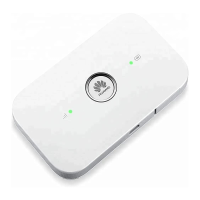
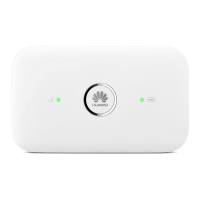
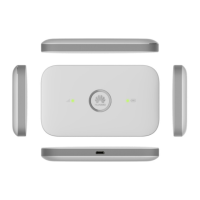
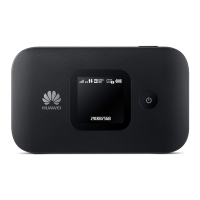
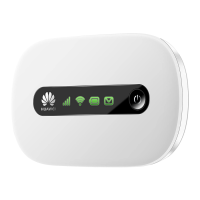
The device features several indicators and ports for user interaction and status monitoring. A battery indicator shows the battery status: green for sufficient battery, blinking green when charging, and red for low battery. A power button is used to turn the device on and off. A micro USB port is available for charging and connecting to a computer. A signal indicator displays the network signal strength: green for strong signal, orange for weak signal, and red for no signal. These visual cues help users quickly assess the device's operational status.
To get started, users need to install the SIM card and battery as illustrated in the guide. Charging the battery is crucial, especially if the device has been unused for a long time or if the battery is fully depleted. The device may not power on immediately in such cases and requires a period of charging first. There are two methods for charging: using a compatible charger provided by a designated manufacturer (an optional accessory that can be purchased from an authorized dealer) or connecting the device to a computer using the provided data cable. It is important to use only compatible chargers to avoid malfunction, failure, or fire, as using incompatible chargers voids all warranties.
Connecting to the Internet via Wi-Fi involves a few simple steps. First, the Mobile WiFi needs to be turned on by pressing and holding the power button until the indicator lights up. To establish a Wi-Fi connection, for example, using a computer running Windows 7, users must ensure the computer's Wi-Fi function is enabled. They then navigate to the network settings, select the Mobile WiFi's SSID from the list of available wireless networks, and click "Connect." If the network is encrypted, the correct wireless network encryption key (found on the Mobile WiFi's label) must be entered. Once connected, the Mobile WiFi will automatically connect to the Internet if data is being transmitted. If there's no data transmission for a period, the device may automatically disconnect, a feature that can be managed through the web management page.
The device also offers a web management page for detailed configurations and functions. To log in, users must ensure a stable connection between the Mobile WiFi and their Wi-Fi device or computer. They then open a browser and enter the default IP address (http://192.168.1.1) in the address bar. The default username and password for logging in are both "admin."
PIN verification might be enabled, preventing Internet access even if network parameters are correctly configured. In such cases, users need to log in to the web management page and enter the PIN when prompted. This verification can be disabled from the web management page to avoid re-entering the PIN every time the device powers on. The PIN/PUK details are provided with the SIM card, and users can contact their service provider for more information.
For enhanced management, the HUAWEI Mobile WiFi App is available. Users can download it from the App Store (for iPhone/iPad) or Google Play/HUAWEI App Center (for Android devices) by searching for "HUAWEI Mobile WiFi" or scanning the provided 2D Barcodes. After installing the app and connecting their phone or pad to the Mobile WiFi via Wi-Fi, users can open the app to manage their device. The app provides an overview of the device status, including 4G signal strength, total cumulative data usage, battery life monitoring, and access to SMS functions.
Through the app, users can access various settings. For instance, they can modify the Wi-Fi name (SSID) and password by navigating to Settings > My Wi-Fi. After making changes, they must save them and reconnect to the Wi-Fi network. Login account settings can also be adjusted by going to Settings > Account, where users can modify the login password. The app also allows users to view messages by selecting the SMS option and compose new messages by touching the "New" button, then entering the phone number and content before sending.
The Mobile WiFi incorporates a battery saving mode. If inactive for a period, it enters standby mode, turning off all indicators. Pressing the power button will reactivate the indicators. When running on battery power, users can enable or disable an automatic Wi-Fi off function. If enabled, Wi-Fi will turn off automatically after a period of no connected Wi-Fi devices, and can be reactivated by pressing the power button.
In case users forget their username, password, or SSID, the device can be restored to its factory settings by pressing and holding the RESET button until the Mobile WiFi restarts.
Connecting to a tablet computer, such as an iPad, is similar to connecting a computer. Users go to Settings > Wi-Fi on their tablet, turn on Wi-Fi, and the tablet will automatically search for available networks. They then select the Mobile WiFi's SSID, enter the network encryption key if required, and tap "Join." This process is generally applicable to other Wi-Fi devices like iPhones, iPod touches, PS3s, and NDSi.
Users are advised that the Mobile WiFi may become warm or overheat during extended use. In such instances, the device will automatically close the network connection and power off to prevent damage. If this occurs, placing the device in a well-ventilated space to dissipate heat before turning it back on is recommended. If normal operation issues persist, users can consult the online help on the web management page, restart the device, restore it to factory settings, or contact their operator for assistance. LTE is noted as a trademark of ETSI.
 General
| Model | E5573s-320 |
|---|---|
| Category | Wireless Router |
| Wi-Fi Standard | 802.11b/g/n |
| Maximum Wi-Fi Speed | 150 Mbps |
| Battery Capacity | 1500 mAh |
| Maximum Connected Devices | 10 |
| LTE Download Speed | 150 Mbps |
| LTE Upload Speed | 50 Mbps |
| 3G Download Speed | 43.2 Mbps |
| Wi-Fi Frequency | 2.4 GHz |
| Removable Battery | Yes |
| External Antenna Connector | No |
| Network Technology | LTE |
| Dimensions | 96.8 mm x 58.0 mm x 12.8 mm |
| SIM Card Size | Micro-SIM |
| Battery Life | 6 hours |

 To Next Page