EasyManua.ls Logo

Huawei E5220 - User Manual

Huawei E5220
5 pages
Print Icon
To Next Page IconTo Next Page
Loading...
1
Huawei E5220 Mobile Hotspot
User Guide
Contents
Getting to Know Your Mobile WiFi....................................................................................................................................................................2
Application Scenarios .......................................................................................................................................................................................... 2
Appearance..............................................................................................................................................................................................................2
Indicator.................................................................................................................................................................................................................... 2
SSID and Wireless Network Encryption Key................................................................................................................................................ 2
Installing a SIM Card and the Battery............................................................................................................................................................ 3
Charging the Battery............................................................................................................................................................................................ 3
Method 1: Use the power adapter to charge the device ........................................................................................................... 3
Method 2: Charge the device through a computer connection.............................................................................................. 3
Battery Saving Mode ........................................................................................................................................................................................... 4
Verifying the PIN.................................................................................................................................................................................................... 4
Restoring to Factory Settings............................................................................................................................................................................4
Question and Answer IconNeed help?

Do you have a question about the Huawei E5220 and is the answer not in the manual?

Summary

Getting to Know Your Mobile WiFi

Indicator Status

Explains the meaning of different LED indicator lights and their states.

SSID and Wireless Encryption Key

Explains default network name (SSID) and password, recommending changes.

Getting Started

Install SIM Card and Battery

Provides instructions and cautions for inserting the SIM card and battery correctly.

Charge Battery

Details two methods for charging the device: using a power adapter or computer.

Connecting to the Internet via Wi-Fi

Logging In to the Web Management Page

Daily Use

Restoring to Factory Settings

Procedure to reset the device to its original factory settings.

Tips

Overview

The Huawei E5220 Mobile Hotspot is a portable device designed to provide high-speed wireless network connectivity, allowing multiple Wi-Fi enabled devices to access the Internet simultaneously. This user guide outlines the device's functions, usage scenarios, and maintenance procedures to ensure optimal performance and user experience.

Function Description

The primary function of the Huawei E5220 Mobile Hotspot is to act as a bridge between a cellular network and Wi-Fi enabled devices. It allows users to share a single cellular data connection with multiple devices, such as smartphones, tablet computers, game consoles, and laptops, via Wi-Fi. Additionally, it supports a direct USB connection for a single computer, providing an alternative method of Internet access.

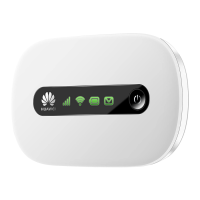
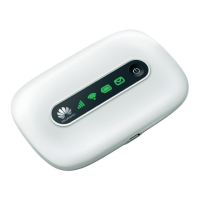
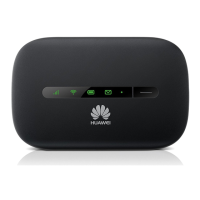
The device features several indicators that provide real-time status updates:

  • Signal indicator: Displays the strength of the cellular network signal (Green for strong, Orange for weak, Red for no signal).
  • Wi-Fi indicator: Shows the status of the Wi-Fi function (Green when Wi-Fi is turned on).
  • Battery indicator: Indicates the battery level (Green for sufficient, Blinking green for charging, Red for low battery).
  • SMS indicator: Notifies the user of new messages (Green for new message, Blinking green for inbox full).

The Mobile WiFi comes with a web management page, which serves as a central hub for configuring various settings. Users can log in to this page to customize the Service Set Identifier (SSID) and wireless network encryption key, manage network connections, and enable or disable specific features like fast boot and automatic Wi-Fi turnoff.

Usage Features

Getting Started:

To begin using the Mobile WiFi, users must first install a standard SIM card and the battery. It is crucial to use a compatible SIM card to avoid damaging the device. The installation process is straightforward, following the provided illustrations in the manual.

Charging the Battery:

The device can be charged using two methods:

  1. Power adapter: Connect the Mobile WiFi to a compatible power adapter. It is essential to use only the power adapter provided by a designated manufacturer to prevent malfunction or damage.
  2. Computer connection: Use the supplied data cable to connect the Mobile WiFi to a computer, which will charge the device. If the device has not been used for an extended period or if the battery is fully depleted, it may not power on immediately after being plugged in. In such cases, it is recommended to charge the battery for a while before attempting to power it on.

Connecting to the Internet via Wi-Fi:

Connecting to the Internet involves a few simple steps:

  1. Turn on the Mobile WiFi: Press and hold the power button until the indicators light up. The device supports a fast boot function, which can be enabled or disabled via the web management page to reduce boot-up time.
  2. Establish a Wi-Fi connection: On the Wi-Fi enabled device (e.g., computer, tablet, game console), ensure its Wi-Fi function is on. Search for available wireless networks and select the Mobile WiFi's SSID. If the network is encrypted, enter the correct wireless network encryption key, which is typically printed on the Mobile WiFi label.
  3. Connect to the Internet: Once the Wi-Fi connection is established, the Mobile WiFi will automatically connect to the Internet when data is transmitted. It will also automatically disconnect if no data is transmitted for a period. Users can configure automatic dialing while roaming through the web management page.

Logging In to the Web Management Page:

To access advanced settings and configurations, users need to log in to the web management page. This involves:

  1. Ensuring a working connection between the Mobile WiFi and the Wi-Fi device or computer.
  2. Opening a web browser and entering the default IP address (http://192.168.1.1) in the address bar.
  3. Entering the default user name and password (both typically "admin") to log in.

Daily Use Features:

  • Battery Saving Mode: To conserve battery life, the Mobile WiFi enters standby mode if no operation is performed for a preset period. In this mode, only the battery indicator blinks slowly, and other indicators are off. Pressing the power button will reactivate the indicators.
  • Automatic Wi-Fi Turnoff: When operating solely on battery power, users can enable or disable an automatic Wi-Fi turnoff function. If enabled, Wi-Fi will automatically turn off if no Wi-Fi devices access the Mobile WiFi for a specified duration. The Wi-Fi can be turned back on by pressing the power button.

Maintenance Features

Verifying the PIN:

If the PIN verification function is enabled, users must log in to the web management page and enter the correct PIN code as instructed. PIN/PUK codes are provided by the operator along with the SIM card.

Restoring to Factory Settings:

In cases where configuration parameters are forgotten or the device malfunctions, users can restore the Mobile WiFi to its factory settings. This action will delete all personal configuration parameters and revert all settings on the web management page to their default values. To perform a factory reset, press and hold the RESET button until all indicators turn off.

Tips for Optimal Performance and Longevity:

  • Overheating Protection: If the Mobile WiFi is used for an extended period, it may become warm or overheat. In such instances, the device will automatically close the network connection and turn off to protect itself from damage. If this occurs, place the Mobile WiFi in a well-ventilated space to allow it to cool down before turning it back on.
  • Troubleshooting: If the Mobile WiFi is not functioning normally, users are advised to:
    • Consult the online help on the web management page.
    • Restart the Mobile WiFi.
    • Restore the Mobile WiFi to factory settings.
    • Consult their operator for further assistance.

By understanding these functions, usage features, and maintenance guidelines, users can effectively utilize the Huawei E5220 Mobile Hotspot to enjoy reliable and high-speed wireless Internet connectivity.

Huawei E5220 Specifications

General IconGeneral
Wi-FiYes
Data network3G, EDGE, GPRS, GSM, HSDPA, HSPA+, HSUPA
UMTS bands supported850, 1900, 2100 MHz
Device typeCellular wireless network equipment
Product colorWhite
Battery capacity1150 mAh
Networking standardsIEEE 802.11b, IEEE 802.11g, IEEE 802.11n
Market positioningPortable
Weight and Dimensions IconWeight and Dimensions
Depth25.5 mm
Width71 mm
Height67.5 mm
Weight30 g

Related product manuals