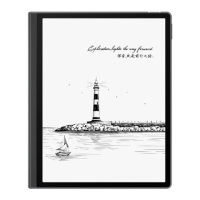
The HUAWEI MatePad Paper is a versatile device designed to enhance productivity and creativity through a blend of intuitive features and seamless connectivity. It functions primarily as a digital paper tablet, offering a user experience that mimics traditional pen and paper while integrating advanced digital capabilities.
Function Description
The MatePad Paper serves as a personal digital assistant for note-taking, reading, and file management. It allows users to handwrite notes, convert scribbles into legible text, and mark up documents with ease. The device supports e-book reading, offering instant text translations and cross-device book transfers. It can also extend a laptop's display, transforming into a secondary screen for enhanced multitasking. For audio, it facilitates recording with the ability to add markers to highlight important moments. The device's home screen is designed for quick access to frequently used apps and widgets, promoting efficient content browsing and editing.
Usage Features
The MatePad Paper is designed for intuitive interaction, primarily through hand gestures and stylus input.
- Navigation and Control: Users can navigate the device with simple hand gestures. Swiping down from the upper left edge of the screen reveals the Notification Panel for app notifications, while swiping down from the upper right edge displays the Control Panel for quick access to frequently used features. Gestures for "Back" (swipe inward from left or right edge), "Return to home screen" (swipe up from the bottom), and "Access recent tasks" (swipe up from the bottom and hold) streamline interaction.
- File Transfer with Huawei Share: The device supports instant file transfers between Huawei phones, tablets, and laptops using Huawei Share. This feature eliminates the need for mobile data or data cables, allowing users to easily share selected files by touching "Share" and choosing the receiving device, or by dragging files onto the device name on a laptop.
- Personalized Lock Screen: Users can customize their lock screen by selecting an image as wallpaper and adding a personal signature using the stylus. The signature can be drawn in a dedicated zone and saved.
- Scribble-to-Text Conversion (FreeScript): A key feature is the ability to handwrite content into text boxes and have it automatically converted into typed text. This requires pairing the stylus with the tablet. The stylus also enables quick editing actions such as selecting text (drawing a straight horizontal line), deleting text (drawing a wavy line), and adding/deleting spaces (drawing a vertical line).
- Enhanced Note-Taking: The device offers dazzling templates for creating eye-catching notes. Users can use the stylus to edit notes, and the "lasso" tool allows for selecting and relocating areas of interest. Handwriting can be converted to typed text and inserted into notes. Notes can be shared as images or PDF files.
- Wireless Projection: The MatePad Paper can project its screen to a larger display wirelessly, facilitating presentations or extended workspace. Users enable Wireless Projection from the Control Panel and follow on-screen instructions to connect.
- Reading and Annotation: While reading, users can turn pages by swiping left or right, tapping near the screen edges, or using volume buttons. The stylus allows for direct annotations anywhere on the page. Text passages can be selected to write notes ("Thought") or underline ("Underline"). A floating toolbar provides options to insert bookmarks and view bookmarked pages or previous notes.
- Instant Text Translations: The device supports on-screen translation of individual words, paragraphs, or full text. Users can select text and choose "Translate." The system automatically detects the source language, though manual selection is also possible. This feature is currently available for e-books from the Bookstore.
- Split Screen for Multitasking: Users can open an app and a note window side-by-side for simultaneous browsing and note-taking. Split-screen mode is activated by swiping inward from the top right corner with the stylus and selecting "Split-screen note." Exiting is done by swiping inward from the right edge with a finger or selecting "Exit" from the stylus menu.
- Secondary Laptop Display: The tablet can function as a secondary display for a laptop, extending the workspace for office apps and notes. This requires enabling Bluetooth and Wi-Fi on both devices, and enabling "PC collaboration" on the tablet. Connection is established through Huawei PC Manager on the laptop.
- Audio Recording with Markers: When recording voice memos or conference calls, users can add markers to highlight important moments. These markers allow for quick navigation to specific points in the recording.
- Navigation Dock: A navigation dock provides quick access to frequently used shortcuts. It can be expanded to switch between screen refresh modes, return to the home screen, or go to the previous screen. The dock can be refreshed by double-tapping it to remove residual images, and its position can be adjusted by touching and holding.
Maintenance Features
The device incorporates features that contribute to its longevity and optimal performance.
- Refresh Mode: Users can select between "Smart" and "Normal" refresh modes. "Smart" mode auto-adjusts the display for a balance of quality and smoothness, recommended for daily use. "Normal" prioritizes display quality, though it may lead to frame freezing or screen flickering in some apps. A "Refresh now" option is available to remove residual images that might appear on screen.
- Light Mode: "Light mode" settings (Day, Night, etc.) can be adjusted based on ambient lighting conditions, or manually for screen brightness. Setting Light mode to "Off" helps extend battery life.
- Cross-Device File Management: When connected to a laptop via Multi-Screen Collaboration, the tablet's files can be directly viewed and edited on the laptop. This allows for easy attachment of tablet files to emails or saving edited files directly into tablet folders, simplifying file organization and backup.
- Software Updates: The manual emphasizes keeping apps like "Books" up to date via AppGallery and ensuring the laptop runs a compatible version of Huawei PC Manager (12.0 or later) for optimal functionality.

 Need help?
 General
 Weight and Dimensions




 To Next Page