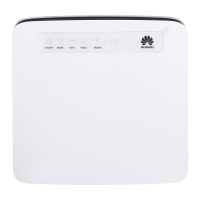
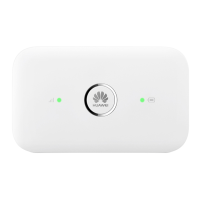
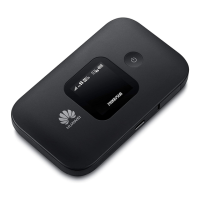
This document describes the Mobile WiFi device, a high-speed wireless network connection device that allows Wi-Fi devices and computers to access the Internet. The device supports various network types and offers several connectivity options.
Function Description
The Mobile WiFi primarily functions as a portable wireless router, enabling Internet access via LTE, 3G, or 2G networks. It also supports a Wi-Fi Extender function, allowing it to connect to existing Wi-Fi hotspots and share that connection, thereby helping to save mobile data usage. Additionally, the device can provide Internet access through an Ethernet connection when paired with the optional AF18 network adapter.
Important Technical Specifications
- Network Support: LTE, 3G, 2G, Wi-Fi (WLAN), Ethernet (WAN via AF18).
- Connectivity: Wi-Fi, USB, Network port (LAN via AF18), Ethernet (WAN via AF18).
- SIM Card: Micro-SIM card.
- Charger Model: HW-050100XYW (X and Y vary by region).
- Default IP Address: 192.168.8.1.
- Default Login Credentials: Username: admin, Password: admin.
- Wi-Fi Extender Capacity: Up to nine Wi-Fi devices can be connected when the Wi-Fi extender function is enabled.
- Version: V100R001_01.
- Part Number: 31010RLY.
Usage Features
Getting Started
- Installation: Install the micro-SIM card into the designated tray as illustrated in the manual.
- Charging:
- Method 1 (Charger): Use a compatible charger provided by a designated manufacturer. The charger is an optional accessory and may need to be purchased separately. Charge the device for a while if it has not been used for a long time or if the battery is fully depleted before attempting to power it on.
- Method 2 (Computer Connection): Connect the Mobile WiFi to a computer using the provided data cable.
- Power On/Off: Press and hold the power button until the screen lights up to turn on the device. Press and hold the power button again to turn it off.
- Fast Boot: The device supports a fast boot function, which can be enabled or disabled via the web management page to reduce boot-up time.
- PIN Verification: If PIN verification is enabled, you may need to enter the PIN (provided with your SIM card) on the web management page to access the Internet. This can be disabled to avoid re-entering the PIN each time the device powers on.
Connecting to the Internet
- Using LTE, 3G, or 2G Network: By default, the device connects to the Internet automatically after startup using your operator's network. It will automatically connect when data is transmitted and disconnect after a period of inactivity. The "automatic dialing while roaming" function can be enabled/disabled on the web management page.
- Using a Wi-Fi Network (Wi-Fi Extender):
- Ensure the Wi-Fi extender function is enabled.
- The Mobile WiFi will automatically connect to known Wi-Fi hotspots. The Wi-Fi hotspot SSID will be displayed on the screen.
- To add new Wi-Fi hotspots, log in to the web management page, navigate to "Wi-Fi extender" in the settings, scan for hotspots, and connect to the desired one.
- Using Ethernet (WAN via AF18):
- Connect the Mobile WiFi to the AF18 network adapter.
- Connect the AF18's network port to an Ethernet port (e.g., home ADSL, hotel DHCP, campus static IP broadband network) using a network cable.
- Ensure the Ethernet connection icon appears on the screen.
- Log in to the web management page to configure network parameters (Dynamic IP, PPPoE, Static IP) as needed.
Web Management Page
- Access: Ensure the device is connected to a Wi-Fi device or computer. Open a browser and enter
http://192.168.8.1 in the address box.
- Login: Enter the default username "admin" and password "admin".
- IP Address Conflicts: If the IP address conflicts with other network IP addresses, the Mobile WiFi's IP address will automatically change. Check the screen for the current IP address.
- SSID and Encryption Key: The default SSID and encryption key are printed on the Mobile WiFi label. It is recommended to change these via the web management page for security. Press the power button to view the current SSID and encryption key on the screen.
Connecting Android Devices via 2D Barcode
- Download the "HUAWEI Mobile WiFi" app from Google Play or HUAWEI App Center.
- Scan the 2D Barcode on the Mobile WiFi label using the app to connect your Android device.
Connecting to a Computer (Windows 7 Example)
- Ensure the Mobile WiFi's Wi-Fi function is on.
- On the computer, go to
Start > Control Panel > Network and Internet > Network and Sharing Center > Connect to a network.
- Select the Mobile WiFi's SSID and click "Connect".
- If encrypted, enter the wireless network encryption key (found on the device label).
- Wait for the wireless network connection icon to appear in the system tray.
Connecting to a Game Console (PSP Example)
- Turn on WLAN on the PSP.
- Go to
Settings > Network Settings > Infrastructure Mode > New Connection.
- Enter a connection name.
- Select "Scan" to find wireless networks.
- Choose the Mobile WiFi's SSID, confirm, and enter the wireless network encryption key.
- Proceed to save settings and then "Test Connection".
- Once successful, you can access the network.
Connecting to a Tablet Computer (iPad Example)
- Go to
Settings > WLAN to turn on WLAN.
- The iPad will automatically search for and display available access points.
- Select the Mobile WiFi's SSID.
- If required (indicated by a lock icon), enter the wireless network encryption key and tap "Join".
Maintenance Features
- Battery Saving Mode: If inactive, the device enters standby mode (display turns off). Press any button to light up the screen. When running on battery, the automatic Wi-Fi off function can be enabled/disabled; if enabled, Wi-Fi turns off automatically after a period of no connected devices.
- Restoring to Factory Settings: If you forget the username, password, or SSID, press and hold the reset button until the Mobile WiFi restarts to restore factory settings.
- Overheating Protection: If the device becomes warm or overheats during extended use, it will automatically close the network connection and turn off to prevent damage. Place it in a well-ventilated space to cool down before resuming use.
- Troubleshooting: If the device does not function normally, consult the online help on the web management page, restart the device, or restore it to factory settings. If issues persist, contact your operator.
- Traffic Statistics: The screen displays data usage for the current month. Monthly data usage limits can be set on the web management page. Note that this information is for reference only; consult your service provider for accurate data traffic information.
- SMS: The screen indicates new messages and the number of new messages.
- Signal Strength: The screen displays the signal strength from weak to strong.

 Need help?
 General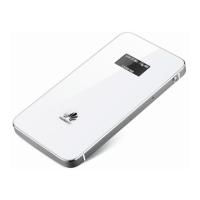

 To Next Page