EasyManua.ls Logo

Huawei WiFi WS5200 - User Manual

Huawei WiFi WS5200
2 pages
Print Icon
To Next Page IconTo Next Page
Loading...
2
96724849_01
Power supply required
WAN
WAN LAN LAN
WAN
1000M
1
2
3
4
LAN
HUAWEI-XXXXXX
SSID:HUAWEI-XXXXXX
POWER
LAN
PON
RESET
You can use the Wi-Fi password as the router admin password. You can use the Wi-Fi password as the router admin password.
If the indicator stays red, this indicates that the router is not connected to the Internet.
Please refer to "Step 2: Configuring the network settings".
If the indicator stays red, this indicates that the router is not connected to the Internet.
Please refer to "Step 2: Configuring the network settings".
LAN
WAN
1000M
1
2
3
4
POWER
LAN
PON
RESET
LAN
Enable 5 GHz preferred: Priority usage of 5 GHz Wi-Fi band over 2.4 GHz
band when signal strength is equal to increase connection speeds.
Enable 5 GHz preferred: Priority usage of 5 GHz Wi-Fi band over 2.4 GHz
band when signal strength is equal to increase connection speeds.
If your broadband provider has not provided you with a broadband account, skip to the next step. If your broadband provider has not provided you with a broadband account, skip to the next step.
Old router WAN port
LAN port
1
2 3 4
* Extending the Wi-Fi Network with another Huawei Router (Optional)
You may refer to either of the following methods to pair and connect multiple Huawei routers (with the
H or Hi button), ensuring that all rooms are covered by Wi-Fi.
4. Move the secondary router to another room.
To receive better Wi-Fi connection, only one wall
in-between the two routers is recommended.
After the networking is completed automatically, the indicator on the secondary
router will turn steady green. Use the same Wi-Fi name and password as that
for the primary router to connect to the network.
Unplug the
power supply,
move to another
room
Primary
router
Secondary router
Secondary
router
Method 1: Wired networking (recommended)
Method 2: Wireless networking
Prepare two routers
Primary router Secondary router
New or restored to factory settings
Installed and connected to the network
(see “configuring the router”)
1. Place the secondary router within 1m of
the primary router and connect it to the
power supply.
3. Wait till the indicator on the secondary
router turns steady green.
About half a
minute later,
the indicator will
turn steady green.
Secondary router
The pairing is successful if the indicator on
the secondary router turns steady green.
You can visit the internet by entering the
same Wi-Fi name and password as that for
the primary router.
Wait (about a minute) till the indicator
on the primary router blinks red,
which indicates that the primary router
has detected the secondary router.
Press the H button on the primary
router to start pairing. The pairing is in
progress if the indicator is blinking red faster.
2. Press the H button on the primary router to pair
with the secondary router.
Primary router
1.
2.
HUAWEI WiFi WS5200 Quick Start Guide
HUAWEI WiFi WS5200
HUAWEI WiFi WS5200
This guide is for reference only and does not constitute a warranty of any kind, express or implied.
Internet
Internet
Erect the four antennas
upright to ensure
optimized Wi-Fi signal.
Erect the four antennas
upright to ensure
optimized Wi-Fi signal.
Optical/Broadband/cable modem
Old router
Step 1: Connecting the cables
Step 2: Configuring the network settings
Step 1: Connecting the cables
Step 2: Configuring the network settings
( If the page is not displayed automatically,
enter 192.168.3.1) .
2. Open the browser, you will be
automatically redirected.
1. Connect your mobile phone or computer to the
new router’s Wi-Fi network
(No password).
Check for the Wi-Fi name on the bottom of the router.
( If the page is not displayed automatically,
enter 192.168.3.1) .
2. Open the browser, you will be
automatically redirected.
1. Connect your mobile phone or computer to the
router’s Wi-Fi network
(No password).
Check for the Wi-Fi name on the bottom of the router.
HUAWEI-XXXXXX
SSID:HUAWEI-XXXXXX
3. Enter your broadband account and password.
3. Obtain the broadband account and password from the old router.
WiFi
WiFi
Connected
WiFi
WiFi
Connected
Welcome to HUAWEI
WiFi WS5200
Welcome to HUAWEI
WiFi WS5200
Touch
Let's Start
Let's Start
Internet access wizard
Broadband account
Broadband password
Enter
Not
required
Touch
Next
Internet access wizard
Broadband account
Broadband password
Touch
Touch
Touch Touch
Next
Next
Back Back
Retrieve
Retrieve
Retrieve
Contact your broadband provider if you have forgotten your broadband account.
Touch
Internet access wizard
Enter
Next
Use Wi-Fi password as
the router admin password
Wi-Fi network name
New Wi-Fi password
Touch
Internet access wizard
Enter
Next
Use Wi-Fi password as
the router admin password
Wi-Fi network name
5 GHz preferred
5 GHz preferred
New Wi-Fi password
4. Set new Wi-Fi and admin password.
Configuration
complete
Please connect to the
new Wi-Fi network
Configuration
complete
Please connect to the
new Wi-Fi network
1000M
1
2
3
4
1000M
1
2
3
4
Primary router Secondary router
LAN WAN
Primary router
Secondary router
Within 1m
1000M
1
2
3
4
Scan the QR code,
or search "HUAWEI SmartHome" in an app market.
You can use HUAWEI SmartHome app to manage users, set timer and
guest Wi-Fi, and control your router.
Manage the router with our mobile app
from your broadband provider
You have forgotten your broadband account
or password (obtain from your old router)
You know your broadband account and
password (connect directly)

Question and Answer IconNeed help?

Do you have a question about the Huawei WiFi WS5200 and is the answer not in the manual?

Overview

The HUAWEI WiFi WS5200 is a wireless router designed to provide reliable internet connectivity and smart home management features. It supports both 2.4 GHz and 5 GHz Wi-Fi bands, offering a combined speed of up to 1200 Mbps, with the 5 GHz band prioritizing higher speeds for demanding applications. The device is designed for ease of setup and management, catering to both novice and experienced users.

Function Description

The primary function of the HUAWEI WiFi WS5200 is to act as a central hub for internet connectivity within a home or small office environment. It receives an internet signal from a modem and broadcasts it wirelessly via Wi-Fi, allowing multiple devices such as smartphones, tablets, laptops, and smart home devices to connect simultaneously. The router supports the Wi-Fi 5 (802.11ac) standard, ensuring compatibility with a wide range of modern devices.

One of its key features is the ability to automatically select the optimal Wi-Fi band (2.4 GHz or 5 GHz) for connected devices, providing a seamless experience without manual switching. The 5 GHz band is prioritized for devices that require higher bandwidth, such as those used for streaming high-definition video or online gaming, while the 2.4 GHz band offers wider coverage and better penetration through obstacles.

The router also includes Ethernet ports for wired connections, offering stable and high-speed access for devices like desktop computers, gaming consoles, or network-attached storage (NAS) devices. These ports are typically Gigabit Ethernet, ensuring fast data transfer rates.

For enhanced security, the HUAWEI WiFi WS5200 supports various encryption protocols to protect the wireless network from unauthorized access. It also features a guest Wi-Fi network option, allowing visitors to connect to the internet without accessing the main home network, thus enhancing privacy and security.

Important Technical Specifications

  • Wireless Standards: IEEE 802.11ac/n/a (5 GHz) and IEEE 802.11n/g/b (2.4 GHz).
  • Wireless Speed: Up to 867 Mbps on the 5 GHz band and up to 300 Mbps on the 2.4 GHz band, totaling up to 1167 Mbps (often rounded to 1200 Mbps).
  • Ethernet Ports: Typically includes multiple Gigabit Ethernet LAN ports and one Gigabit Ethernet WAN port.
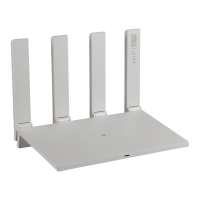
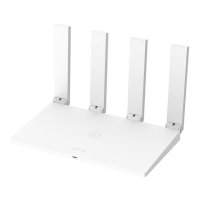
  • Antennas: Usually equipped with four high-performance external antennas for improved signal strength and coverage.
  • Wi-Fi Band Prioritization: Supports automatic selection between 2.4 GHz and 5 GHz bands, prioritizing 5 GHz for higher-speed devices.
  • Security Protocols: Supports WPA-PSK/WPA2-PSK encryption.
  • Power Input: Standard DC power adapter.
  • Dimensions and Weight: Designed to be compact and lightweight for easy placement.
  • Operating Temperature: Typically designed to operate within a standard room temperature range.

Usage Features

The HUAWEI WiFi WS5200 is designed with user-friendliness in mind, offering several features that simplify its setup, configuration, and daily use.

  • Quick Setup Guide: The device comes with a comprehensive quick setup guide that walks users through the initial installation process. This includes connecting the cables, configuring network settings, and setting up an administrator password.
  • Mobile App Management: A significant usage feature is its compatibility with the HUAWEI AI Life app (formerly HUAWEI SmartHome app). This mobile application allows users to manage the router remotely from their smartphone. Through the app, users can:
    • View Connected Devices: See all devices currently connected to the network.
    • Manage Wi-Fi Settings: Change Wi-Fi name (SSID), password, and security settings.
    • Guest Wi-Fi: Enable or disable a separate guest network for visitors.
    • Parental Controls: Set time limits for internet access for specific devices, ensuring responsible internet usage for children.
    • Device Prioritization: Prioritize bandwidth for certain devices or applications to ensure optimal performance for critical tasks.
    • Network Diagnostics: Perform basic network checks to troubleshoot connectivity issues.
    • Firmware Updates: Easily update the router's firmware to access new features and security enhancements.
    • Wi-Fi Timer: Schedule when the Wi-Fi network should turn on or off, saving power and potentially reducing exposure to Wi-Fi signals during specific hours.
  • Web-Based Management Interface: For users who prefer a desktop interface or require more advanced configurations, the router also offers a web-based management portal accessible via a web browser. This interface provides access to all router settings, including advanced network configurations, firewall rules, and port forwarding.
  • One-Click Pairing (H Button): Many HUAWEI routers feature an "H" button, which simplifies connecting to other HUAWEI devices or extending the Wi-Fi network. This button can be used to quickly pair with other HUAWEI routers to create a mesh Wi-Fi system or connect to HUAWEI HiLink devices without needing to enter passwords.
  • Wi-Fi Extension: The router supports extending the Wi-Fi network by pairing with other HUAWEI routers, either wirelessly or via wired backhaul. This is particularly useful for larger homes or areas with Wi-Fi dead zones, ensuring consistent coverage throughout the property. The setup process for extending the network is streamlined, often involving a simple pairing procedure.
  • Automatic Band Selection: The router intelligently switches devices between the 2.4 GHz and 5 GHz bands based on signal strength and device capabilities, optimizing performance without user intervention. The 5 GHz band is prioritized for devices that can utilize its higher speeds, while the 2.4 GHz band is used for devices further away or those that only support the 2.4 GHz frequency.

Maintenance Features

Maintaining the HUAWEI WiFi WS5200 is designed to be straightforward, with features aimed at ensuring long-term performance and security.

  • Firmware Updates: The router supports over-the-air (OTA) firmware updates, which can be initiated through the HUAWEI AI Life app or the web-based management interface. Regular firmware updates are crucial for:
    • Security Enhancements: Patching vulnerabilities and protecting against new threats.
    • Performance Improvements: Optimizing network stability and speed.
    • New Features: Adding new functionalities and improving existing ones.
  • Factory Reset Option: In cases of severe configuration issues or when preparing the router for transfer to a new owner, a factory reset option is available. This typically involves pressing and holding a dedicated reset button on the device, which restores all settings to their default values. This can often resolve persistent network problems that cannot be fixed through other means.
  • Self-Healing Capabilities: Some HUAWEI routers incorporate self-healing mechanisms, where the device can automatically detect and attempt to resolve common network issues, such as channel interference, to maintain optimal performance.
  • Diagnostic Tools: The management interfaces (both app and web) often include diagnostic tools that can help users identify and troubleshoot common network problems, such as internet connectivity issues or Wi-Fi signal strength problems.
  • Easy Troubleshooting: The quick setup guide and online resources provide troubleshooting tips for common issues, such as incorrect password entry or connection failures. The device's LED indicators also provide visual cues about its operational status, helping users quickly identify if there's a problem with the internet connection, Wi-Fi, or power. For example, a steady green light usually indicates normal operation, while a red light might signal a problem.

In summary, the HUAWEI WiFi WS5200 is a versatile and user-friendly wireless router that combines robust technical specifications with a suite of convenient usage and maintenance features, making it an ideal choice for modern homes seeking reliable and smart internet connectivity.

Huawei WiFi WS5200 Specifications

General IconGeneral
BrandHuawei
ModelWiFi WS5200
CategoryNetwork Router
LanguageEnglish

Related product manuals