Operation
Proprietary. Humaneyes Technologies 13
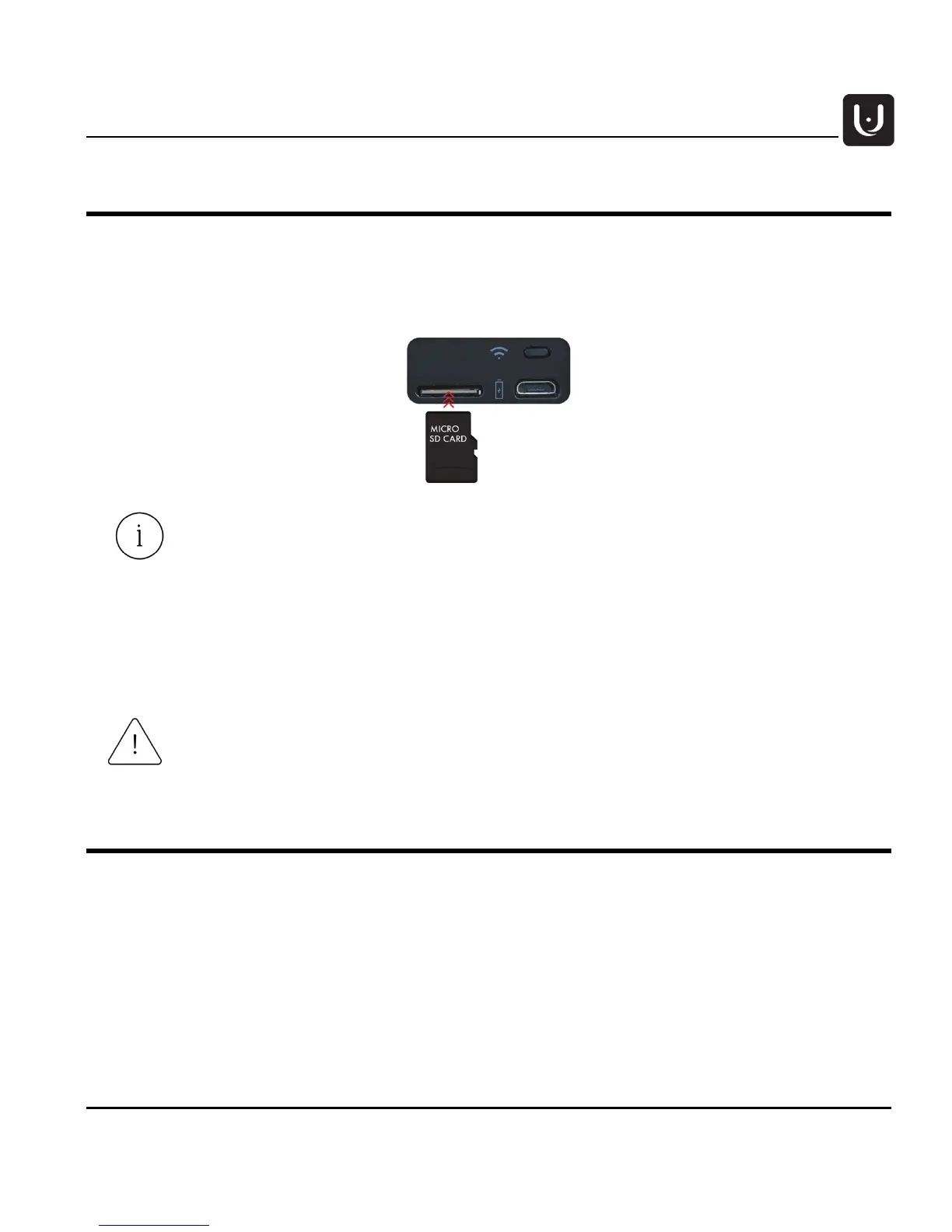
SD Card Replacement
• Insert the SD card into the micro SD slot and press it into place.
• To remove the card, press on it and then remove it. Place a new SD card into the slot and press
into place.
The camera will support micro SD cards with UHS-I (Ultra High Speed) speed class and
above.
The camera allows two bit rate settings for recording- 15MB and 10MB (set through the
mobile app). When recording at 15MB bit rate we recommend to use UHS-I (U3) – Ultra
High Speed Class with U3 Speed Class Mark.
When recording 10MB bit rate we
recommend to use UHS-I (U1) (Ultra High Speed Class with U1 Speed Class Mark) SD
cards.
We tested and validated SD cards types
from different vendors. You can find the
recommended SD card list on our website www.vuze.camera/support
Connect to Vuze Camera App – WiFi On/Off
Vuze Camera App allows you to control your camera remotely using your mobile device. You can download
Vuze Camera App from Google Play or Apple Store and follow the steps below to connect to your camera:
1. Turn the camera on.
2. Push the WiFi button. Blue LED starts to blink.
3. Connect your mobile device to the camera’s WiFi. Your camera’s WiFi SSID is its Serial Number, as
appears on the bottom of the camera. The default password for your WiFi is 12345678. The WiFi name
and password can be changed through the App’s settings after the first connection. Once connected
the blue LED will turn on.
4. Operate the camera via the Vuze Camera App.
Do not remove the SD card while capturing with your camera or while the camera is
connected to a computer.



 To Next Page