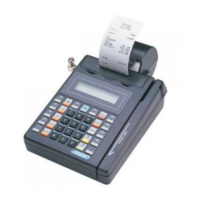
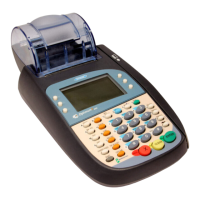
Credit Card Sale
> Swipe card
> If prompted for purchasing card press
[ENTER] for Yes or [CLEAR] for No
> If prompted enter the PO/ID # and
press [ENTER]
> If prompted enter the last 4 digits of the
account # and press [ENTER]
> Enter the $ amount and press [ENTER]
> If prompted enter the tax amount and
press [ENTER]
> Print second receipt – [ENTER] for Yes
or [CLEAR] for No
Manual Sale
> Input the account # and press [ENTER]
> Input the expiration date (MMYY) and
press [ENTER]
> Card present – [ENTER] for Yes
or [CLEAR] for No
> CVV2: [0] = Not present ; [1] = Prs;
[2] = Ilg ; [9] = Absnt
> If present, input CVV2 from card
> If prompted for purchasing card press
[ENTER] for Yes or [CLEAR] for No
> If prompted enter the PO/ID # and
press [ENTER]
> Enter the $ amount and press [ENTER]
> If prompted enter the tax amount and
press [ENTER]
> If prompted enter the address
information
> If prompted enter the zip code
> Print second receipt – [ENTER] for Yes
or [CLEAR] for No
Retail Application
Quick Reference Guide


 To Next Page