Forced Sale
> Press [OFFLINE]
> Enter card # or swipe customer card
> If prompted input the expiration date
(MMYY) and press [ENTER]
> If prompted enter the last 4 digits of the
account # and press [ENTER]
> If prompted enter the PO # and
press [ENTER]
> Enter the $ amount and press [ENTER]
> If prompted enter the tax amount and
press [ENTER]
> Input the approval code and press
[ENTER]
> Print second receipt – [ENTER] for Yes
or [CLEAR] for No
Debit Sale
> Select [DEBIT]
> Swipe the card
> Enter the $ amount and press [ENTER]
> If prompted enter the cash back amount
and press [ENTER]
The terminal will display Waiting for PIN
> Have the customer input their PIN #
and press [ENTER]
> Print second receipt – [ENTER] for Yes
or [CLEAR] for No
Authorization Only
> Press [CARD VERIFY]
> Enter card # or swipe customer card
> If prompted input the expiration date
(MMYY) and press [ENTER]
> If prompted enter the last 4 digits of the
card # and press [ENTER]
> If prompted press [ENTER] for card
present or [CLEAR] if the card is not
present
> If the card is not present select the
verification code listed
> Enter the $ amount and press [ENTER]
> Print second receipt – [ENTER] for Yes
or [CLEAR] for No
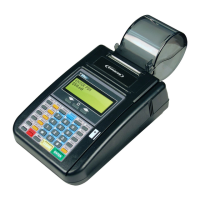
Hypercom
®
T7Plus


 To Next Page