22
Using your Charger
App Basics
The information below should help you get started with the basics of using your charger with the Hypervolt app. A more in depth guide is
available on our website.
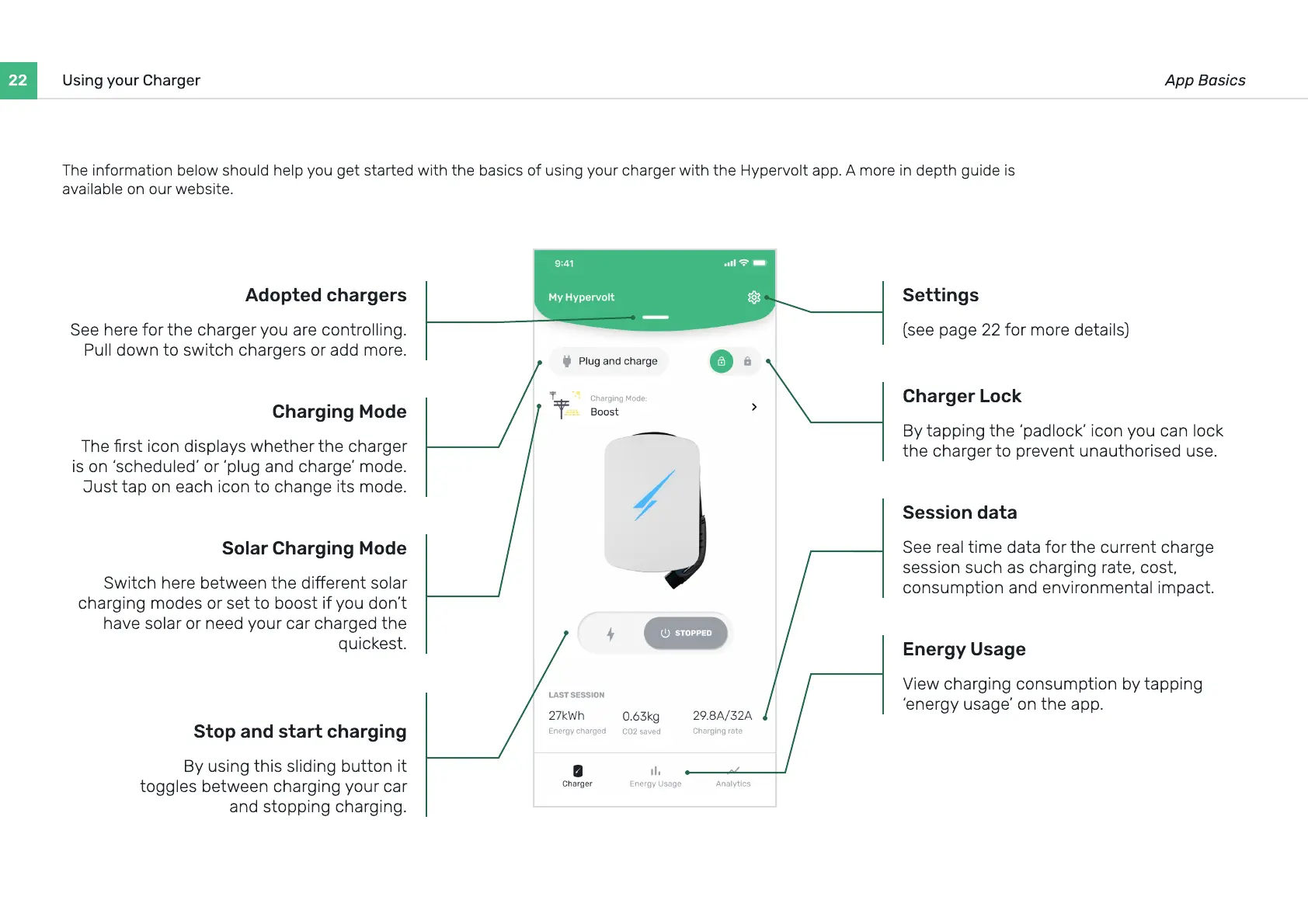
Adopted chargers
See here for the charger you are controlling.
Pull down to switch chargers or add more.
Settings
(see page 22 for more details)
Charger Lock
By tapping the ‘padlock’ icon you can lock
the charger to prevent unauthorised use.
Session data
See real time data for the current charge
session such as charging rate, cost,
consumption and environmental impact.
Energy Usage
View charging consumption by tapping
‘energy usage’ on the app.
Charging Mode
The rst icon displays whether the charger
is on ‘scheduled’ or ‘plug and charge’ mode.
Just tap on each icon to change its mode.
Solar Charging Mode
Switch here between the di
erent solar
charging modes or set to boost if you don’t
have solar or need your car charged the
q
uickest.
Stop and start charging
B
y
using this sliding button it
toggles between charging
y
our car
and stopping charging.


 To Next Page