EasyManua.ls Logo

Hytera Z1p TETRA - User Manual

Hytera Z1p TETRA
18 pages
Print Icon
To Next Page IconTo Next Page
Loading...
12
Preface
Thanks for your favor in our product. To derive optimum performance from the product, please read
this manual, the corresponding TETRA Terminal Series Feature Book and the Safety Information
Booklet carefully before use.
This manual is applicable to the following model:
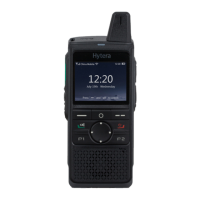
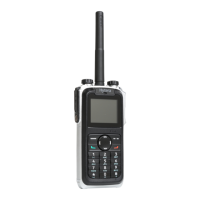
Z1p TETRA Portable Terminal

Other manuals for Hytera Z1p TETRA

Questions and Answers

  • D
    Denise RiceAug 17, 2025
    Why does my Hytera Touch terminal fail to register on the network?
    • B
      beanryanAug 17, 2025
      If your Hytera Touch terminal fails to register on the network or cannot find a network, it might be operating in DMO mode. Switch to TMO mode. Also, check the signal strength to ensure the terminal is within network coverage in TMO mode. If the issue persists, contact the network operator to ensure your terminal is authorized for network access.
  • P
    pwilliamsAug 19, 2025
    What to do if calls cannot be initiated on Hytera Touch terminals?
    • A
      Alice CobbAug 19, 2025
      If you cannot initiate calls on your Hytera Touch terminal, check the signal strength to ensure both you and the called party are within network coverage. Also, verify that the terminal is operating in the correct mode.
  • H
    Heather SanchezAug 22, 2025
    What to do if abnormal disconnection occurs during a call on Hytera Z1p TETRA?
    • C
      Charles WalshAug 22, 2025
      If abnormal disconnection occurs during a call on your Hytera Touch terminal, check the signal strength to make sure the terminal is within the network coverage in TMO mode. If operating in DMO mode, move to an open and flat area, and then restart the terminal.
  • P
    Paige Cruz PhDAug 26, 2025
    Why can't I initiate a group call on my Hytera Touch terminal?
    • L
      lnguyenAug 26, 2025
      If you cannot initiate or receive a specific group call on your Hytera Touch terminal, verify that your terminal is a member of the group. If not, contact your dealer to add the terminal to the group. Also, ensure that the terminal is authorized to access the target group by contacting the network operator.
  • G
    Gary WelchAug 28, 2025
    What to do if calls are always interrupted on Hytera Z1p TETRA Touch terminals?
    • P
      Peter WilsonAug 28, 2025
      If calls are always interrupted on your Hytera Touch terminal, the current channel may be assigned to emergency calls or other calls with higher priority. Wait until the channel becomes available and try again.
  • W
    William HardingAug 30, 2025
    Why a half-duplex call cannot be established on Hytera Z1p TETRA Touch terminals?
    • J
      Jamie GrahamAug 30, 2025
      If a half-duplex call cannot be established on your Hytera Touch terminal, ensure the call is established within the predefined time period. The channel may be occupied by another terminal with higher call priority, or channel resources may be allocated to other services due to an overloaded network. In such cases, wait until the channel becomes available and try again.
  • A
    Allison WallaceSep 2, 2025
    Why is the status message different between sending and receiving parties on Hytera Z1p TETRA Touch terminals?
    • B
      bensonpamelaSep 3, 2025
      If the content displayed at the receiving party is different from that of the sending party for the same status message on your Hytera Touch terminal, make sure the status message ID is associated with the same content.
  • P
    Patrick TuckerSep 5, 2025
    Why does my Hytera Touch terminal fail to register on the network or can't find the network?
    • D
      David AdamsSep 5, 2025
      The Hytera Touch terminal may fail to register on the network or be unable to find the network because it is operating in DMO mode. Switch to TMO mode. Alternatively, the terminal may be out of network coverage in TMO mode, so check the signal strength to ensure it is within network coverage. Finally, the terminal may not be granted network access, so contact the network operator for authorization.
  • M
    Michelle HoffmanSep 7, 2025
    What to do if a half-duplex call cannot be established on Hytera Touch terminals?
    • A
      Alicia LarsonSep 7, 2025
      A half-duplex call on Hytera Touch terminals might fail to establish because the predefined time period for establishing a call may expire; ensure the call is established within the predefined time. The channel may be occupied by another terminal with higher call priority, or the channel resources may be allocated to other services due to an overloaded network, in which case you should wait until the channel becomes available and try again. Finally, the terminal may be out of network coverage in TMO mode; check the signal strength to ensure it is within network coverage.
  • G
    Gina YoungSep 12, 2025
    Why can't I initiate or receive a certain group call on my Hytera Touch terminal?
    • J
      Jennifer DavisSep 12, 2025
      If a certain group call cannot be initiated or received on your Hytera Touch terminal, it may be because the terminal is not a member of the group. Check whether the terminal is a member of the group, and if not, contact your dealer to add the terminal to the group. It is also possible that the terminal is not authorized to access the target group, so contact the network operator for terminal authorization.

Summary

Preface

Terms and Definitions

Communication Modes Explained

Definitions of Half-duplex, Full-duplex, DMO, and TMO operations.

Disclaimer

FCC Statement

RF Exposure Compliance and Operating Guidelines

Standards and instructions for radio frequency exposure and compliance.

IC Statement

Canadian RF Compliance

Information on SAR limits and RF exposure compliance for Canada.

Product Overview

Product Controls and Features

Identification of product controls, programmable keys, and overview.

Before Use

Battery Charging and Accessory Attachment

Instructions for charging the battery and attaching accessories like SIM card, antenna, and cables.

Status Indication

Status Icons and LED Indicator

Explanation of terminal status icons and LED indicator meanings.

Menu Navigation

TMO and DMO Menu Structures

Diagrams illustrating the menu hierarchies for TMO and DMO modes.

Basic Operations

Terminal Power, Mode Switching, and Volume

Procedures for turning the terminal on/off, switching modes, and adjusting volume.

Keypad, PIN, and Contact Management

Using the keypad, managing PIN security, and handling contacts.

Bluetooth Device Usage

Connecting and Using BT Devices

Steps for initial and non-initial connection of Bluetooth devices.

Covert Mode Operation

Enabling and Disabling Covert Mode

How to activate and deactivate covert mode for discreet operation.

Call Services

TMO Individual and Group Calls

Initiating, answering, and hanging up individual and group calls in TMO.

Telephone and Emergency Calls

TMO Telephone and Emergency Call Procedures

Initiating, answering, and hanging up telephone and emergency calls in TMO.

DMO Call Operations

Initiating, answering, and hanging up calls in DMO mode.

Status Message Functionality

Sending and viewing status messages for quick communication.

User Message Handling

Editing and Sending User Messages

Creating, editing, and sending user messages in TMO and DMO.

Viewing User Messages

Accessing and reading received user messages.

Troubleshooting

Network Registration and Call Issues

Resolving problems with network registration, call initiation, and group calls.

Call Interruption and Disconnection Problems

Troubleshooting interrupted calls and abnormal disconnections.

BT Device Troubleshooting

Status Message Content and BT Connection Issues

Resolving status message display differences and Bluetooth connection problems.

Care and Cleaning

Product Care and Cleaning Procedures

Guidelines for maintaining, protecting, and cleaning the product.

Optional Accessories

Accessory Categories

Overview of optional power supply, audio, and other accessories.

Appendix

SSI&TSI Dialing Rules

Guidelines for dialing subscriber and network identities.

Hytera Z1p TETRA Specifications

General IconGeneral
Resolution240 x 320 pixels
Storage Temperature-40°C to +85°C
GPSYes
Display2.4-inch TFT
Frequency Range380-430 MHz
BluetoothBluetooth 4.0
USBYes
SpeakerYes
MicrophoneYes

Related product manuals