10
11
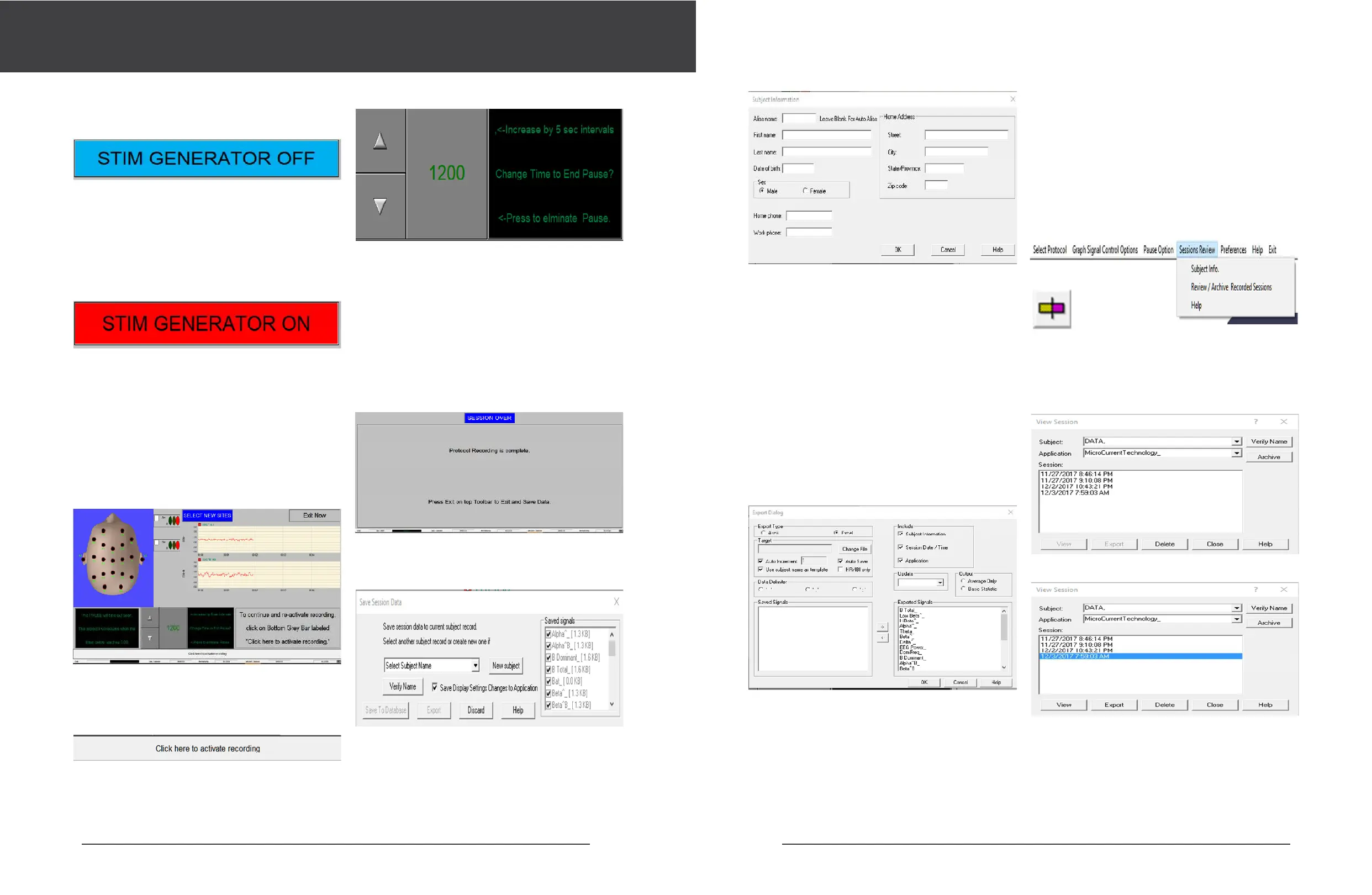
After a short pause it will turn RED and indicate that
STIM GENERATOR is ON. (FIGURE 10)
The displays are active when you activate the recoding
mode, which should begin automatically.
In any protocol, if it is paused, you will always see the
“Click Here to activate recording” bar. Proceed to the
feedback session when the signal has stabilized and
looks like an EEG, and there is no evidence of 60 Hz
in the Frequency Spectrum display for either active
channel.
The Progress bar at the bottom of the screen tracks
progress through each of the sequence of sites, while
the unprocessed EEG signal is displayed in the lower
left and upper right panels.
NEW Site Selection
When the Task Schedule has completed for a pair of
sites, the “Select New Site” screen will display the site
selection head outline, and an EEG pattern display for
each channel to aid in assuring connections are secure.
(FIGURE 11)
Ready to proceed? You have two options:
. Proceed as before: Select ‘Click here to activate
recording” (FIGURE 12)
The program will pause again after the next loop has
ended.
. Don’t need to pause anymore? Before proceeding
click the down arrow to zero.
The screen will automatically change and will begin
another recording loop. However you will no longer
be able to PAUSE at this screen for all the rest of the
session.
In either scenario, you can still stop the session at any
time by pressing the EXIT button found on the LIVE
RECORDING screen.
However, if you run a protocol to the end, you will be
instructed to EXIT and save the data. (FIGURE 13)
Select a previous client’s name or click on New
Subject. Add your client’s name here and the SAVE TO
DATABASE button fills in, indicating it is now ready to
save the data.
(FIG. 10)
(FIG. 11)
(FIG. 12)
(FIG. 13)
Click on EXIT and this window pops up: (FIGURE 14)
(FIG. 14)
New Client? Click and another window pops up:
(FIGURE 15)
The Excel spreadsheet will automatically come up and
automatically fill with the data from the session and
it will then be saved to the Excel default save folder,
with a name derived from the specified client name.
You may see the Excel spreadsheet being filled in the
screen. Be sure to save the spreadsheet to a new file
and folder, or it will not be saved when you exit EXCEL.
Note that Microsoft Excel or Oce must be installed
and licensed to be able to export to Excel.
Save To Database and the protocol exits back to the
main menu.
From the main menu, select Review/Archive Recorded
Data. (FIGURE 17)
The Data Review screens will be populated as soon as
you select the client name and session date.
Remember to HIGHLIGHT a session date, then click
VIEW. (FIGURE 18-19)
(FIG. 15)
Fill in at least the first two letters of the First and Last
name fields as illustrated in the window above, and
click OK. For increased privacy, enter only the first two
letters of each name, using a third letter or number
only for disambiguation (uniqueness) where required.
Note that for full down stream processing compatibility
reasons, client names entered here may have no special
characters, like apostrophe, space, or dash. When you
have completed as much of this form as desired or
appropriate, click OK. The first two letters of both First
and Last names are required for the data base function.
Research Options:
Want to export to Excel? This is the purpose of theEx-
port Dialog box .
First Save To Database. Then click on EXPORT. The
Export Dialogue Box comes up. (FIGURE 16)
(FIG. 16)
Exporting data requires making sure the Export Type is
EXCEL, and that the Target file is specified in advance.
Once set, these settings will remain the same (except
that the auto increment value will increase). Be sure to
select Sample Rate under Update sample times, and
Average Only under Output.
When you exit by pressing OK, the data will fill an EXCEL
spreadsheet.
(FIG. 17)
(FIG. 18)
(FIG. 19)
The data screen pop up. There are two screens in this
version:
By default, the data sceen provides only basic data:
Click on the Task Bar button and expand the graph by
speading out the Faster Graph button


 To Next Page
 Loading...