Power-On Password: Setting a power-on password helps protect information stored
in your computer. If a power-on password is set for your computer, the Power On
icon is shown in the locked position; if a power-on password is not set, then the
Power On icon is shown in the unlocked position (as in the screen above).
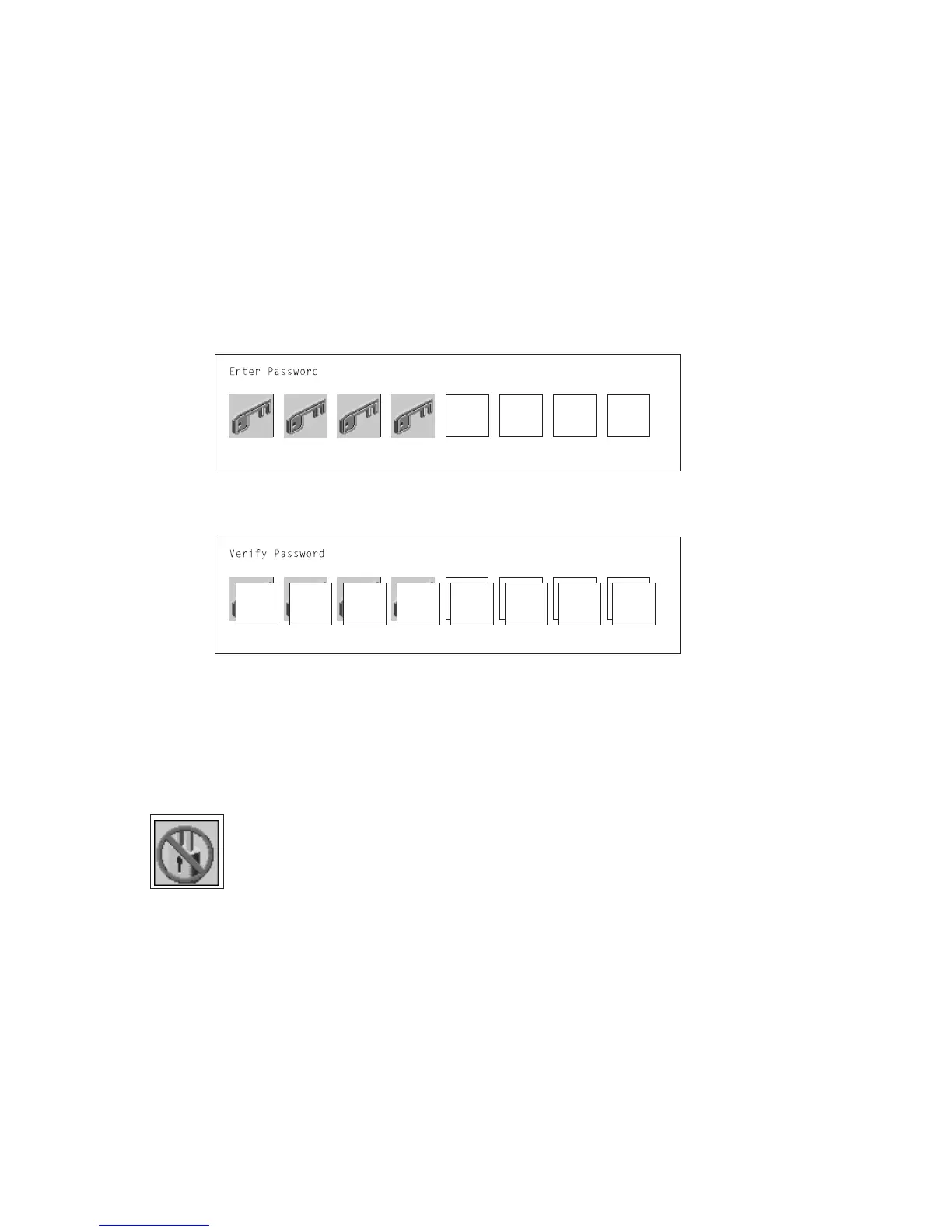
When you select the Entry icon, a screen with 8 empty boxes appears. Type your
password in these boxes. You can use any combination of up to eight characters
(A–Z, a–z, and 0–9) for your password. As you type a character, a key appears in
the box.
Press Enter when you are finished; you are required to type the password again for
verification.
If you make a mistake, press the Esc key and start again.
After you have entered and verified the password, the power-on password icon
flashes and changes to the locked position to indicate that the power-on password is
set.
If you previously had set a power-on password and want to remove it, select the
Remove icon.
Note: If you
forget
the power-on password, contact your service representative.
Attention: After you remove the battery, you must reconfigure your system (bootlist,
IP parameters, console information, support processor, etc).
A password can be set only after the system is turned off and on again.
Chapter 6. System Management Services 6-11



 To Next Page
 Loading...