13
Getting Started
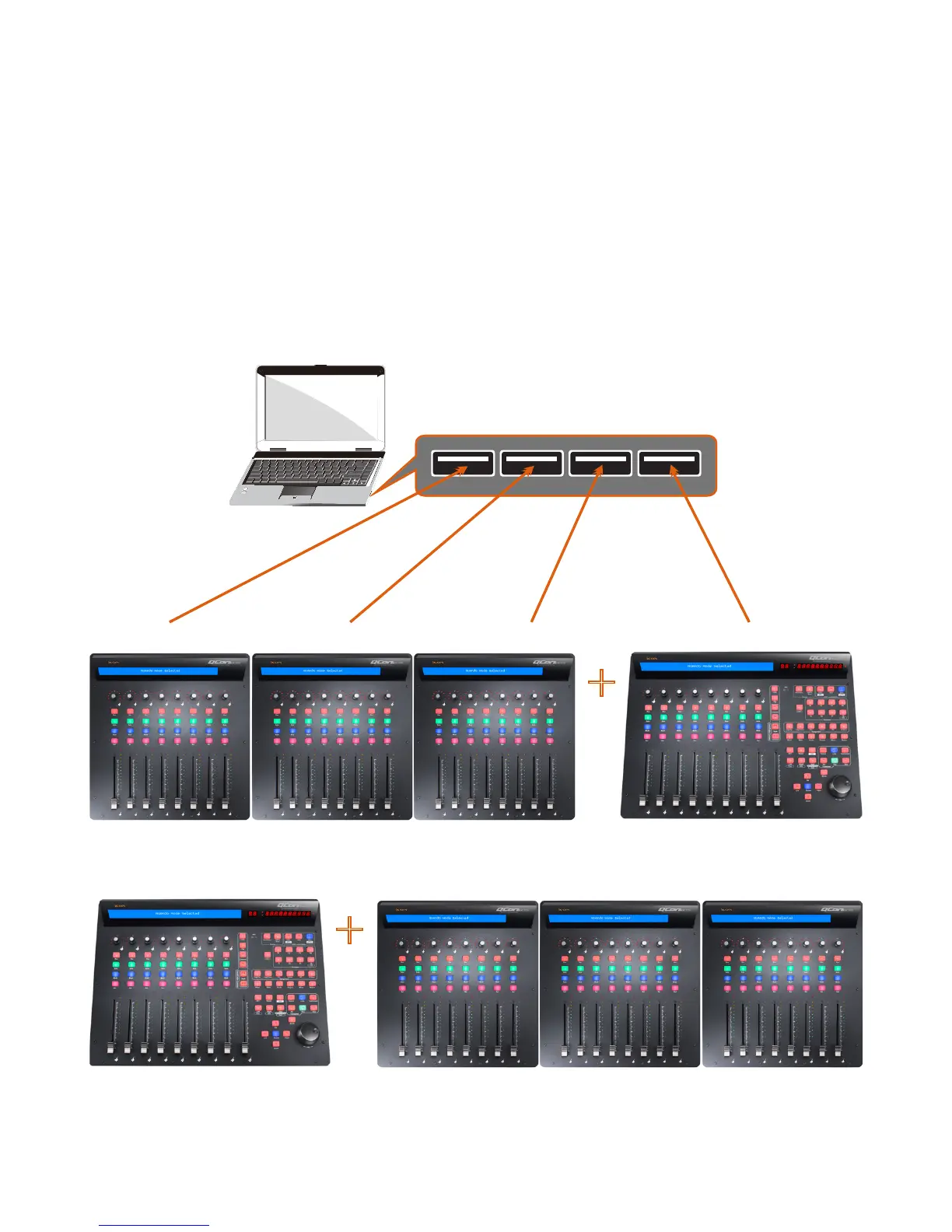
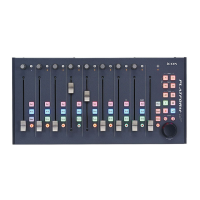
(Connected with QconEX G2 (1 - 3units))
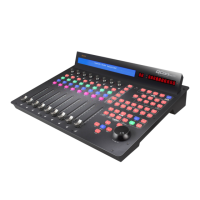
Connecting Your QconPro G2 Controller
1. Connect the QconPro G2 to your Mac/PC via the USB port
Choose a USB port on your Mac/PC and insert the wide (at) end of the USB
cable. Connect the cable’s other end to the QconPro G2. Your Mac/PC should
automatically “detect” the new hardware and notify you that it is ready to use.
(
Tips:
We recommended that you use ICON’s OneHub USB hub, which allows
you to connect up to 3 units of QconEX G2, if you are not connecting QconEX
G2 directly to your computer’s USB port.)
or
Esc
F1
F2
F3
F4
F5
F6
F7
F8
F9
F10
F11
F12
Prtsc
sysrq
pause
Break
Lns
Del
Home
Pgup
PgDN
End
$
~
`
!
1
··
2
3
4
5
6
7
78
9
0
)
)
*
—
-
+
=
#
¥
%
*
#
#
Q
W
E
R
T
Y
U
I
O
P
{
}
|
A
S
D
F
G
H
J
K
L
:
;
Z
X
C
V
B
N
M
<
>
?
Tab
CapsLook
Shift
Ctrl
Alt AltGr
Ctrl
Backspace
[
]
|
Enter
Shift
intel
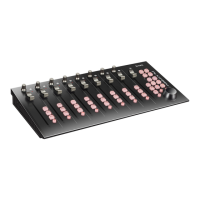
QconPro G2QconEX G2 (3)QconEX G2 (2)QconEX G2 (1)
+
QconPro G2 QconEX G2 (3)QconEX G2 (2)QconEX G2 (1)
+


 To Next Page