Mio X-Series User Guide Page 11
DIN-MIDI I/O Ports
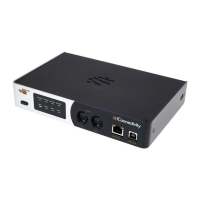
There are 8 DIN-MIDI I/O ports on the front of the mioXL, each carrying its own unique stream
of MIDI data. Connect these ports to other devices with DIN-type MIDI connectors.
Data flows into the mioX on MIDI In ports and flows out from the mioX on MIDI Out ports. The
mioXL has a total of 8 DIN-MIDI inputs and 12 outputs. Therefore, you will notice that DIN 7
and DIN 8 are MIDI I/O pairs and DIN 9, DIN 10, DIN 11, DIN 12 are MIDI output only.
Internally, the mioX routes MIDI data between these and all other I/O ports, as configured by
Auracle for X-Series software.
Host Ports
The 10 mioXL Host Ports (4 on the front, 6 on the rear) “host” additional USB-MIDI devices
(for example: a keyboard controller). Internally, the mioX routes MIDI data between Host Ports
and all other I/O ports, as configured by Auracle for X-Series software.
Note that the Host Ports have no numbers associated with them. That is because host
assignments are flexible: you can plug a USB-MIDI device into any of these ports at any time.
The first USB-MIDI device plugged in will be assigned HST 1, the second device assigned
HST 2, and so on. If you desire consistent host port numbering, Auracle for X-Series software
may be used to reserve port numbers for specific USB-MIDI devices in your setup, regardless
of what order your devices are plugged into the host ports.
Device Port
The Device Port, labelled USB-DAW, is a standard USB Type-B connector. Using the
provided USB cable, connect your mioX to your computer (Type-B end of the cable to the
mioX USB-DAW port and the Type-A end to the computer). If your computer does not have
USB Type-A ports, you will need to purchase an adapter. Once connected, the mioX will
appear on your computer as a USB MIDI interface.



 To Next Page