Need help?
Do you have a question about the Ideal Heating Halo and is the answer not in the manual?
A wireless heating control connected to the internet, controllable via a smartphone app.
A non-connected control operated solely via the Halo Heat & System unit.
Select between Auto, Manual, or Off modes for heating control based on schedules or manual settings.
Extend the current heating temperature setting for a specified duration beyond the scheduled times.
Temporarily adjust the heating temperature while running a schedule, active until next scheduled change.
Set and modify heating schedules, including start/end times and temperatures for different days.
Navigate to hot water functions from the heating screen or via the menu system.
Choose between Auto, ON (permanently on), or OFF (permanently off) modes for hot water control.
Temporarily extend hot water availability for a selected duration, useful for early returns or late evenings.
Create and modify hot water schedules, including event times and ON/OFF states for each day.
Details the LEDs (Power, Boiler, Connectivity, Zigbee) and buttons (Override, Pair, Reset) on the Smart Interface.
Explains the LEDs (Pair, Heating Zone 1, Heating Zone 2, Hot Water, Power) and buttons on the Wiring Centre.
Temporarily disable heating and hot water during holidays by setting the number of days.
Provides installer information like software version and wireless signal strength.
Locks the control to prevent unauthorized changes, activated/deactivated by holding buttons.
Allows adjustment of the date and time displayed on the Halo control screen.
Reserved for installer or technical expert for adjustments and diagnostics.
Alerts users to faults via a symbol on the home screen, providing access to details.
Explains common symbols like Flame, Fault, Child Lock, Override, Optimised start/stop, Frost protection.
Explains symbols related to heating modes like Zone 1, Central Heating (CH), and Hot Water (HW).
Details symbols for Hi/Lo room temp, Target temp, Current temp, Time, and Date.
Explains symbols for Battery, Zigbee, Cloud connectivity, and Hot water demand status.
Step-by-step guide on how to remove old batteries and install new AA alkaline batteries.
Addresses issues where the Halo screen indicates loss of wireless connection to the Smart Interface.
Explains troubleshooting for the Smart Wiring Centre not communicating with the Smart Interface.
Guides users on interpreting fault icons and finding recommendations for boiler or control issues.
Describes the screen shown when the Halo loses pairing with the Smart Interface and how to re-pair.
Outlines the 2-year Ideal Guarantee, terms, conditions, exclusions, and contact information.
The Ideal Halo control is a versatile thermostat designed to manage both heating temperature and hot water schedules in your home. It comes in two main variants: the Halo Heat & System RF, which is a non-connected control, and the Halo Heat & System Wi-Fi, which offers internet connectivity and app control.
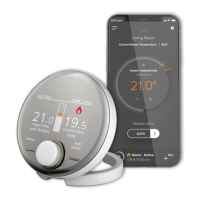
The Halo control is a battery-powered, wireless device that communicates with a Smart Interface wired into your boiler using the Zigbee protocol. For the Wi-Fi variant, it also connects to your home Wi-Fi network, allowing for remote control via the Halo app, available on Google Play and the Apple App Store. The app itself is free to use, and for those with the RF version, an upgrade to app-controlled heating is possible for a connection fee. The Halo manages central heating zones and hot water, displaying current room temperature, target temperature, and the active mode (Auto, Manual, or Off) on its screen. It also indicates when hot water is on and when heating is active with an orange dot and a flame symbol, respectively.
The Halo features a central dial for adjusting temperature and navigating menus. Pressing the dial alternates between heating and hot water control. Left and right-hand buttons are used for menu entry and mode switching, respectively.
A red, empty battery symbol on the screen indicates that the Halo batteries need replacement. The Halo unit can be desk-mounted or wall-mounted. To access the batteries, gently pull the Halo away from its rear housing using the finger grabs at the top and bottom. Do not use a screwdriver. Replace the old batteries with 4 new AA Alkaline batteries, ensuring correct orientation. Position the Halo back onto the rear housing and push until it clicks into place. After battery replacement, the Halo will undergo a short synchronization process to reconnect with the Smart Interface before returning to the home screen.
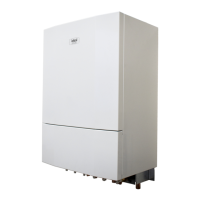
The Halo Smart Interface, installed in the boiler, and the Halo Smart Wiring Centre (for multi-zone systems) are key components. While you typically won't interact with them directly, their LED indicators can help diagnose technical issues. Both have Failsafe/Override features to allow boiler operation if wireless communication is lost. The Smart Interface has LEDs for Power, Boiler activity, Connectivity (for Wi-Fi models), and Zigbee connection, along with an Override button and a Pairing button. The Smart Wiring Centre has LEDs for Power/Override, Pair, Heating Zone 1, Heating Zone 2 (if applicable), and Hot Water, along with buttons for manual override of zone valves.
 General
| Color | White |
|---|---|
| Warranty | 2 years |
| Connectivity | Wi-Fi |
| Control Method | App |
| Timer | Yes |
| Mounting | Wall Mounted |

 To Next Page