11 SignalTEK CT 156840.02
Downloading results to a smartphone (only when no tests are running)
T
o enable Wi-Fi for results transfer:
• Insert Wi-Fi dongle into the SignalTEK CT USB port.
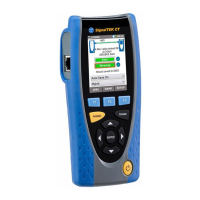
• From the home screen select the JOBS icon.
• The display will show the Job List screen. Wi-
Fi connectivity is indicated by the top
bar on the SignalTEK CT screen changing from grey to blue:
Now the SignalTEK CT is ready for results transfer wirelessly.
To minimise battery consumption the Wi-
Fi connectivity is enabled for 5 minutes
following power up and whenever the user is in the JOB screen.
wnload results to an Android™ smartphone:
• Download and open App from the Google Play™ Store.
• Search and connect to SignalTEK CT. The SSID will be of the form "IDEALS-
XXXXXX".
The SSID and password can be viewed on the SignalTEK CT under the SETUP |
REPORTS screen.
• You will be prompted for the SignalTEK CT Wi-Fi password if it has been changed
from the default value.
• Once connected the App will display list of JOBs on the SignalTEK CT. These can
be selected and downloaded to the smartphone.
• Once results are on the smartphone they can then be transferred using email or
other share mechanisms.
To download results to an iPhone®:
• Download and open App from iTunes®.
• Search and connect to SignalTEK CT. The SSID will be of the form "IDEALS-
XXXXXX". The SSID and password can be viewed on the SignalTEK CT under the
SETUP | REPORTS screen.
• You will be prompted for the SignalTEK CT Wi-Fi password if it has been
changed from the default value.
• Once connected the App will display list of JOBs on the SignalTEK CT. These
can be selected and downloaded to the smartphone.
• Once results are on the iPhone® they can then be transferred using email or
other share mechanisms.


 To Next Page
 Loading...