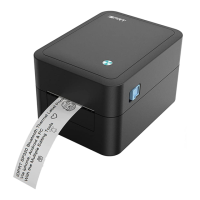
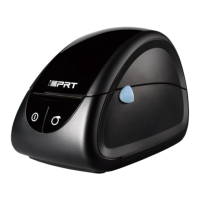
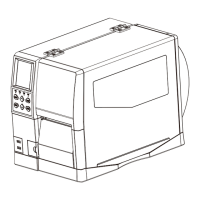
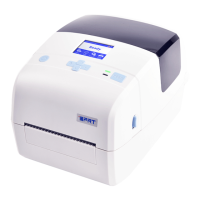
This document is the user manual for the SP410BT printer, a device designed for label printing. The manual provides comprehensive information on its installation, usage, maintenance, and technical specifications.
Function Description
The SP410BT is a label printer primarily used for printing various types of labels. It supports both fanfold and roll-type label loading, offering flexibility for different printing needs. The printer connects to a computer via USB or Bluetooth for data transfer and operation. It features a simple control panel with a feed button for managing paper output and print tasks. The device is compatible with both Windows and macOS operating systems, with dedicated driver installation procedures for each.
Important Technical Specifications
The SP410BT printer utilizes direct thermal printing technology.
- Resolution: 203 dpi (8 dots/mm).
- Printing Speed: 50-150 mm/s.
- Printing Width: 50-108 mm.
- Printing Length: 25 mm - 300 mm.
- Processor: 32 bits RISC CPU.
- Memory: 2MB RAM and 2MB Flash.
- Detection: Sensors for paper out detection, seam label detection, black mark detection, and open detection.
- Types: Roll-fed or Fan-fed, Die-cut or Continuous label.
- Width: 2" (50 mm) – 4.65" (118 mm).
- Thickness: 0.003" (80 µm) – 0.0087" (220 µm).
- Label Roll Diameter: 5" (127 mm) Max.
- External Folding Paper: W:100mm x L:100mm - 300mm.
- Programming Language: TSPL.
- Software: Windows 2000, Vista, 7, 8, 10.
- Resident Fonts: GBK 16x16 24x24 dots, ASCII 8x16, 12x24 dots.
- Barcode Support:
- 1D: Code 39, Code 93, EAN 8/13 (add on 2 & 5), UPC A/E (add on 2 & 5), I 2 of 5, Codabar, Code 128 (subset A, B, C).
- 2D: QR Code.
- Communication Interfaces: USB, Bluetooth.
- HMI: Movable paper guides, back feed and positioning automatically, movable sensor for black label.
- Power: IP: AC230V+/-30V, 1.5A.
- Environment:
- Operation: 41°F (5°C)-104°F (40°C), 30%-85%, non-condensing.
- Storage: -4°F (-20°C)-122°F (50°C), 10%-90%, non-condensing.
- Physical Dimensions: 112(L) x 102(W) x 217(H)mm.
- Weight: 1.5kg.
- Options & Accessories: External label roll holder, folding carton.
- Agency Approvals: CCC.
Usage Features
The SP410BT printer is designed for straightforward operation.
- Printer Connection: The printer connects to a power source and a computer via USB or Bluetooth. Users must ensure the correct power adapter is used to avoid damage.
- Fanfold Label Loading: To load fanfold paper, users turn on the power, adjust the paper guide to fit the width of the paper, and the paper will be automatically sucked in.
- Roll Type Label Loading: For roll-type labels, the label holder needs to be aligned with the hooks at the bottom of the printer.
- Operation Panel: The printer features a power switch to turn it on/off and a feed button. The feed button can be pressed to send paper out, continuously feed paper, or pause/resume printing.
- Driver Installation: The manual provides detailed steps for installing drivers on Windows (2000, Vista, 7, 8, 10) and macOS. This includes accepting license agreements, selecting installation options, and configuring port settings.
- Printing Preferences: Users can customize printing preferences such as paper name, format (inch/mm), offset, rotation, and effect (mirror/inverse). Advanced settings allow for adjusting print density, speed, media handling (save paper, media type, error reprint), and calibration.
- Printer Properties: Users can view general information about the printer, configure port settings (baud rate, data bits, parity, stop bits, flow control), and set advanced options like print spooling and priority.
- Driver Removal: The manual also outlines the process for uninstalling the printer driver from both Windows and macOS systems.
Maintenance Features
Proper maintenance ensures the longevity and optimal performance of the SP410BT printer.
- Cleaning Print Head: The print head should be cleaned regularly to prevent damage and ensure print quality. This involves turning off the printer, allowing the print head to cool, and then cleaning it with an alcohol-soaked cleaning pen from the center to the two sides.
- Cleaning Roller and Paper Path: The roller and paper path should also be cleaned to remove any dust or foreign substances. A cloth or cotton swab soaked in alcohol can be used for this purpose. After cleaning, the parts should be allowed to dry completely.
- Troubleshooting: The manual includes important safety instructions and warnings to prevent damage to the printer and injury to users. It advises against using damaged cables, plugging/unplugging the printer with wet hands, or using non-standardized power outlets. In case of issues, users are advised to contact their dealer or a qualified service technician.
- Continuous Improvement: The manufacturer reserves the right to make changes to technology, spare parts, hardware, and software of the products without prior notice, indicating a commitment to continuous improvement.

 Need help?
 General

 To Next Page