Setup & Testing (iOS)
This is a step-by-step walkthrough for setting up the iHeart app. This was created
using screenshots from an iPhone. iPad setups may vary in appearance but the
required steps are the same.
Android users, please go to page 11 for an Android-specific walkthrough.
1. Downloading the app
1. Open the App Store on your iPhone/iPad.
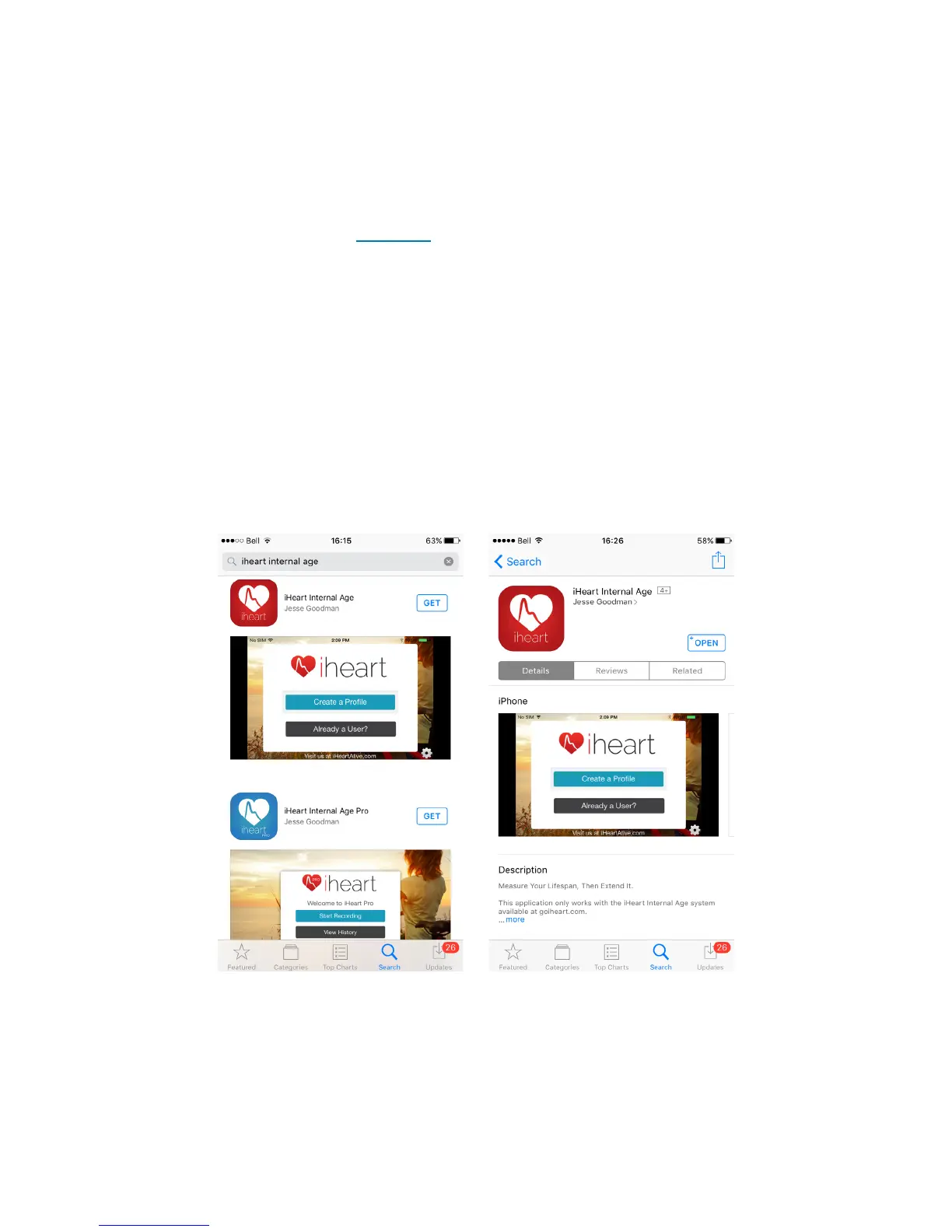
2. Search for
iHeart Internal Age (Fig. 2).
3. Select the version of the app you would like to start using and press
Get.
For more information about the two dierent apps, please see above. If you do not already have one you may
be prompted to create an Apple ID. Credit card details may be requested for account creation but will not be
charged. (iHeart Pro users only will later be asked to pay for their subscription.)
4. After the download completes, press
Open
(Fig. 3).
2. Setting up & registering the app
1. If your iPhone/iPad’s bluetooth is not already enabled then you will be
prompted to do so when you open the app
(Fig. 4).
If you are not prompted,
please skip this step. Press
Settings
and flick the switch to green. Then press
on
<Internal Age
in the top left-hand corner to be taken back to the app.
7
(Fig. 2) (Fig. 3)



 To Next Page