11
Pairing a Bluetooth Device for the First Time
1. Power on the unit by pressing the Power button.
2. Set the Source to Bluetooth and press and hold the Pair button.
The pairing indicator will flash blue quickly. When pairing, remain within 3 feet of the unit.
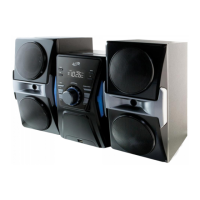
3. Using the native controls on your Bluetooth device, select the IBD704 in your Bluetooth settings to pair.
If your device requests a password, enter the default password 0 0 0 0 .
Refer to the user’s manual for your specific device for instructions on pairing and connecting Bluetooth devices.
4. When successfully paired and connected, a beep will issue from the unit and the Pairing Indicator will
display a solid blue light.
After initial pairing, the unit will stay paired unless unpaired manually by the user or erased due to a reset of the
device. If your device should become unpaired or you find it is unable to connect, repeat the above steps.
Playing Audio Wirelessly
1. After pairing to a bluetooth device, use the native controls on the connected Bluetooth Device to
select a track.
2. Play, pause or skip a selected track using the native controls on the connected Bluetooth Device or the
controls on the unit.
3. Audio played through the connected Bluetooth device will be heard through the speakers.
Bluetooth & Line In
Using the Line In
Requires a 3.5 mm audio input cable (not included).
1. Plug one end of a 3.5 mm audio input cable into the Line In input on the back of the unit, and plug the other
end of the cable into the audio output on an MP3 Player or other audio source.
2. Set the Source to Line In.
3. Audio played through the connected device will be heard through the speaker.
SD Card Slot & USB
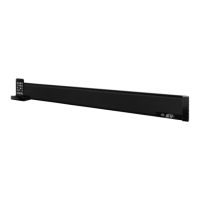
Using the AV Input
Requires an 3.5mm to RCA audio/video adapter (included).
1. Connect the included 3.5mm to RCA audio/video adapter to the AV Input and the RCA output on
another device.
Note: You may also need to plug an RCA AV cable (included) into the adapter to finish connecting.
2. Adjust the Source to AV mode.
3. Use the native controls on the connected device to play your audio/video through the unit.
AV Input & AV Outputs
Using an SD Memory Card
1. Insert a SD memory card into the SD Card Slot.
2. In DVD mode, press and hold the STOP/USB/SD button to enter USB/Card selection mode.
3. Press the up or down Arrow buttons and then press the OK button to select Card mode.
4. Use the Arrow and OK buttons to select and play content from the connected SD memory card.
Using a USB Thumb Drive
1. Insert a USB thumb drive into the USB Port.
2. In DVD mode, press and hold the STOP/USB/SD button to enter USB/Card selection mode.
3. Press the up or down Arrow buttons and press the OK button to select USB mode.
4. Use the Arrow and OK buttons to select and play content from the connected USB thumb drive.
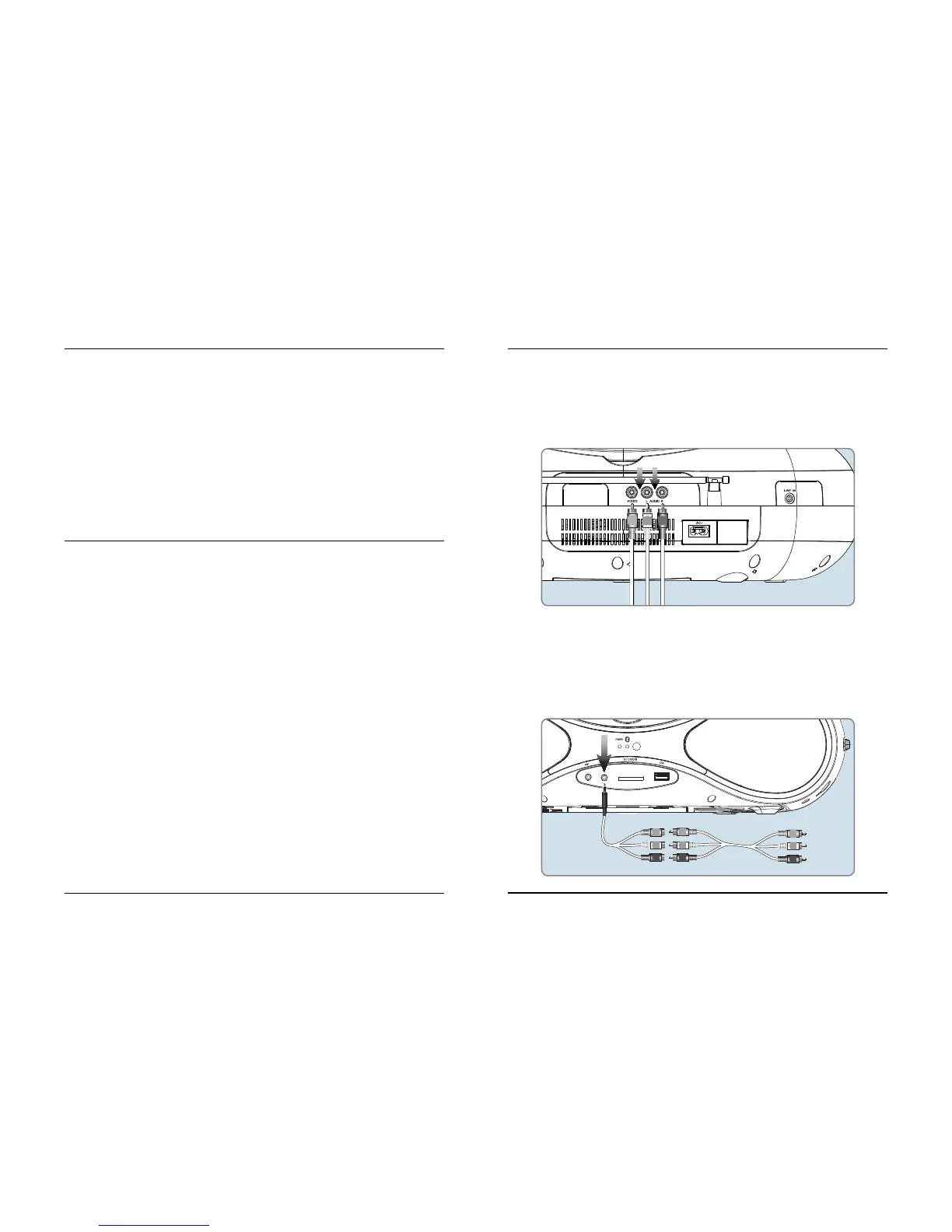
Composite Audio/Video Output
Requires an RCA audio/video cable (included).
1. Connect an RCA AV cable (included) to the Composite outputs on the back of the unit, and the
Composite inputs on a television.
2. Adjust the connected television to the proper input setting.
3. Video and sound from a loaded disc can now be played through the unit to the connected television.


 To Next Page