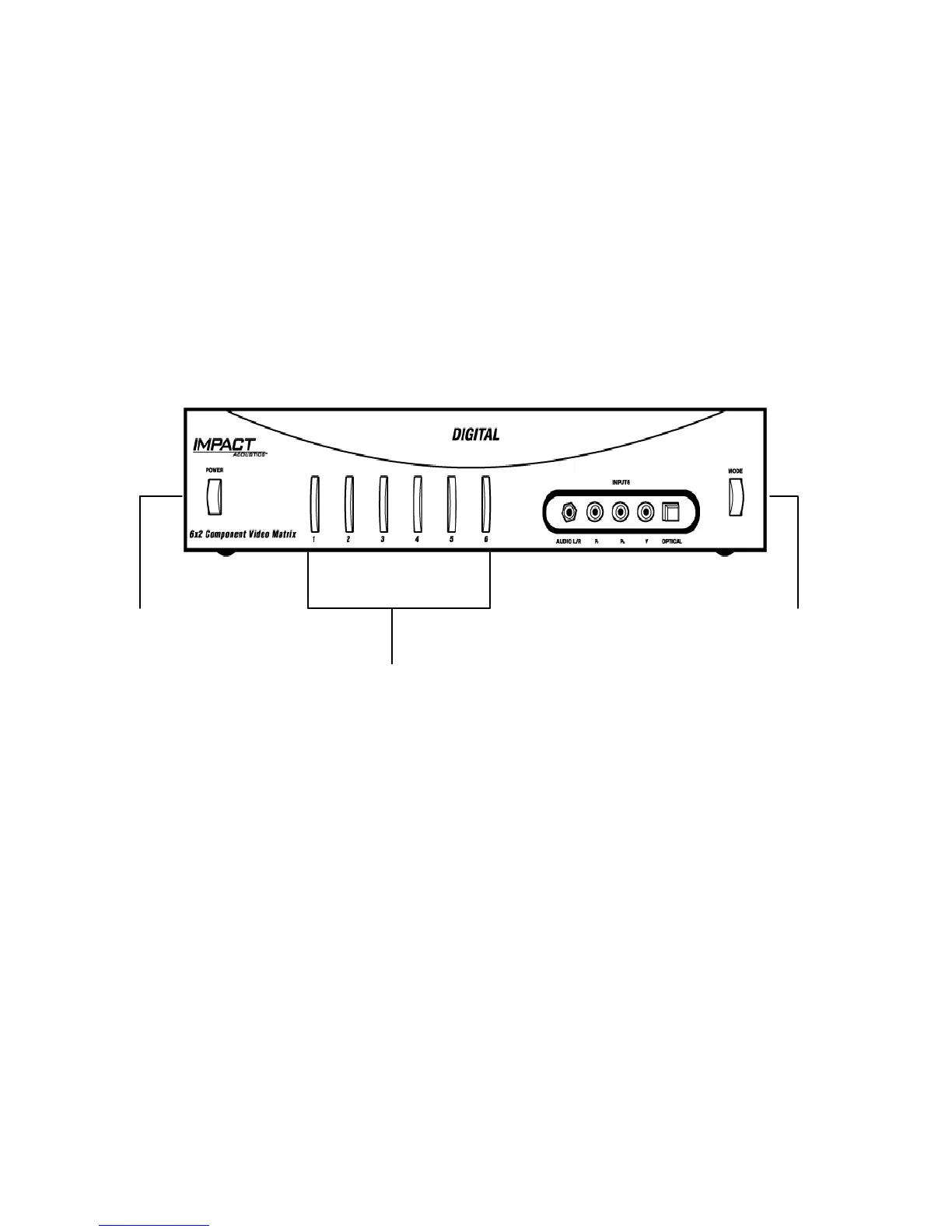
Controlling the switch from the front panel
1. Press POWER button to turn on the switch.
2. Press MODE button to select output mode first.
- If the MODE switch is illuminated green,
Input 1-6 selected in the next step will be routed to Output 1.
- If the MODE switch is illuminated red,
Input 1-6 selected in the next step will be routed to Output 2.
- If the MODE switch is illuminated orange,
Input 1-6 selected in the next step will be routed to Output 1 and Output 2 at the
same time.
Allows front panel
switching between
input devices
Power Button Mode Button
In
ut
1-6
Buttons
Allows front panel
switching between
outputs
Turns the matrix
switch on and off
3. Press one or two of the Input 1-6 buttons on the front panel (according to what front or rear
inputs are being used by a device) to route the materials from selected playback device to
desired output chosen in the last step.
Example 1 – You would like to route your DVD player connected to Input 3 over to Output
1. Press the MODE button until it is illuminated green, then press 3 on the front panel. The
LED of Input 3 on the front panel will be illuminated green.
Example 2 – You would like to route materials from your game console connected to Input
6 over to Output 2, but would like to continue watching the DVD movie from example 1.
Press the MODE button until it is illuminated red, then press 6 on the front panel. The LED
of Input 6 on the front panel will be illuminated red.
Example 3 – You wish to now route materials from your cable box connected to Input 1
over to both displays connected to Output 1 and Output 2. Press the MODE button until it
is illuminated orange, then press 1 on the front panel. The LED of Input 1 on the front
panel will be illuminated orange.
5



 To Next Page