2
Charging the Wireless TROLL Com
Connecting to VuSitu with a Wireless TROLL Com
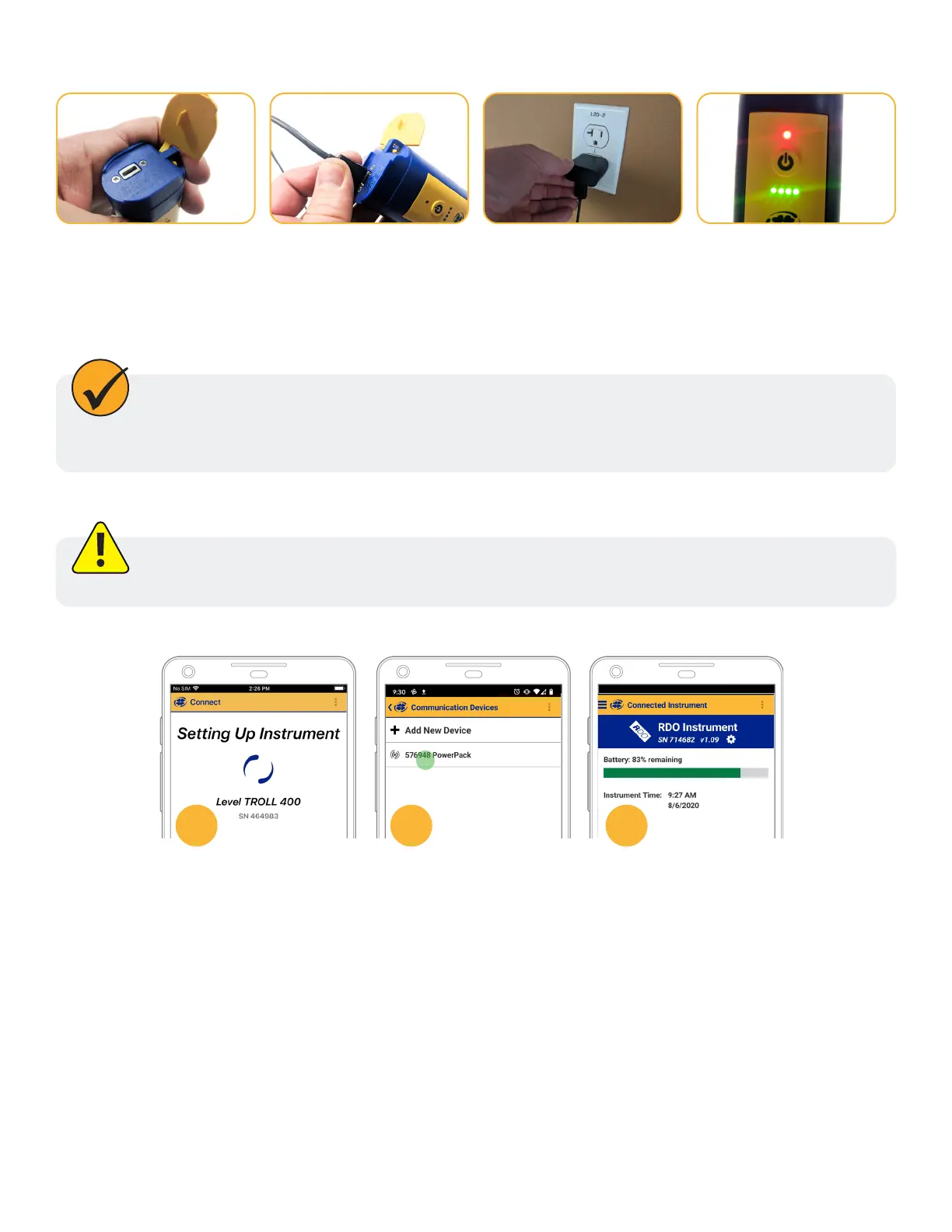
Open the dust cover at
the top of the Wireless
TROLL Com.
Connect the USB cable to
the device.
Plug the USB cable into
the wall charger or a
powered USB port from a
computer. Make sure the
computer is plugged in.
The device lights will turn
on and blink according to
charge level.
A fully-charged communication device will run for up to 40-50 continuous hours. Avoid
full discharges and charge the battery each use. Do not store the Wireless TROLL Com in
temperatures above 122 F/50 C.
Connecting to VuSitu
You must have the VuSitu mobile app to use the instrument with a mobile device. Download
VuSitu from the Google Play Store or the Apple App Store.
Attach an instrument
and turn on the Wireless
Rugged TROLL Com.
Launch VuSitu. The
app will automatically
connect.
a
To connect to another
instrument, press
Disconnect. VuSitu
displays a list of available
connections.
b
VuSitu displays the
Connected Instrument
screen when pairing is
complete.
c
1-970-498-1500 www.in-situ.com



 To Next Page