3
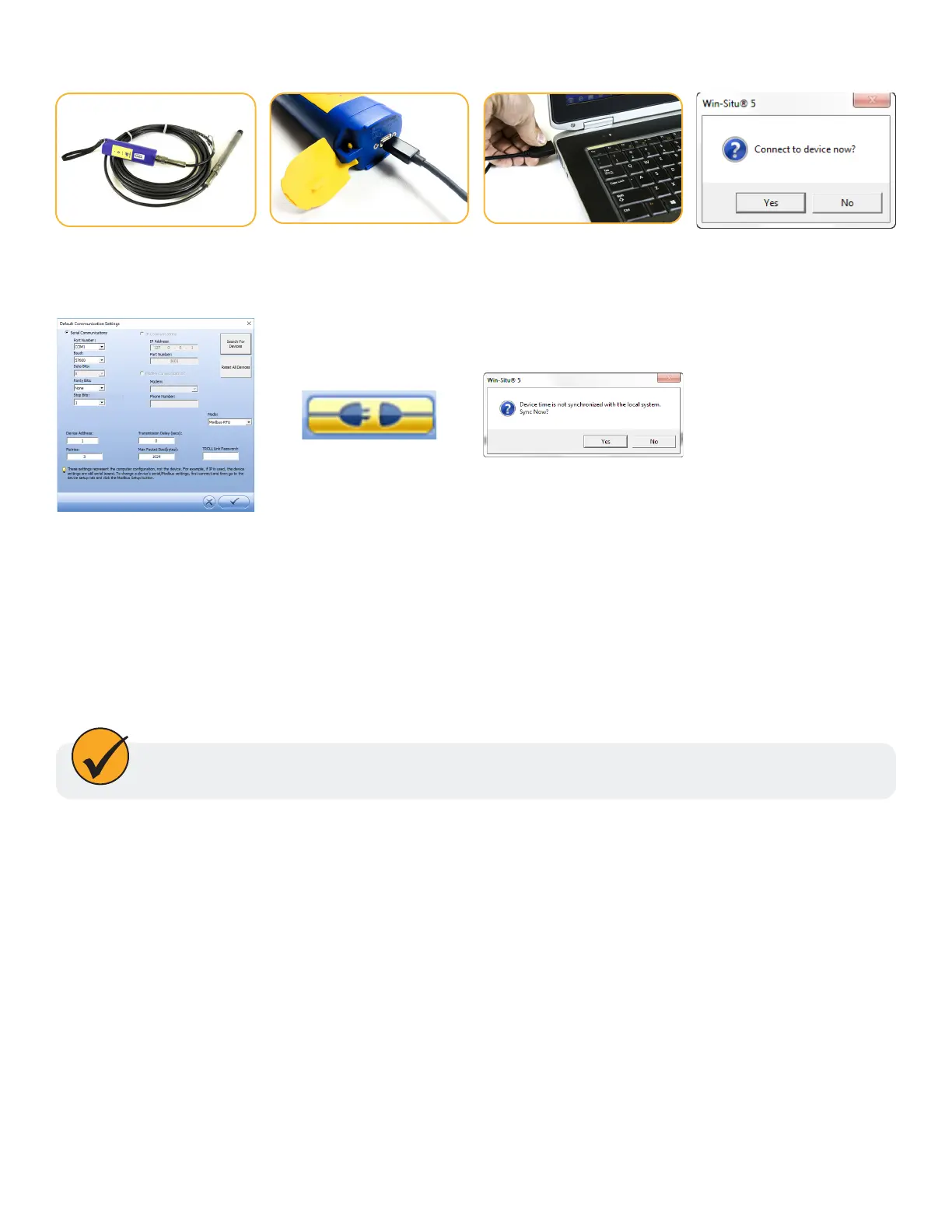
Connecting to Win-Situ 5
Default communication settings
• Baud: 19200
• Data bits: 8
• Parity bits: Even
• Stop Bits: 1
• Device Address: 1
• Mode: Modbus-RTU
Open Win-Situ. Select No
when asked “Connect to
device now?”
Connect the USB cable to
the port at the top of the
Wireless TROLL Com.
Attach an instrument to
the Wireless TROLL Com
with a Rugged Cable.
Plug the other end of the
cable into your PC’s USB
port.
Choose Preferences
> Com Settings from
menu bar. Select Serial
Communications radio
button and then choose
the correct Com Port.
Click check mark button.
Click yellow connect
button at bottom right of
screen.
Click Yes if prompted
to sync device time
with local system, or if
prompted to update
rmware.
The following default communication settings are most common for In-Situ instruments:
1-970-498-1500 www.in-situ.com



 To Next Page