2
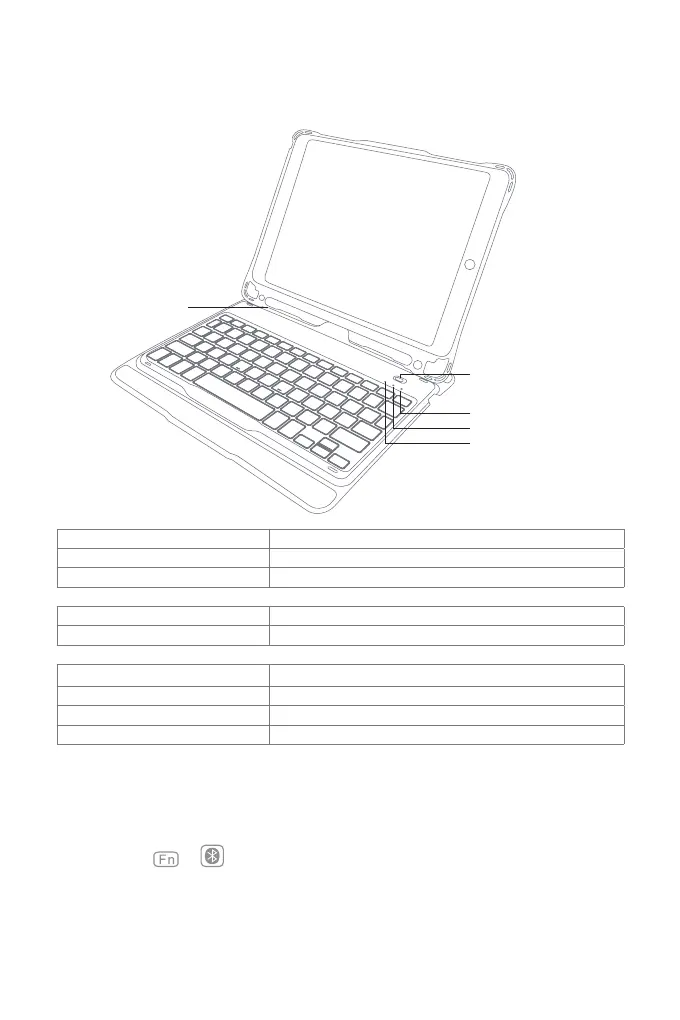
1. Product Overview
Pencil Slot
Power Switch
Indicator 3
Indicator 2
Indicator 1
English
Status of Indicator 1 Meaning
Keeps blue Caps Lock Enabled
O Caps Lock Disabled
Status of Indicator 2 Meaning
Blue light ashes Under Bluetooth pairing mode, waiting for pairing, light goes o when paired successfully
Status of Indicator 3 Meaning
Keeps red Charging, turns green when battery is full
Red light ashes Low battery, Recharge required(Remaining battery lower than 15%)
Keeps green Full battery
2. How to pair an iPad
Step 1: Install iPad onto the Bluetooth keyboard
Step 2: Toggle the power switch to ON, and the Bluetooth keyboard starts.
Step 3: Press the + simultaneously. Indicator 2 will ash in blue, which means the keyboard is
under Bluetooth pairing mode.
Step 4: On the iPad, select Settings- Bluetooth- On.
Step 5: The iPad will display “Inateck KB02011” as an available device.
Step 6: Select “Inateck KB02011” on the iPad.
Step 7: Indicator 2 goes o, which means the keyboard has been paired with iPad successfully.



 To Next Page