3
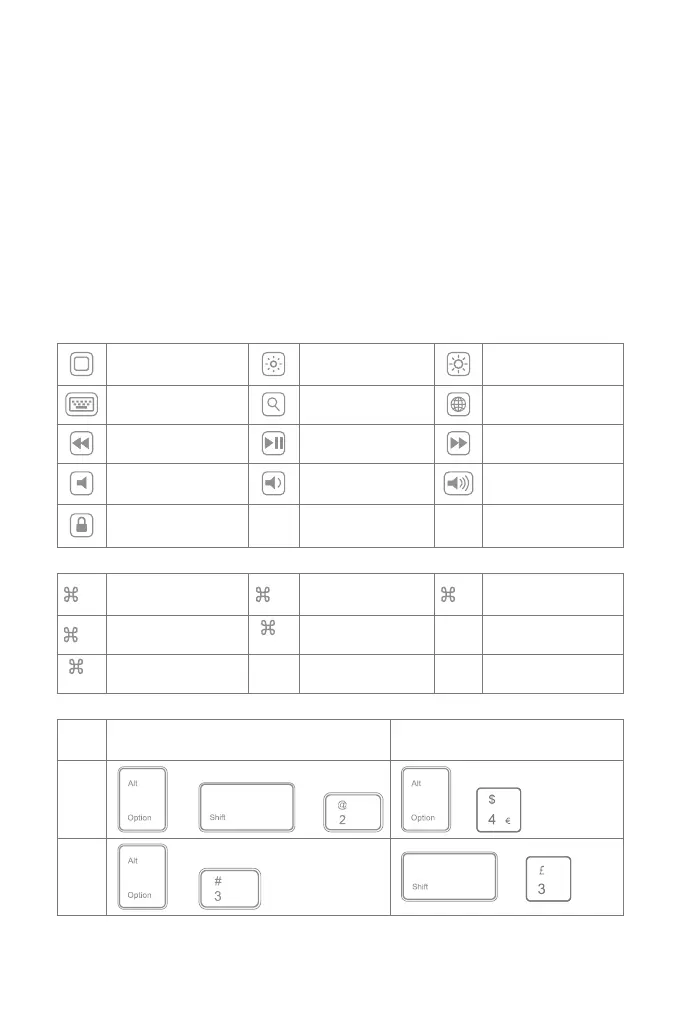
Home Decrease Increase
Virtual Keyboard Search Switch language
Previous track Paly/Pause Next track
Mute Volume down Volume up
Lock
2) Some shortcut Keys are listed below.
3)
Note
A. Press and hold the command key to see shortcuts in any app that supports them.
+ X Cut + C Copy + V Paste
+ A Select all
+
Space
Search
Ctrl+
Space
Switch language
+
Tab
Switch APP
The default lauguage setting is English(US) iPad
layout
The default lauguage setting is
English(UK) iPad layout
€ + + +
£ + +
Note
A. After one successful paring, the Bluetooth keyboard and the iPad can be automatically paired in future.
However, when interference exists or unstable Bluetooth signal on iPad, the automatic paring might fail.
In that case, please do as following.
a. Delete all Bluetooth pairing record related to KB02011 on your iPad
b. Turn o Bluetooth on iPad
c. Follow ‘How to pair an iPad’ to connect.
B. If iPad reminds: Connection Unsuccessful, Make sure ‘Inateck KB02011’ is turned on and in range. Please
follow the steps below to reconnect.
a. Delete all Bluetooth pairing record related to KB02011 on your iPad
b. Turn o Bluetooth on iPad
c. Follow ‘How to pair an iPad’ to connect.
3. Function Keys
1)



 To Next Page