6
TWO
Activating media player
Once you have properly set up the media player, please turn on your TV to enter the main menu screen.
It is suggested that you plug your USB storage device before turning on your TV so that you can see the function icons
such as “Movie” and “Music”.
Switch the video source of your TV. Your TV comes with multiple video sources such as TV, AV, YUV and HDMI. Please
switch to the correct source. For instance, if you connect the media player to TV through AV Cable please switch the
video source of the TV to “AV”. You may do that with the buttons on your remote control or buttons on the television.
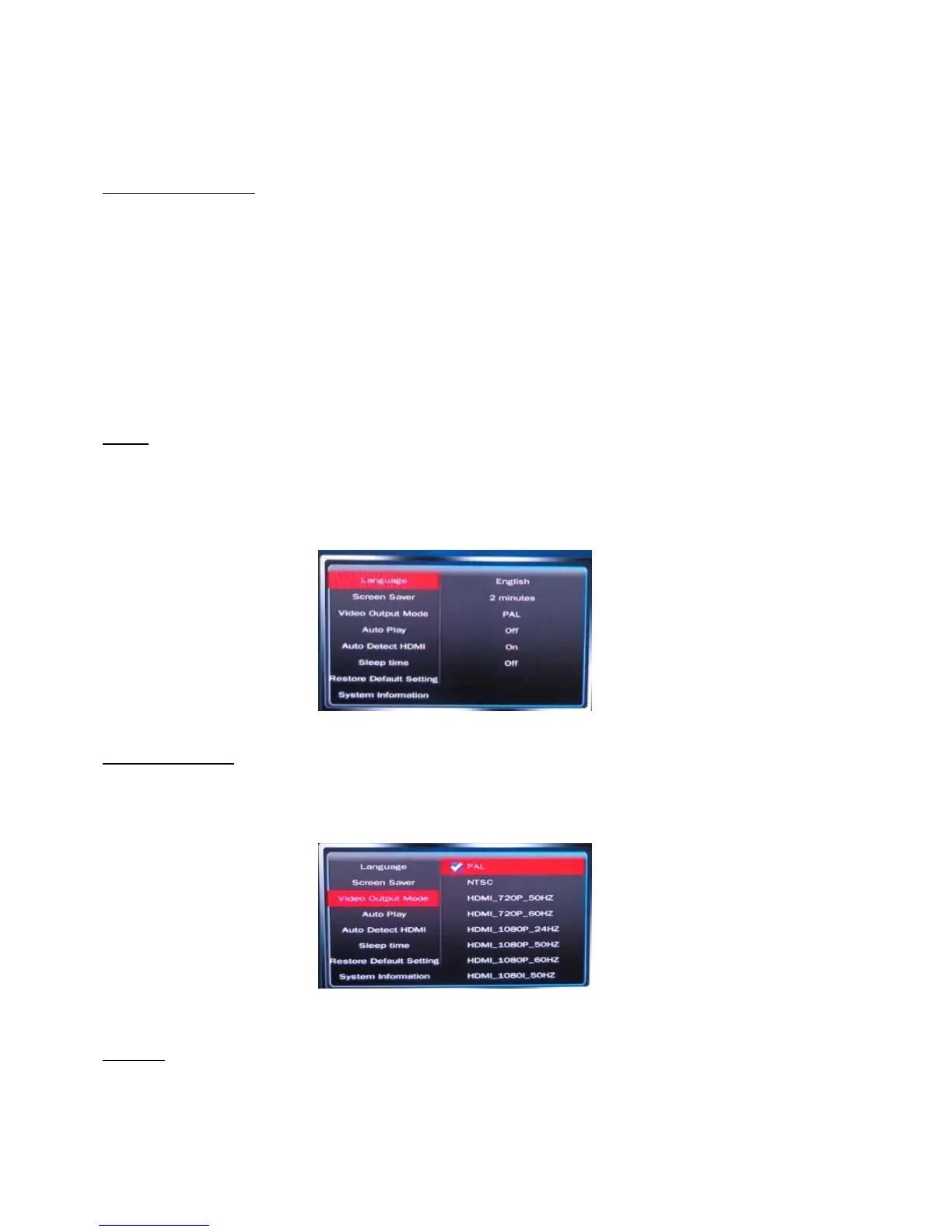
Setting
Use the arrow keys on the remote to select “Setting” and press “Enter” to enter. You will see a list of items once you
have entered the “Setting” page. The options include “Video Output Mode”, “Language”, “Screen Saver”, “Audio
Output Mode”, “Restore Default Setting”, “System Information”
Video Output Mode
Once you are in the setting options page, please switch the video output standard for the media player. Please press
“Enter” on your remote to select “Video Output Mode”, and press “Enter” to view the different output, and then
select your desired one by pressing direction keys.
Language
If you need to change your media player language input, please use the up and down arrow keys to select
“Language.” Once you are in language input, please view the different languages by pressing Enter key on your


 To Next Page