EasyManua.ls Logo

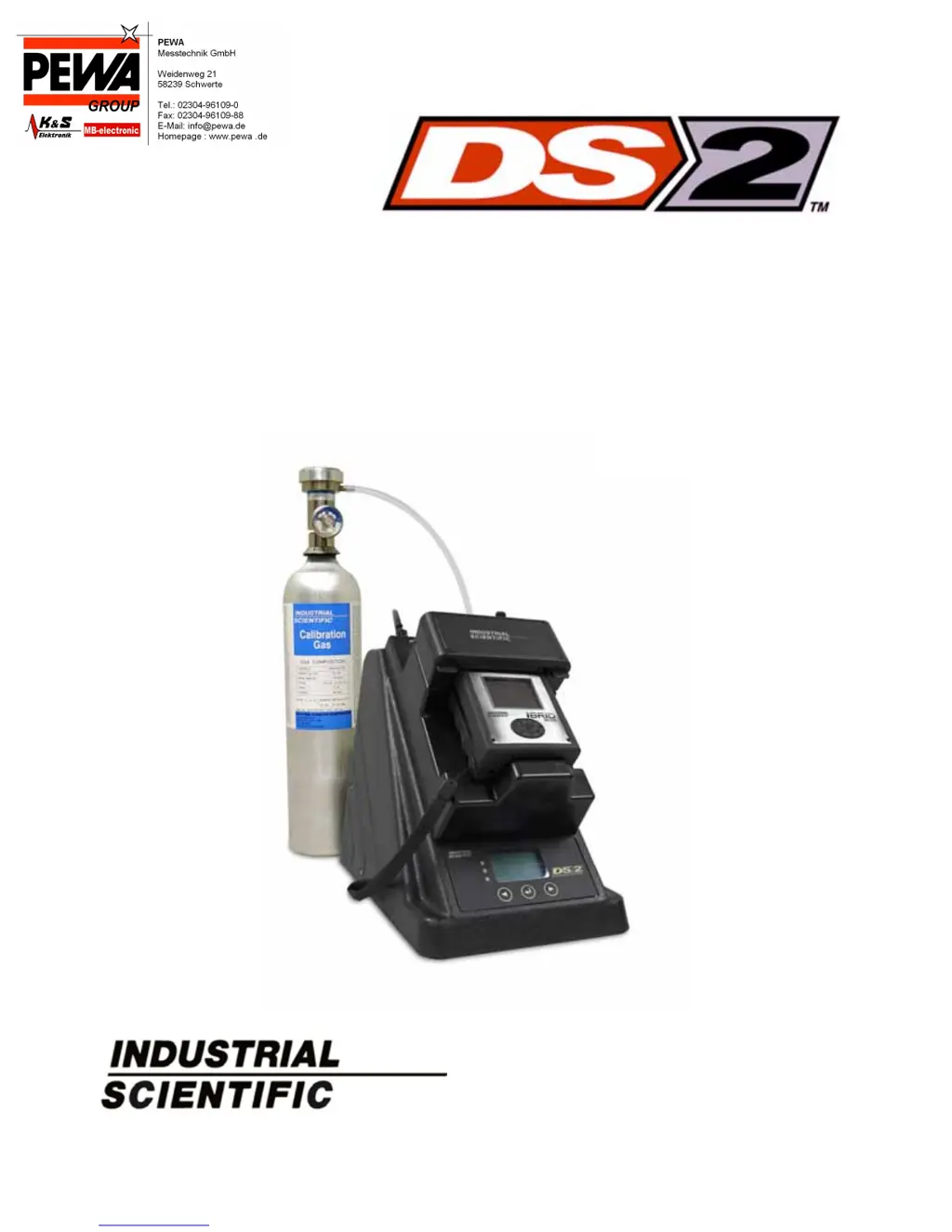
Industrial Scientific DS2 Docking Station - User Manual

Industrial Scientific DS2 Docking Station
280 pages
Print Icon
To Next Page IconTo Next Page
Loading...
Administrator’s Guide to the
DS2 Docking Station
Hardware Software Installation Operation Troubleshooting
Part Number:
17112798
Release Date: December 20, 2013
Version No.: 4

Table of Contents

Questions and Answers

  • R
    robertsolisSep 23, 2025
    What does “Diagnostic Solenoid No Vacuum“ error mean on Industrial Scientific Test Equipment?
    • K
      Katelyn AyersSep 23, 2025
      A “Diagnostic Solenoid No Vacuum“ error on Industrial Scientific Test Equipment indicates that the diagnostic test fails if vacuum is greater than or equal to 325.
  • S
    Stephen BrownAug 25, 2025
    What to do if I receive a network error while in the Industrial Scientific DS2 Docking Station DSSAC?
    • K
      Kelsey DavisAug 25, 2025
      If you receive a network error while using the Industrial Scientific Test Equipment DSSAC, it could be due to a few reasons: * The network connection may have been interrupted. * The DSS may be down. * Your user account may have been removed or modified by a Systems Administrator. Contact your network administrator or DS2 Docking Station systems administrator to resolve the issue.
  • E
    Emily DunlapAug 25, 2025
    Why does upload to iNet fail on Industrial Scientific DS2 Docking Station?
    • A
      Amanda BellAug 26, 2025
      If your upload to iNet fails using Industrial Scientific Test Equipment, the issue could be due to an internet connection failure, so contact your network administrator. Alternatively, verify that the correct Company Password and URL have been configured in the DSSAC.
  • C
    Christopher SmithAug 27, 2025
    How to fix invalid IP address error on Industrial Scientific DS2 Docking Station DSSAC?
    • V
      Vanessa JohnsonAug 27, 2025
      If you cannot log on to the Industrial Scientific Test Equipment DSSAC due to an invalid IP address, click the Options button on the DSSAC Login dialog. Ensure that the IP address is correct for the DSS you are trying to access.
  • A
    Alyssa KentAug 27, 2025
    How to correct the time on an Industrial Scientific Test Equipment IDS?
    • A
      anne97Aug 27, 2025
      If the Industrial Scientific Test Equipment IDS does not display the correct time, verify that the Docking Station Server has the correct time for your time zone. The IDSs use the time available from the server.
  • W
    wendymcmillanSep 14, 2025
    Why does the “Discovering” message display for long time on Industrial Scientific Test Equipment IDS?
    • T
      Tracy ContrerasSep 14, 2025
      If the “Discovering” message displays on the Industrial Scientific Test Equipment IDS for an extended period, the network connection from the IDS may be down or unplugged.
  • D
    dhawkinsSep 12, 2025
    Why can't I perform a forced calibration on Industrial Scientific DS2 Docking Station Test Equipment?
    • S
      Stephen CarrollSep 12, 2025
      If you cannot perform a forced calibration on your Industrial Scientific Test Equipment, it could be because another IDS in the cluster is currently using the requested gas or the instrument is not properly docked in the IDS.
  • W
    Wesley DavisSep 13, 2025
    Why is Industrial Scientific DS2 Docking Station Test Equipment IDS green LED on but not displayed in blue in DSSAC?
    • S
      smithsarahSep 13, 2025
      If the Industrial Scientific Test Equipment IDS green LED is on, but the IDS is not displayed in blue text in the DSSAC, the network connection from the IDS may be down or unplugged.
  • H
    hsmithSep 5, 2025
    Why can't I use the menu on my Industrial Scientific DS2 Docking Station Test Equipment IDS?
    • A
      amanda79Sep 5, 2025
      If you cannot use the menu on the Industrial Scientific Test Equipment IDS, it could be because the IDS is actively performing a task or the Menu Locked option has been set for the IDS in the DSSAC.
  • K
    Karen MartinezSep 1, 2025
    Why weren't changes to settings properly applied to an IDS or instrument on Industrial Scientific DS2 Docking Station Test Equipment?
    • M
      Mary CunninghamSep 2, 2025
      If changes to settings were not properly applied to an IDS or instrument of your Industrial Scientific Test Equipment, it could be because the IDS was unplugged during the event, the network connection was possibly interrupted, or the instrument was not properly docked in the IDS.

Summary

Introduction to the DS2 Docking Station

Getting Started

Requirements for Software Installation

Specifies the minimum system requirements for installing the DS2 software.

Installing Microsoft Internet Information Services (IIS) and Microsoft Message Queuing (MSMQ)

Provides instructions for installing essential Windows components for DS2.

Installing the Docking Station Server (DSS) Software

Details the procedure for installing the core DS2 Docking Station Server software.

Database Preparation Options for First Time Installations

Guides users through selecting and preparing the database for new DSS installations.

Installing the DS2 Docking Station Server Admin Console (DSSAC) Software

Explains how to install the DSSAC software for managing the DS2 system.

Assigning a Static IP Address to a Sever or PC

Covers the network configuration for assigning static IP addresses to servers or PCs.

Configuring the Firewall

Details how to configure the Windows firewall to allow DS2 communication.

Setting Up Users

Adding Users

Provides step-by-step instructions for creating new user accounts in DSSAC.

Configuring Instruments

Setting Up an Instrument

Guides the user through the initial setup process for a docked instrument.

Instrument Properties

Describes how to view and manage the properties of a docked instrument.

Edit Instrument - The Calibrations Tab

Covers viewing and managing calibration data for instruments and sensors.

Edit Instrument - The Bump Tests Tab

Details how to view and manage bump test data for instruments and sensors.

Configuring the DS2

Setting Up an Instrument Docking Station

Provides step-by-step instructions for preparing the IDS hardware for operation.

Configuring Gas Cylinders

Details the process of configuring gas connections for calibration and bump tests.

Basic Operation of the DS2

Forced Bump Tests

Guides on how to initiate a bump test manually from the IDS menu.

Forced Calibrations

Explains how to initiate a calibration manually from the IDS menu.

Using Clusters

Configuring the Cluster

Guides on configuring the IDS cluster in DSSAC for server recognition.

Event Scheduling

Default Settings

Default Alarm Settings

Explains how to configure default alarm thresholds for instruments and sensors.

Default Calibration Gases

Details how to define default calibration gas concentrations for sensors.

Troubleshooting

iNet Configuration for the DS2

Industrial Scientific DS2 Docking Station Specifications

General IconGeneral
Charging CapabilityYes
Communication InterfaceEthernet, USB
Data LoggingYes
ConnectivityEthernet, USB
Power SourceAC Adapter
Power Input100-240V AC, 50-60Hz
CalibrationAutomatic
Bump TestingAutomatic
Operating Temperature0°C to 40°C (32°F to 104°F)
Storage Temperature-20°C to 50°C (-4°F to 122°F)
Gas SupportedVaries by detector

Related product manuals