5
Installation Manual SmartLAN
Position the mouse arrow on the Message field, to view the message contents (tooltip function).
• Attach - each event can be associated with an
attachment document/file.
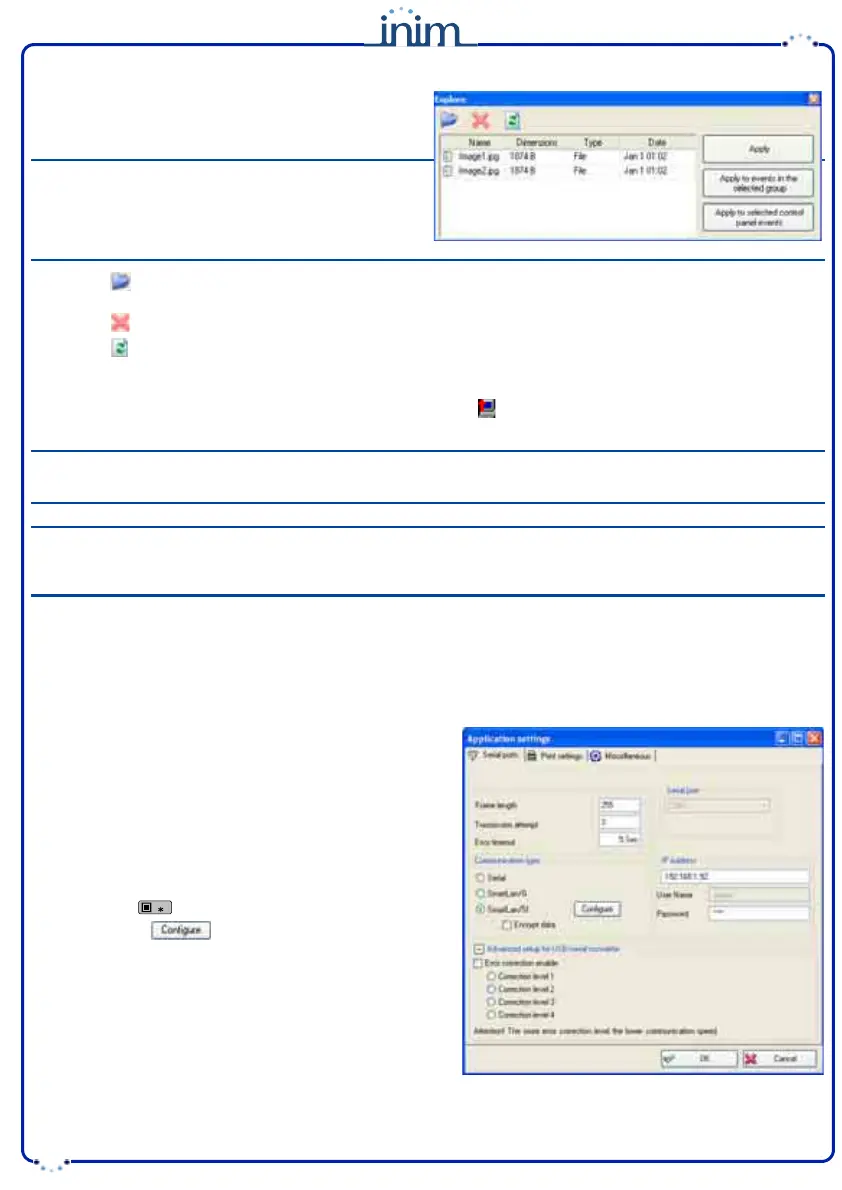
To access Explore, double-click on the field which
corresponds to the selected event.
Note
If you are attaching files to e-mails, be sure that an
SD-card is inserted into the appropriate connector on
the SmartLAN/G board (table Description of parts,
[P]).
•• The button will allow you to open a browser of the operative system and select the file you wish to transfer to
the SD-card.
••
The button will allow you to delete the selected file from the SD-card.
•• The button will allow you to update the contents of the SD-card.
•• The
Apply
,
Apply to events in the selected group
and
Apply to selected control panel events
buttons
operate in the same way as previously described.
9. Once the programming process is complete, click on the button to send the programming data to the
SmartLAN/G board.
Note
The programming data will be saved to the SmartLAN/G board and not to the control panel board.
Note
The e-mail service does not guarantee the time within which e-mails and their attached files will be delivered,
nor whether they will be delivered or not.
Programming the SmartLAN/SI (from PC only)
The SmartLAN/SI board can be programmed solely through the SmartLeague software application.
Following are the steps you must work through when installing the SmartLAN/SI on a SmartLiving control panel.
1. From the SmartLeague software application, select
Settings - Application settings.
2. From SmartLeague Communication type, select
SmartLAN/SI.
3. If you wish to encrypt data:
•• Enable the
Encrypt data
option on the screen.
•• From the Installer menu, select:
PROGRAMMING Parameters > Data encryption
•• Use the button to enable the selected parameter.
4. Click-on the button to open a new window.


 To Next Page
 Loading...