4
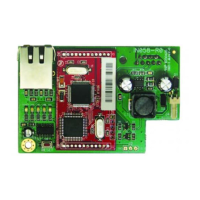
SmartLAN Ethernet interface
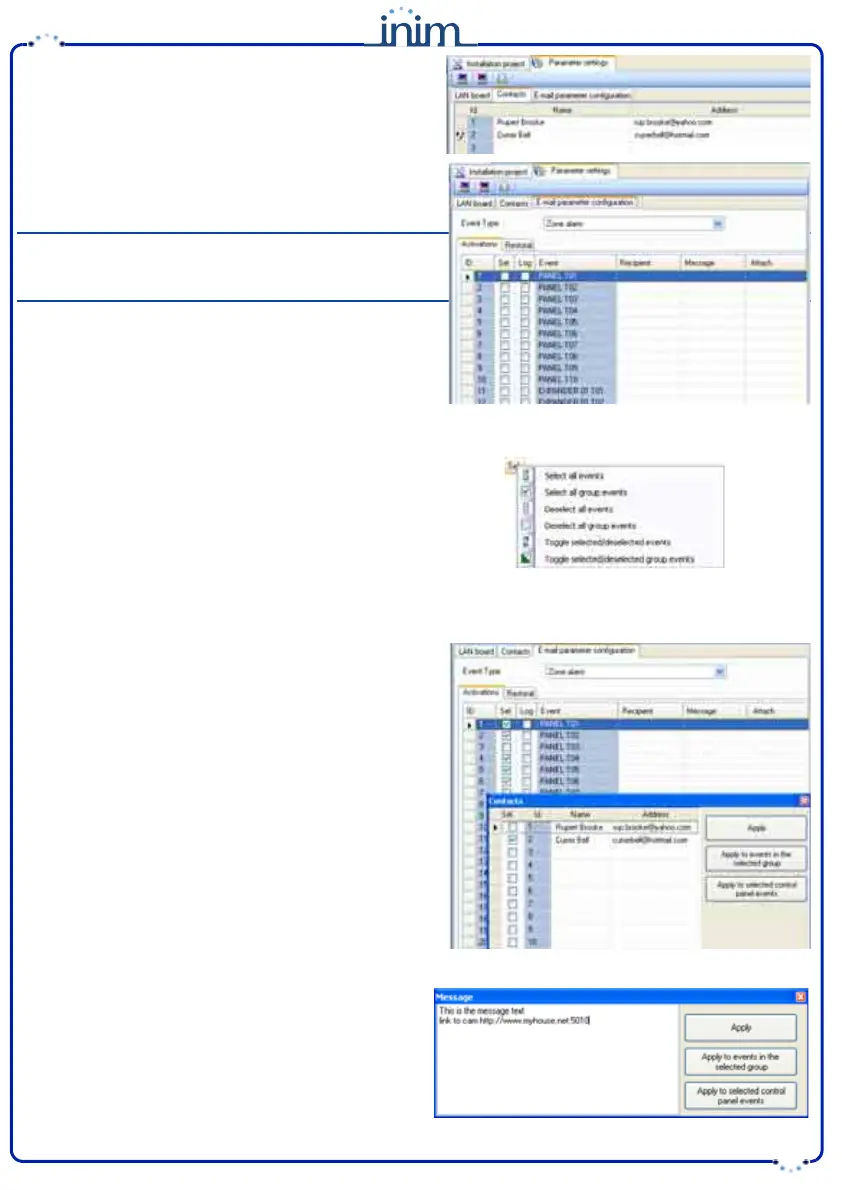
Contacts -
this screen allows you to type in the e-mail
addresses of up to 20 contacts. The e-mail contacts can be
saved on this screen but can also be changed in other parts
of the application (details and instructions to follow).
E-mail parameter configuration -
this screen allows
you to configure the parameters relating to outgoing event-
associated e-mails.
Note
E-mails can be associated only with events which are saved
to the events log.
•Event Type - allows you to select the group of events
you wish to program (Zone alarm, Away/Stay mode,
Terminal tamper, etc.).
The application will show all the events relating to the
selected Type.
The Activations and Retoral screens are the same and
allow you to program the notification of the start of an event (Activation) and its end (Restoral).
•Sel - if this option is enabled (enabled by clicking on the
respective checkbox), it will be possible to program
simultaneously the respective e-mail recipients, message
and attachments (details and instructions to follow).
You can select/deselect ALL events by right-clicking on
the option header (directly on "Sel"), as shown opposite.
•Log - if this option is enabled, a copy of the event record
(as saved to the events log) will be included in the e-
mail.
• Recipient - double-click on the box which corresponds to the desired event to access the e-mail contacts
screen and/or change the e-mail addresses of the recipients.
This screen provides 3 buttons:
••
Apply
- this option allows you to add/delete recipients
to/from the e-mail contact list associated with the
selected event only.
••
Apply to events in the selected group
- this option
allows you to add/delete recipients to/from the e-mail
contact list related to the type of the selected event.
•• A
pply to selected control panel events
- this option
allows you to add/delete recipients to/from the e-mail
contact list related to the selected control panel events.
The example above shows that when "Apply to events in
the selected group" is enabled, the application will send an
e-mail to Currer Bell in the event of Zone Alarms involving
zones PANEL T01, PANEL T02, PANEL T04, PANEL T05 and
PANEL T06. If, under the same circumstances, "Apply" is
enabled, the application will send an e-mail to Currer Bell
only in the event of Zone Alarms involving zone PANEL T01,
owing to the fact that it is the only one currently active.
• Message - this option will allow you to edit the e-mail
text structure.
Double click on the desired event field to open the
Message window, then type in the respective text (up
to 512 characters will be accepted). Each e-mail text is
capable of containing a direct link to a website or LAN
device (such as an IP camera) with http:// suffix.
The Apply, Apply to events in the selected group
and Apply to selected control panel events buttons
operate in the same way as previously described.


 To Next Page
 Loading...