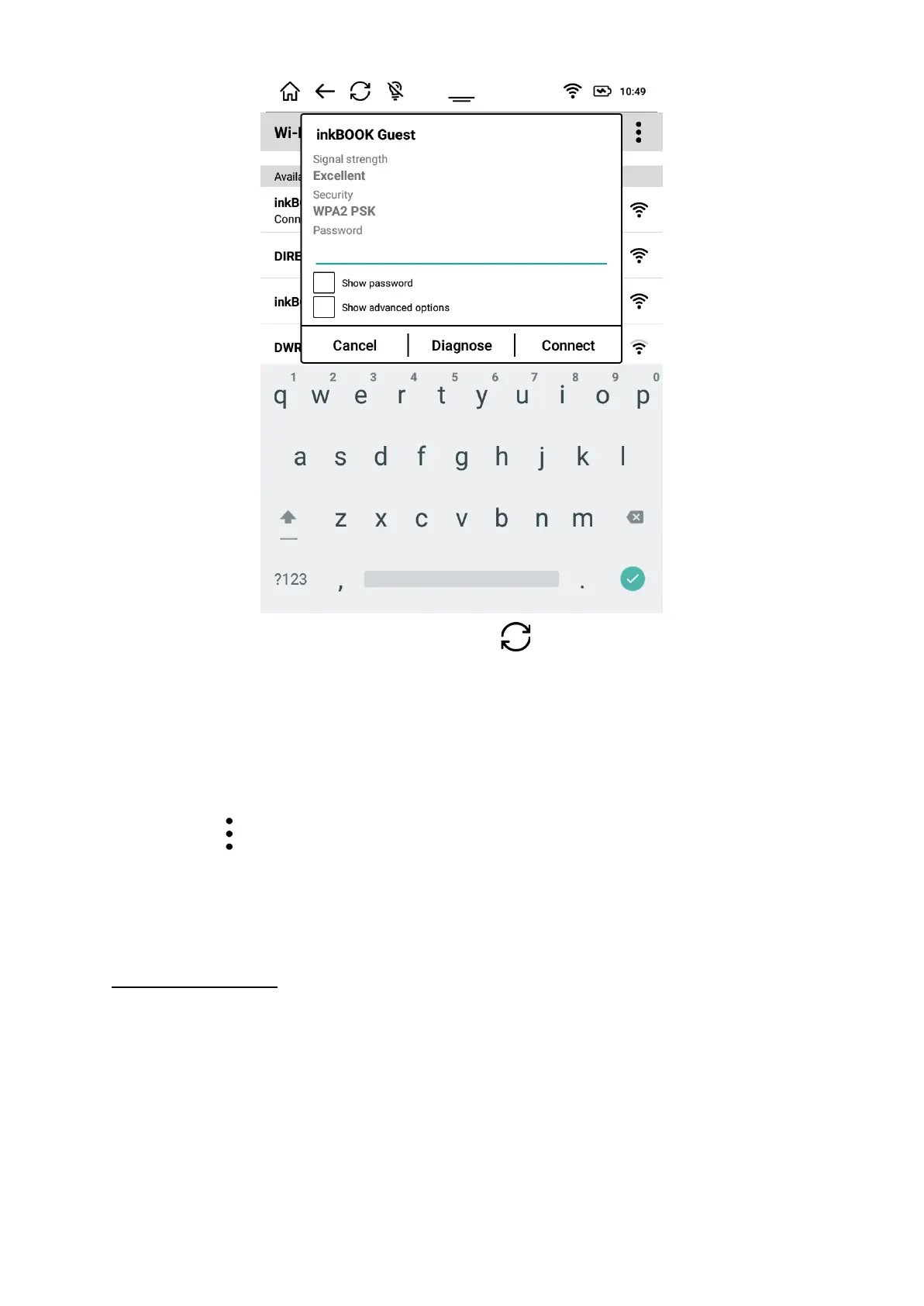
If desired network is not visible try pressing refresh button several times.
When the network you want to connect is chosen you will be asked for a password. Please
enter the correct password and tap Connect button.
You can come back to main wi-fi screen anytime by pressing Cancel.
Diagnose button generates QR code with all essential information about your network. It is
for inkBOOK Customer Service purposes to diagnose potential wi-fi problems without
necessity of collecting the device from end user.
Menu button provides access to advanced Wi-Fi settings:
● Add network - connects to closed SSID networks by allowing to enter network name
manually
● Advanced - allows to change default WiFi behaviour of inkBOOK- recommended only
for advanced users.
Public network notice:
Lots of public Wi-Fi networks required additional opt-in and acceptance of terms and
conditions through web browser. In case this is required, the notification will be displayed.
Tap on Notification concerning Wi-Fi connection in order to go to Wi-Fi provider landing page
and get access to the network.
In some cases such authorisation can not be obtained - eg. special java script features or
GMS services. In this case please contact admin of such a network for assistance or use
other WiFi network.


 To Next Page
 Loading...