EasyManua.ls Logo

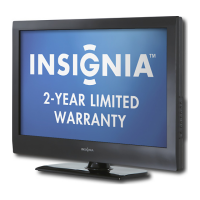
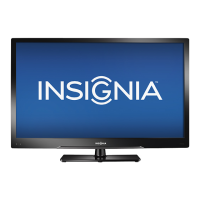
Insignia NS-46E570A11 - User Manual

Insignia NS-46E570A11
48 pages
Print Icon
To Next Page IconTo Next Page
Loading...
42"/46" LED-LCD TV, 120Hz 1080p
NS-42E570A11/NS-46E570A11
User Guide

Table of Contents

Other manuals for Insignia NS-46E570A11

Questions and Answers

  • Z
    zbrownAug 19, 2025
    How to fix Insignia NS-46E570A11 when it has no power?
    • E
      Eric DawsonAug 19, 2025
      First, ensure the power cord is securely connected to both your Insignia LCD TV and the power outlet. If it's still not working, unplug the power cord from the TV, wait 60 seconds, then plug it back in and try turning the TV on again.
  • H
    heatherwilsonAug 21, 2025
    What to do if my Insignia NS-46E570A11 remote control is not working?
    • D
      Diane HillAug 21, 2025
      If your Insignia LCD TV remote control isn't working, try these steps: * Ensure there are no obstructions between the remote and the TV's remote control sensor. * Clean the remote sensor on the front of your TV. * Bright or fluorescent lighting can interfere with the signal, so try turning off the lights or moving the TV. * Replace the batteries, making sure the + and – symbols align correctly in the battery compartment. * You might also consider purchasing a separate learning remote control. * For a list of remote control codes, go to www.insigniaproducts.com.
  • S
    samanthamullinsAug 23, 2025
    Why is there no sound on my Insignia LCD TV but the picture is fine?
    • H
      hhansonAug 23, 2025
      If you have a good picture but no sound on your Insignia LCD TV, first, increase the volume. Then, check to make sure that the sound isn't muted. Finally, verify that the correct audio mode is selected in the settings.
  • M
    matthewjenkinsAug 26, 2025
    How to troubleshoot no picture on Insignia NS-46E570A11?
    • H
      Heather CraneAug 26, 2025
      If your Insignia LCD TV has no picture, make sure that the Audio Only option is set to Off. Also, check that the video cables are securely connected to the back of your TV. You may also need to adjust the contrast and brightness. Verify that the correct video mode is selected and that the incoming signal is compatible. Ensure the antenna is connected correctly, and check the closed caption settings, as some TEXT modes can block the screen.
  • J
    jeffery83Aug 28, 2025
    How to improve color on Insignia NS-46E570A11 with good sound?
    • L
      Linda SummersAug 28, 2025
      To improve the color on your Insignia LCD TV when the sound is good but the color is poor, adjust the contrast, color, and brightness settings in your TV's menu.
  • J
    Jesse NewtonAug 30, 2025
    What causes a snowy picture or noise on Insignia NS-46E570A11?
    • C
      Cody DuncanAug 30, 2025
      If you are experiencing a snowy picture or noise on your Insignia LCD TV, make sure that the AV and antenna cables are securely connected.
  • M
    milesjulianSep 1, 2025
    What to do if the buttons on my Insignia LCD TV don't work?
    • J
      Jaime BaldwinSep 2, 2025
      If the buttons on the front of your Insignia LCD TV are not working, first, make sure that the Button Lock option is set to Off in the settings menu. If that doesn't work, unplug the power cord from the TV, wait a few seconds, then plug it back in and turn the TV on again.
  • J
    Janice WilsonSep 4, 2025
    Why is INlink not working on my Insignia NS-46E570A11 LCD TV?
    • S
      Stephen PierceSep 4, 2025
      If INlink is not working on your Insignia LCD TV, make sure that the device you want to control is HDMI CEC-compatible. Also, ensure that the HDMI device’s power cord is connected correctly. Then, verify that the INlink Control option is set to On in the INlink menu. You may also need to scan for INlink devices again. Try connecting the INlink device using an HDMI 1.3 cable. Finally, if the HDMI cable is disconnected and reconnected, or if the power is turned off, scan for INlink devices again.
  • T
    Tanya DiazSep 6, 2025
    Why is there a horizontal dotted line on my Insignia NS-46E570A11 screen?
    • J
      Judy LopezSep 6, 2025
      A horizontal dotted line on your Insignia LCD TV screen may appear if your TV is too close to another electrical device, such as a hair dryer or neon light. Try turning off the device or moving your TV further away.
  • R
    Robin BlackwellSep 8, 2025
    Why does my Insignia NS-46E570A11 have a ghost or double image?
    • M
      Mason ShawSep 8, 2025
      A ghost or double image on your Insignia LCD TV may be caused by obstructions, such as high-rise buildings or hills, preventing your antenna from receiving a clear signal. Using a highly directional antenna may improve the picture quality.

Summary

CHILD SAFETY

Wall Mounting Guidelines

Instructions for safely mounting the TV to a wall.

Important Safety Instructions

Warnings

Precautions for electric shock, lightning, power lines, and LCD panel handling.

Cautions

Conditions requiring servicing, power source, grounding, and battery care.

Safety Precautions and Information

Installing the TV Stand or Mount

Mounting to a Wall Bracket

Procedures and warnings for securely mounting the TV using a wall bracket.

TV Components and Connections

Making Various Connections

Guides for connecting power, antenna, cable, HDMI, component, computer, headphones, and sound systems.

Remote Control Operation

Using the Remote Control

Connecting External Devices

Connecting Audio and Video Sources

Connecting HDMI Devices

Steps to connect devices via HDMI for optimal video and audio quality.

Connecting Component Video Devices

Instructions for connecting devices using component video jacks.

Connecting Peripherals

Adjusting Picture Settings

Adjusting Basic TV Picture

How to adjust Mode, Brightness, Contrast, Color, Tint, and Sharpness.

Advanced Video Settings

Options like Aspect Ratio, Overscan, Color Temperature, Noise Reduction, Motion 120Hz.

Picture and Image Adjustments

Adjusting Component Video Settings

Settings for component video input, including phase and reset options.

Adjusting Computer Image Settings

Adjusting settings like H. Position, V. Position, Clock, and Phase for PC input.

Picture Modes and Game Mode

Adjusting Computer Image Fine-tuning

Fine-tuning PC image settings like Auto Adjust, Position, and Clock.

Enabling Game Mode

Optimizing picture settings for an enhanced gaming experience.

Adjusting Sound Settings

Customizing Sound Options

Adjusting Audyssey, SRS, Treble, Bass, Balance, Digital Audio, and Audio Language.

Audio and Channel Management

Managing TV Channels

Channel Labeling and Favorites

Signal Strength and Parental Controls

Setting Parental Control Password

Guide to setting up a password for parental controls.

Parental Control Configuration

Managing Passwords and Button Lock

Procedures for passwords, changing them, and locking TV buttons.

Blocking Unrated TV

Option to block TV programs that do not have a rating.

Content Rating Management

Setting Parental Control Levels

How to set content ratings for US and Canadian programs.

Parental Lock Configuration

Setting USA Parental Locks

Enabling or disabling locks for specific US content ratings.

Setting Canadian Parental Locks

Enabling or disabling locks for specific Canadian content ratings.

Closed Captioning Setup

Digital Closed Captioning Styles

Time and Sleep Timer Settings

Using USB Storage for Photos

Photo Display Options

Photo Slideshow Features

Slideshow Customization Settings

Maintenance and Troubleshooting

Troubleshooting Common Issues

Troubleshooting Power & Remote

Solutions for power issues and the remote control not working.

Troubleshooting Picture & Audio

Solutions for common picture and audio problems.

Troubleshooting Video and Connectivity

Troubleshooting Video Stability & Images

Solutions for VGA stability, after images, dark spots, and noise.

Troubleshooting INlink & Buttons

Fixes for INlink connectivity and front button functionality.

Insignia NS-46E570A11 Specifications

General IconGeneral
BrandInsignia
ModelNS-46E570A11
CategoryLCD TV
LanguageEnglish

Related product manuals