EasyManua.ls Logo

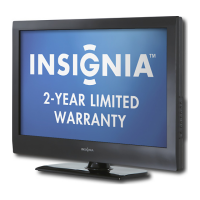
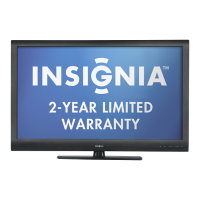
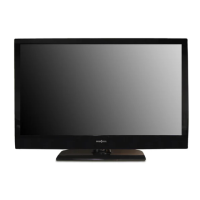
Insignia NS-46L400NA14 - User Manual

Insignia NS-46L400NA14
80 pages
Print Icon
To Next Page IconTo Next Page
Loading...
NS-46L400NA14
User Guide
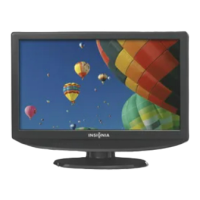
46" LCD TV
Before using your new product, please read these instructions to prevent any damage.

Table of Contents

Other manuals for Insignia NS-46L400NA14

Questions and Answers

  • H
    Heather MaySep 16, 2025
    Why my Insignia NS-46L400NA14 LCD TV does not turn on when I turn on my device?
    • J
      Jacqueline LaneSep 16, 2025
      If your Insignia LCD TV does not turn on when you turn on your device, try the following: * Make sure that the INlink feature is turned on. * Make sure that TV Auto Power On is set to On on the INlink menu. * The device may not support this feature.
  • W
    Walter RamosAug 25, 2025
    What to do if my Insignia NS-46L400NA14 LCD TV remote control does not work?
    • D
      dgibsonAug 25, 2025
      If your Insignia LCD TV remote control isn't working, try these steps: * Ensure the power cord is correctly connected to the TV and a power outlet. * Remove any obstructions between the remote and the TV's remote control sensor. * Point the remote directly at the remote control sensor on the TV. * Make sure that you have removed the plastic wrap from the batteries. * Verify the batteries are installed correctly. * Replace dead batteries with new ones.
  • T
    Thomas HortonAug 25, 2025
    What to do if my Insignia NS-46L400NA14 LCD TV has no picture and no sound?
    • W
      walterandersonAug 26, 2025
      If your Insignia LCD TV has no picture and no sound, try the following: * Press the power button on the TV or remote. * Ensure the 'Audio Only' option is off. * Check that video cables are securely connected. * Adjust the contrast and brightness. * Confirm the power cord is plugged in. * Select the correct video input source. * Try another channel in case the station is having issues. * Ensure the incoming signal is compatible. * Verify the antenna or cable TV is correctly connected. * Check closed caption settings to ensure TEXT modes aren't blocking the screen.
  • L
    Larry WilliamsAug 26, 2025
    How to fix Insignia NS-46L400NA14 when “No signal” error message is displayed?
    • J
      Jeremy MartinezAug 27, 2025
      If your Insignia LCD TV displays a “No signal” error message, try the following: * Press the INPUT button and select the correct input for your device or service. * If using a cable or satellite box, use its remote to change channels. * Ensure you've selected the correct input to view channels from the cable or satellite box.
  • R
    Rebekah KirkSep 18, 2025
    How to access parental controls if I lost my Insignia NS-46L400NA14 password?
    • J
      Jennifer JohnsonSep 18, 2025
      Enter 9999 to access parental controls, then set a new password.
  • K
    Karen Ryan PhDSep 23, 2025
    Why one or more channels do not display on Insignia NS-46L400NA14 LCD TV?
    • M
      monicacookSep 23, 2025
      If one or more channels do not display on your Insignia LCD TV, try the following: * Make sure that the channels are not blocked. * Make sure that the channels are not hidden. The channel may have been deleted from the channel list. You can tune to the channel by pressing the number buttons or you can add the channel back to the channel list. * If you are using a cable or satellite box, use the remote that came with that box to change channels. * Make sure that you have the correct input selected to view channels from the cable or satellite box. * If you are using an antenna, the digital channel signal may be low.
  • A
    Ana RamirezSep 8, 2025
    What causes after images on Insignia NS-46L400NA14 LCD TV?
    • L
      laura08Sep 8, 2025
      To prevent after images from appearing on your Insignia LCD TV, avoid displaying still images, such as logos, games, or computer images, for extended periods of time. This can cause a permanent after-image to be burned into the screen, which is not covered by the warranty.
  • I
    ilopezSep 9, 2025
    What to do if my Insignia LCD TV is not displaying video from connected CEC device?
    • J
      James WilliamsSep 9, 2025
      If your Insignia LCD TV is not displaying the video from the connected CEC device, try the following: * Make sure that the HDMI cable is connected securely to your TV and the device. * Make sure that the device is connected to your TV with an HDMI cable. * Make sure that the device is a CEC device. * Make sure that the correct video input source is selected. * Make sure that the INlink feature is turned on. * Try adjusting the TV picture. * If the device is not an Insignia device, it may not be compatible with your TV.
  • D
    David WalkerSep 3, 2025
    How to improve poor picture quality on some channels with Insignia NS-46L400NA14 LCD TV?
    • C
      Christopher TaylorSep 3, 2025
      If you experience good picture quality on some channels and poor quality on others with your Insignia LCD TV, and you are connecting to cable or satellite TV without a set-top box, you may need to install a set-top box to improve signal reception and picture quality. Contact your cable or satellite TV provider about upgrading to a set-top box.
  • J
    Jacob ClarkSep 1, 2025
    Why does my Insignia NS-46L400NA14 LCD TV keeps turning off?
    • A
      Andrea JohnsonSep 1, 2025
      If your Insignia LCD TV keeps turning off, make sure that the sleep timer is not turned on.

Summary

CHILD SAFETY

Wall Mounting Safety

Instructions and warnings for safely mounting the TV on a wall.

Important Safety Instructions

Electric Shock and Fire Hazards

Warnings regarding electrical safety, ventilation, and water exposure.

Handling the LCD Panel

Precautions for safely handling the glass screen and liquid inside.

Introduction and Setup

Product Introduction

Welcomes the user and highlights the TV's capabilities.

Installing the TV Stand

Step-by-step guide to attach the TV stand to the television.

Installing a Wall-Mount Bracket

TV Components and Features

Package Contents

Lists all items included in the TV package for the user.

Front Panel Overview

Identifies and describes the buttons and indicators on the TV's front panel.

Connectivity and Ports

Side Panel Connections

Details all available input/output ports on the side of the TV.

Remote Control Operation

Remote Control Buttons and Functions

Explains the purpose and operation of each button on the remote.

Choosing Connection Types

Video Quality and Cable Identification

Guides users on selecting the best video/audio connection for optimal quality.

Connecting a Cable or Satellite Box

Connecting via HDMI (Best Quality)

Step-by-step instructions for connecting a cable/satellite box using HDMI.

Connecting via DVI (with Audio)

Steps for connecting a cable/satellite box using DVI and separate audio.

Connecting via Component Video (Better Quality)

Instructions for connecting using component video cables for improved quality.

Connecting via Composite Video (Good Quality)

Guide for connecting using composite video cables for standard quality.

Connecting via Coaxial Cable (Good Quality)

Steps for connecting using a coaxial cable for basic signal reception.

Connecting Antenna or Cable TV (No Box)

Direct Antenna;Cable Connection

Guide for connecting an antenna or cable directly to the TV.

Connecting a DVD or Blu-ray Player

Connecting via HDMI

Steps to connect a DVD/Blu-ray player using an HDMI cable for best quality.

Connecting via DVI (with Audio)

Instructions for connecting a DVD/Blu-ray player using DVI and audio cables.

Connecting via Component Video

Guide for connecting a DVD/Blu-ray player using component video cables.

Connecting via Composite Video

Steps to connect a DVD/Blu-ray player using composite video cables.

Connecting a Game Console

Connecting via HDMI

Steps to connect a game console using an HDMI cable for optimal performance.

Connecting via Component Video

Guide for connecting a game console using component video cables.

Connecting via Composite Video

Instructions for connecting a game console using composite video cables.

Connecting a Computer

Connecting via VGA (Most Common)

Detailed steps to connect a computer using a VGA cable and audio.

Connecting via HDMI (Best Quality)

Instructions for connecting a computer via HDMI for superior video and audio.

Connecting via DVI (with Audio)

Guide for connecting a computer using DVI and separate audio connection.

Connecting a USB Flash Drive

Connecting and Using a USB Drive

Instructions for connecting a USB drive to view photos.

Connecting Audio Output Devices

Connecting Headphones

Steps to connect headphones, muting TV speakers.

Connecting Home Theater Systems

Connecting via Digital Audio

Guide for connecting a home theater system using digital optical audio.

Connecting via Analog Audio

Instructions for connecting a home theater system using analog audio cables.

Connecting Power

Plugging in the Power Cord

Instructions for safely connecting the TV to a power outlet.

Remote Control Operation

Installing Remote Control Batteries

Guide to inserting batteries into the remote control.

Aiming the Remote Control

Instructions on how to properly aim the remote at the TV's sensor.

Initial TV Setup

First-Time Setup Wizard

Guides users through initial TV setup, including language and time.

Adjusting Computer Image Settings

Adjusting Sound Settings

Sound Mode and Audio Output Options

Adjusting sound modes, balance, bass, treble, and audio output.

Audio Output and Playback Modes

Selecting the Audio Output Mode

Choosing how audio is played when external devices are connected.

Playing TV Audio Only

Turning off the picture to listen to audio only.

Channel Management

Automatic Channel Scanning

Scanning for and storing available TV channels.

Channel List Customization

Setting Up Favorite Channel Lists

Creating a list of preferred channels for quick access.

Adding and Changing Channel Labels

Labeling channels for easier identification.

Signal Strength and Aspect Ratio

Checking Digital Signal Strength

Verifying signal strength for optimal picture quality.

Adjusting Aspect Ratio Automatically

Automatically adjusting picture aspect ratio based on content.

Setting Parental Controls

Setting or Changing the Password

Establishing or modifying the parental control password.

Locking Control Buttons

Disabling physical buttons on the TV, requiring remote use.

Blocking Unrated TV Programs

Preventing viewing of programs without ratings.

Setting Parental Control Levels

Setting TV and Movie Rating Locks

Configuring rating locks for US and Canadian content.

Downloading Rating Information

Downloading RRT5 data for parental control configuration.

Using Closed Captioning

Turning Closed Captioning On or Off

Enabling or disabling text display for audio content.

Selecting Analog Captioning Mode

Choosing display modes for analog closed captions.

Selecting Digital Captioning Mode

Choosing display modes for digital closed captions.

Customizing Digital Closed Captioning

Adjusting Digital CC Style Settings

Customizing font, color, opacity, and effects for digital captions.

Adjusting Time Settings

Setting the Clock and Time Zone

Adjusting the TV's date, time, time zone, and daylight savings.

Adjusting Menu Settings

Selecting the Menu Language

Changing the language used for on-screen menus.

Input Source Management

Labeling Input Sources

Adding custom names to input sources for easier identification.

Turning Input Sensor On or Off

Enabling automatic detection of connected devices.

Using INlink (HDMI CEC)

Turning INlink On or Off

Enabling or disabling control of HDMI CEC devices.

INlink Device Control

Displaying INlink-Compatible Devices

Viewing a list of connected HDMI CEC devices.

Waking INlink-Compatible Devices

Turning on connected HDMI CEC devices from standby.

Opening Device Menus and Using USB

Opening an INlink-Compatible Devices Root Menu

Accessing the root menu of a CEC device for control.

Switching to USB Mode

Accessing USB devices for photo viewing.

Browsing and Viewing Photos

Browsing Photos on USB Drive

Navigating and viewing JPEG images from a USB drive.

Viewing Favorite Photos

Browsing Favorite Photos

Browsing photos previously marked as favorites.

Viewing Photos in a Slideshow

Displaying Photos in Slideshow

Displaying photos automatically in a slideshow format.

Customizing Slideshow Settings

Adjusting Slideshow Options

Customizing slideshow playback behavior.

Maintaining Your TV

Cleaning the TV Cabinet and Screen

Instructions for cleaning the TV's exterior and screen.

Troubleshooting

Restoring Settings to Defaults

Resetting all TV settings to their factory defaults.

Viewing System Information

Accessing TV software version and other system details.

Troubleshooting Common Issues

Video and Audio Problems

Solutions for common issues like no picture, no sound, or poor quality.

Remote Control Troubleshooting

Remote Control Malfunctions

Solutions for remote control malfunctions and programming universal remotes.

Specifications

TV Dimensions and Screen Specs

Technical details on TV size, resolution, contrast, and response time.

Programming Universal Remote Controls

Universal Remote Control Codes

Lists common codes for programming universal remotes.

Legal Notices

FCC and IC Statements

Regulatory compliance information regarding RF emissions and licensing.

One-Year Limited Warranty

Warranty Coverage and Service

Details on warranty period, what is covered, and how to obtain service.

Insignia NS-46L400NA14 Specifications

General IconGeneral
Screen Size46 inches
Resolution1920 x 1080
Display TypeLCD
Aspect Ratio16:9
HDMI Ports3
USB Ports1
Refresh Rate60 Hz
Backlight TypeLED
Smart TVNo
InputsHDMI, USB, Composite, Component, RF
Weight35.3 lbs

Related product manuals