EasyManua.ls Logo

Insignia NS-SH513 - User Manual

Insignia NS-SH513
25 pages
Print Icon
To Next Page IconTo Next Page
Loading...
User Guide
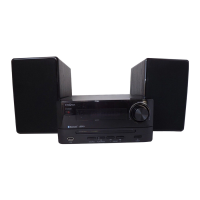
Bluetooth/CD Compact Shelf System
NS-SH513
Before using your new product, please read these instructions to prevent any damage.
NS-SH513_13-0363_MAN_V1_ENG.fm Page 1 Monday, May 13, 2013 7:31 AM

Other manuals for Insignia NS-SH513

Questions and Answers

  • J
    Jennifer MckinneyAug 16, 2025
    Why is there no sound in Bluetooth mode on my Insignia NS-SH513?
    • K
      Karen WrightAug 16, 2025
      If there is no sound in Bluetooth mode on your Insignia Stereo System, verify that the Bluetooth device is connected (reconnect if needed), is playing music, and its volume is turned up. Also, ensure the Bluetooth device is within 33 ft. (10 m) of the system and is not muted.
  • W
    Willie BuckleyAug 18, 2025
    Why does the Bluetooth signal fade or drop out on my Insignia Stereo System?
    • A
      Albert BridgesAug 19, 2025
      To prevent Bluetooth signal fading or dropouts on your Insignia Stereo System, shorten the distance between the system and the Bluetooth device.
  • M
    Melissa GilmoreAug 21, 2025
    Why is there no sound coming from my Insignia Stereo System?
    • M
      Michele JonesAug 21, 2025
      If your Insignia Stereo System has no sound, verify the following: * Ensure the power is connected and the unit is on, with the power switch at the back also turned on. * Check that the speakers are properly connected. * Confirm that any connected external device is on, playing, and its volume is at an audible level, not muted. * Ensure the stereo's volume isn't too low and the correct source is selected. * Check all connections for damage and disconnect headphones, as they mute the sound.
  • J
    Jocelyn Jordan MDAug 25, 2025
    What to do if my Insignia NS-SH513 remote control does not work?
    • A
      April RichAug 26, 2025
      If the remote control for your Insignia Stereo System isn't working, ensure the batteries are fresh and that you're aiming the remote at the front of the unit without any obstructions blocking the remote control sensor.
  • D
    Dominic WilliamsAug 27, 2025
    How to troubleshoot Insignia NS-SH513 Stereo System when there is no power?
    • E
      Eric ReynoldsAug 27, 2025
      If your Insignia Stereo System has no power, make sure that the power cord is fully inserted into the power outlet and that the power switch on the back of the unit is turned on.
  • L
    Lisa CampbellAug 30, 2025
    What to do if CD skips while playing on Insignia Stereo System?
    • A
      adamsjohnAug 30, 2025
      If the CD skips while playing on your Insignia Stereo System, make sure you're using a standard CD or a 3" CD in a compatible format. Avoid moving the system during playback and ensure it's on a flat, steady surface. Clean the CD by wiping outwards from the center with a clean cloth, and try another CD to rule out damage.
  • S
    stevenpierceSep 2, 2025
    What to do if my CD will not play on Insignia NS-SH513 Stereo System?
    • T
      Timothy EnglishSep 2, 2025
      If your CD won't play on your Insignia Stereo System, check that the CD is correctly inserted with the label facing up and that the correct audio source is selected. Clean the CD by wiping outwards from the center with a clean cloth. Also, ensure your CD is compatible (CDs, CD-Rs, and CD-RWs) and not damaged; try another CD to confirm.
  • S
    Scott SanchezSep 6, 2025
    Why does my Insignia NS-SH513 have severe hum or noise, or can’t receive FM stations?
    • L
      leerobertSep 6, 2025
      If you experience severe hum or noise, or can’t receive FM stations on your Insignia Stereo System, ensure adequate FM reception by adjusting the antenna or moving the unit away from potential interference sources. If the FM signal is weak, try selecting a different station.
  • K
    Kevin OlsonSep 8, 2025
    What does “No Disc” error mean on Insignia NS-SH513?
    • E
      Elizabeth GentrySep 8, 2025
      If your Insignia Stereo System displays a “No Disc” error, verify that there is a CD in the disc tray, correctly inserted with the label side up. Ensure you are using a compatible disc (CDs, CD-Rs, and CD-RWs in standard or 3" size) and that the disc is not dirty or scratched.
  • L
    lbraunSep 12, 2025
    What does “Invalid” display mean on Insignia NS-SH513 Stereo System?
    • S
      Stacey WernerSep 12, 2025
      If your Insignia Stereo System displays “Invalid” on the display, unplug and reconnect the power cord.

Summary

Introduction

Safety Information

Electric Shock Hazard Warning

Warning about electric shock risk and not opening the unit.

Dangerous Voltage Symbol Explanation

Explains the symbol indicating dangerous voltage within the system.

Operating Instructions Symbol Explanation

Explains the symbol for important operating and maintenance instructions.

Important Safety Instructions

Laser Safety Precautions

Details Class 1 laser safety precautions and warnings.

General Safety Guidelines

Lists essential safety guidelines for using the appliance.

Product Features

Package Contents List

Lists all items included in the product package.

Front Panel Component Identification

Identifies and describes components on the front panel of the system.

Back Panel Overview

Back Panel Component Identification

Identifies and describes components on the back panel of the system.

Remote Control Operations

Remote Control Button Functions

Lists and describes the functions of the remote control buttons.

System Setup and Connection

Connecting the AC Power Supply

Instructions for connecting the device to the power outlet.

Connecting the FM Antenna

Guide for connecting the FM antenna for radio reception.

Connecting the Speakers

Detailed steps for connecting the speaker wires to the unit.

Using Your Compact Shelf System

Powering On the System

How to power on the shelf system using the unit or remote.

Remote Control Usage Guide

Instructions on operating the system with the remote control.

Installing Remote Control Batteries

Steps for inserting batteries into the remote control.

Audio and Tone Settings

Selecting the Audio Source

How to choose between CD, USB, Bluetooth, or AUX sources.

Volume Adjustment and Muting

Adjusting volume levels and using the mute function.

Adjusting Audio Tone

How to adjust bass and treble settings for audio output.

Selecting Sound Equalization

Choosing preset sound equalization modes like Jazz, Rock, etc.

Radio Mode Operations

Tuning to FM Stations

Guide for tuning into FM radio stations manually or via presets.

Improving FM Reception

Tips for enhancing the quality of FM radio signals.

Saving FM Radio Presets

Steps to save favorite radio stations as presets.

CD Player Operations

Basic CD Playback

Instructions on how to insert and play CDs.

Controlling CD Playback

Details on pausing, resuming, stopping, and skipping CD tracks.

MP3 Disc Playback

Playing MP3 Discs

Instructions for playing MP3 discs.

Advanced CD Playback Features

Programming CD Playback Order

How to create a custom playback sequence for CDs.

Setting Playback from Specific Time

Setting playback to start at a specific minute and second.

Bluetooth Connectivity

Pairing Bluetooth Devices

Step-by-step guide to connect Bluetooth devices to the system.

Disconnecting Bluetooth Devices

How to turn off Bluetooth connection from the device.

Reconnecting Bluetooth Devices

Restoring connection after disconnection.

Connecting to a Different Bluetooth Device

Steps to connect a new Bluetooth device.

Handling Phone Calls During Music Playback

How music playback is handled during phone calls.

USB Device Playback

Playing Audio from USB Devices

Instructions for playing music from a USB flash drive.

AUX Device Input

Connecting External AUX Devices

Guide for connecting external audio devices via AUX input.

Troubleshooting Common Issues

Power, Remote, and Display Errors

Solutions for no power, remote control, and 'Invalid' display errors.

Audio and CD Playback Problems

Solutions for no sound, CD skipping, or CD playback failures.

FM Reception and Noise Issues

Solutions for severe hum, noise, or poor FM reception.

System Maintenance

No Sound in Bluetooth Mode

Troubleshooting steps for no sound when using Bluetooth.

Bluetooth Pairing Failures

Troubleshooting steps for Bluetooth pairing failures.

Unstable Bluetooth Signal

Solutions for intermittent Bluetooth connectivity.

Cleaning the Device Safely

Instructions on how to safely clean the device.

Technical Specifications and Legal Notices

Device Dimensions, Weight, and Power

Details on physical dimensions, weight, and power requirements.

Media and Connectivity Specifications

Specifications for CD, USB, and Bluetooth compatibility.

FCC and Canadian Compliance

FCC compliance information and Canadian notice.

Limited Warranty Information

Warranty Coverage Duration

Explains the duration of the product's warranty period.

Covered Defects and Repairs

Details on what defects are covered by the warranty.

Warranty Service Procedures

Steps to follow to get warranty service for the product.

Warranty Validity Area

Geographical limitations for the warranty's validity.

Warranty Exclusions

Lists specific exclusions from the product's warranty coverage.

Unauthorized Repair Exclusion

States that unauthorized repairs may void the warranty.

Liability Limitations and Disclaimers

Limits Insignia's liability for incidental or consequential damages.

Customer Support Contact

Provides customer service contact information and website.

Insignia NS-SH513 Specifications

General IconGeneral
BrandInsignia
ModelNS-SH513
CategoryStereo System
LanguageEnglish

Related product manuals