2/4 128957_V01_QSG_ASSIST_PLUS_EN.docx
Adapting the pipette holder
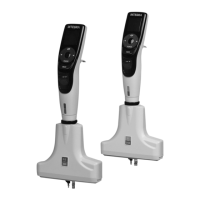
Adapt the pipette holder to the used INTEGRA electronic multichannel pipette:
VIAFLO 8- or 16-channel: fold both silver levers (1, 2) down
VIAFLO 12-channel: pull the lower silver lever (2) down
VOYAGER: fold both silver levers (1, 2) up
Attaching an electronic pipette
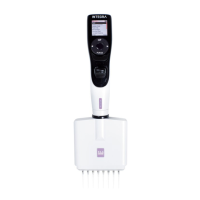
For communication with ASSIST PLUS, the Pipette Communication Module must be installed to the
pipette. Rotate the lower housing of the pipette by 90 degrees as displayed in the picture below.
To install a pipette, the Tip ejector opening must face the Pipette
holder. Hold the pipette at an angle and insert it into the pipette
holder. Then lift up until the black gripper snaps in place.
To release the pipette, lift the black gripper by pushing down the
lever.
Enabling ASSIST PLUS program and pairing
To display the ASSIST PLUS program in the main menu of the pipette, navigate to the Toolbox.
Select Preferences - Main Menu and select ASSIST PLUS (green ).
The first time a specific pipette is connected to ASSIST PLUS, both
instruments need to be paired.
Scroll to the Toolbox and press OK.
From the ASSIST PLUS menu select Bluetooth Pairing.
Switch OFF and ON the ASSIST PLUS device and wait until the
message “Pairing successful” is displayed.
Connection between ASSIST PLUS and pipette
When selecting ASSIST PLUS in the Main Menu, the pipette establishes a connection with the
ASSIST PLUS. The communication symbol is displayed next to the battery indicator and on the
touch panel of the ASSIST PLUS the Communication LED (m) lights up in blue.
Place all required labware (reservoir, plates, etc.) on the deck. From the ASSIST PLUS menu select
the program category and the program you would like to run.
Insert the tip box in the correct orientation and select the first
row/column with tips. Press the Run key of the pipette.
Press the blinking Start/Pause key (l) on the ASSIST PLUS device. It
switches to solid white, the ASSIST PLUS homes and the program is
performed automatically.
A program can be paused by pressing the Start/Pause key (l). Either press the Start/Pause key again
to continue the program or press Abort on the pipette to abort the program.


 To Next Page