Recon Blockage Plus™ Operator’s Guide
600890-000075, rev 1.0 Page 13 of 26
2.4 Editing configuration
To edit or add manifolds and runs that were not included during the initial configuration of Recon
Blockage Plus™, follow the instructions below.
TIP: To go through the full initial setup again, tap the settings icon on the main Blockage
screen, then tap Setup Wizard at the bottom of the screen.
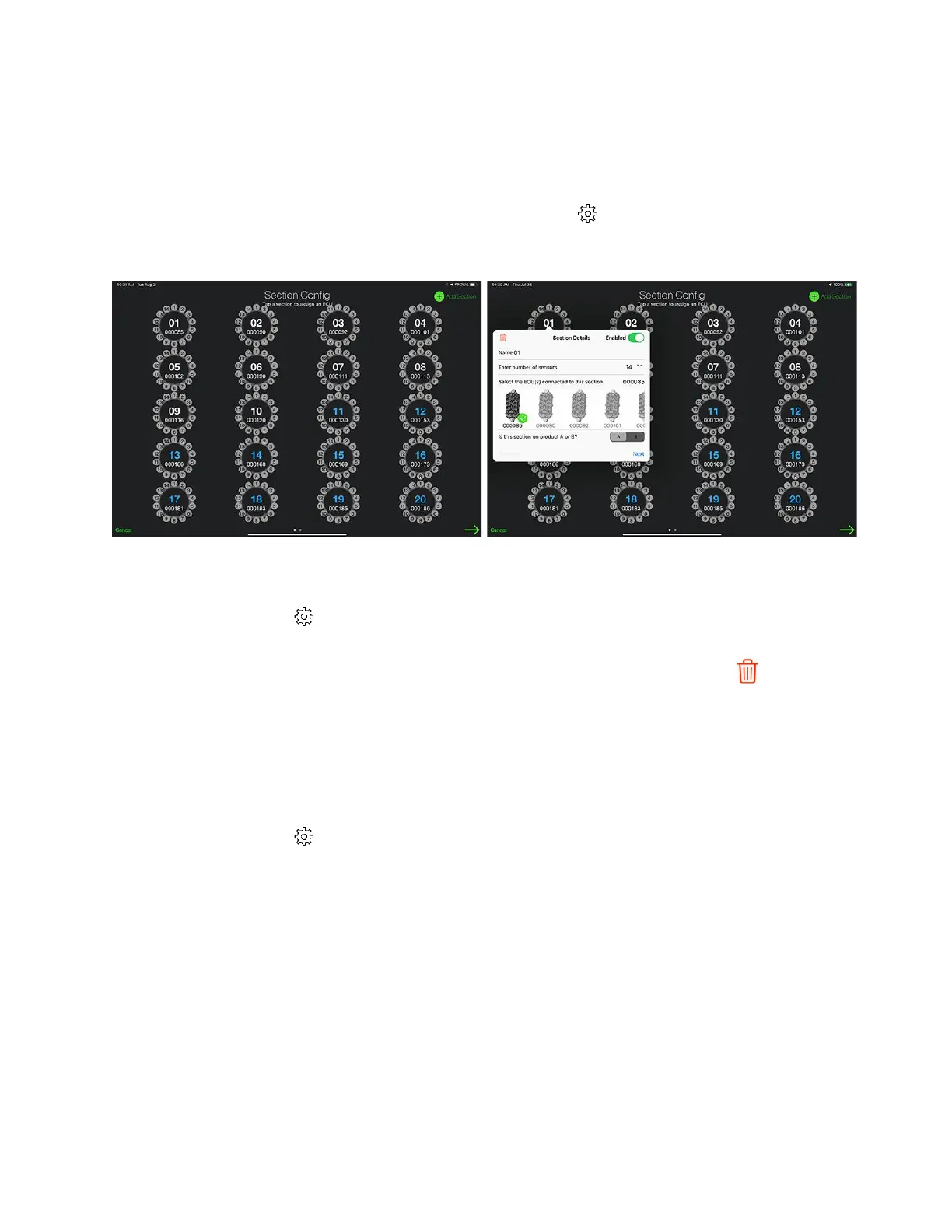
Figure 11: Edit Section Configuration
2.4.1 Edit section settings
1. Tap the settings icon on the main Blockage screen.
2. Tap Edit Config at the bottom of the screen.
• Delete a section: Tap the section you want to edit. Then, tap the trash icon.
• Disable a section: Tap the section you want to edit. Then, disable the Enabled
switch.
• Add a section: Tap Add Section in the upper right corner of the Section Config
screen. Tap the new section that appears and configure its settings. Refer to
Section 2.2, step 6 for more information about Section Details configuration.
2.4.2 Edit port settings
1. Tap the settings
icon on the main Blockage screen.
2. Tap Edit Config at the bottom of the screen.
• Add or remove a port on a manifold: Tap the section that you want to change the
ports on. Change the number next to Enter number of sensors to the correct
number of ports.
• Edit port order: Tap the green Next button in the bottom right corner of the Section
Config page. Tap the ECU that you want to edit, and drag its runs to re-order the
ports. Refer to Section 2.2, step 7 for more information about the Port Config page.
• Disable a port: Tap the green Next button in the bottom right corner of the Section
Config page. Toggle the switch next to the port number.



 To Next Page