USE
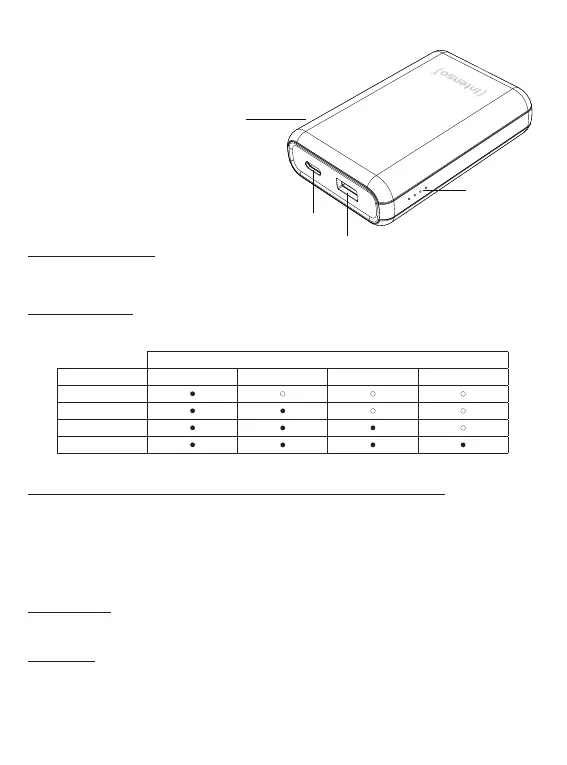
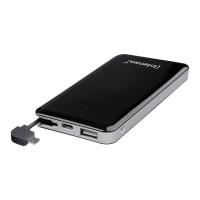
Device overview
1 - Function key (On/O)
2 - USB-C In/Out (PD)
3 - USB-A Out (QC)
4 - Status LED
Operaon
Funcon key (On/O)
If the charging process dos not start automacally, you can start it manually by briey pressing the funcon
key. You can stop the charging process and deacvate the Powerbank by briey pressing the key twice.
LED Status display
The individual LEDs display the remaining energy of the Powerbank:
Commissioning / Charging the Powerbank / Charging connected devices
a) Charging the Powerbank
Please connect the supplied USB-C cable to the USB-C port (USB-C In/Out) of the Powerbank; then connect
the other end of the USB cable to a USB-C power supply or to a USB-C port on your computer. The charging
process and current charging status will be indicated by the LED status lights. If the Powerbank is enrely
charged, the LED status lights remain illuminated. The required charging me of the Powerbank depends
on the selected charging source and the output power.
Normal charging:
Use a standard USB power supply or a USB port on a computer to charge the power bank via the USB-C Out/
In port (maximum 5V 3A = maximum 15 was).
Fast charging:
To charge the power bank with a maximum power (20 was), please use a power supply unit supporng
the Power Delivery Standard (PD). The fast charging is indicated by an LED as well which now lights up blue.
If the LED does not change from white to blue, your power supply unit or the cable used are incompable
with the PD standard and the power bank will be charged normally.
EN - Page 4 of 6
LED light
% - Energy LED 1 LED 2 LED 3 LED 4
1 % - 25 %
26 % - 50 %
51 % - 75%
76 % - 100 %
1
2
3
4


 To Next Page