8.1.2 My Storage
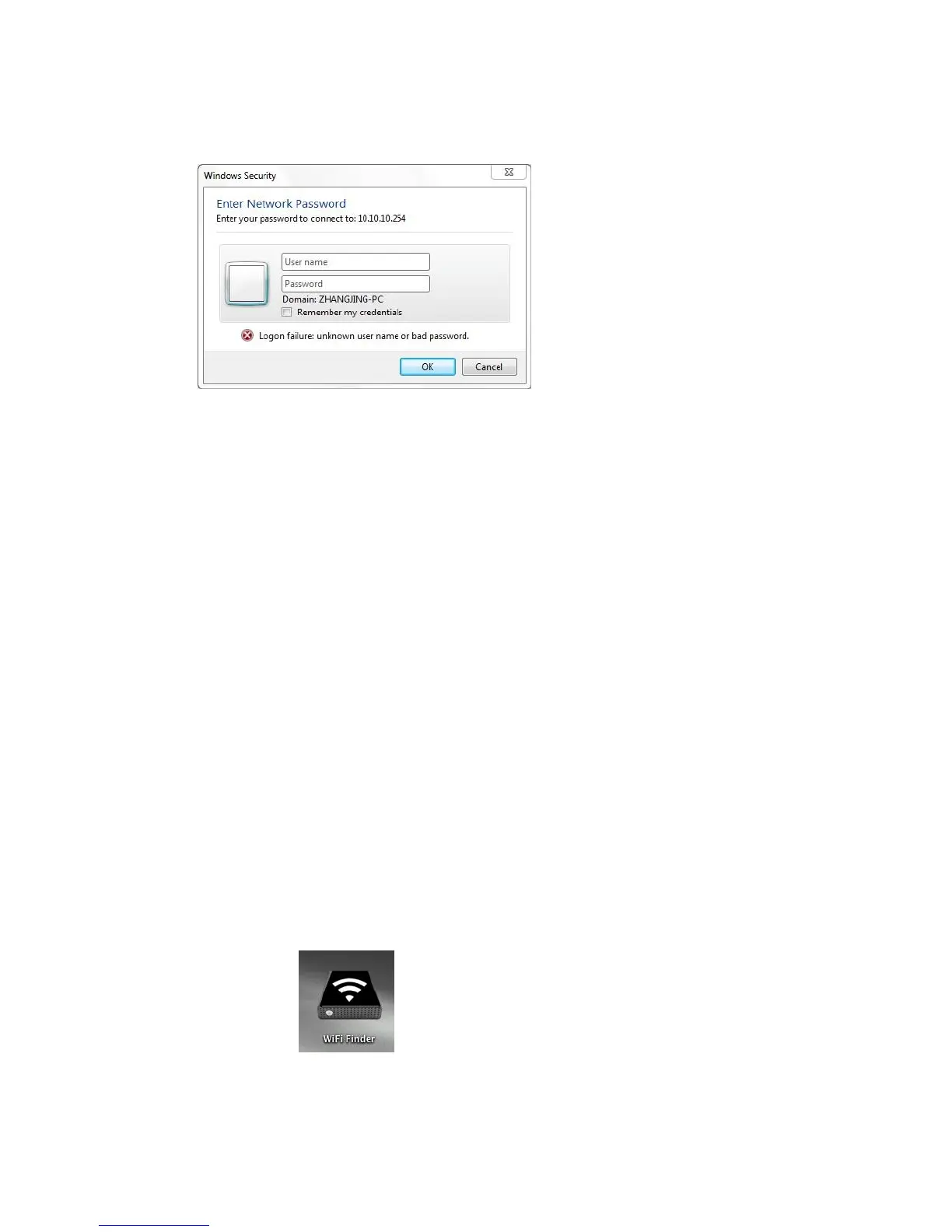
Click “My Storage” button. The above shown window will appear.
After input the correctly user name (admin) and password (00000), you may access the Memory 2
Move.
For your own safety, please change the password after successful connection.
You may transfer the data between PC and Memory 2 Move, such as upload the data from PC into
the Wi-Fi Disk, or download the data from the Wi-Fi Disk into PC.
8.2. Liaise a wireless LAN connection with MAC
Switch-on the “Memory 2 Move” by pressing the power button at the front panel. Wait for few
minutes until the Wireless LED stops flashing. Enable the Wi-Fi feature on your MAC and open the
Wireless Network Connection. Select the Memory 2 Move wireless connection (default wireless
SSID: Memory2Move-XXXX and password: intenso1).Once you have successfully connected to
“Memory 2 Move”, you may now run the “WiFi Finder” to search for your device and complete the
configuration process.
With our included “Wi-Fi Finder” you don´t need to install any software, simply double-click on
below icon to start it. The Wi-Fi Finder allows you to easily search your “Memory 2 Move”.


 To Next Page