59
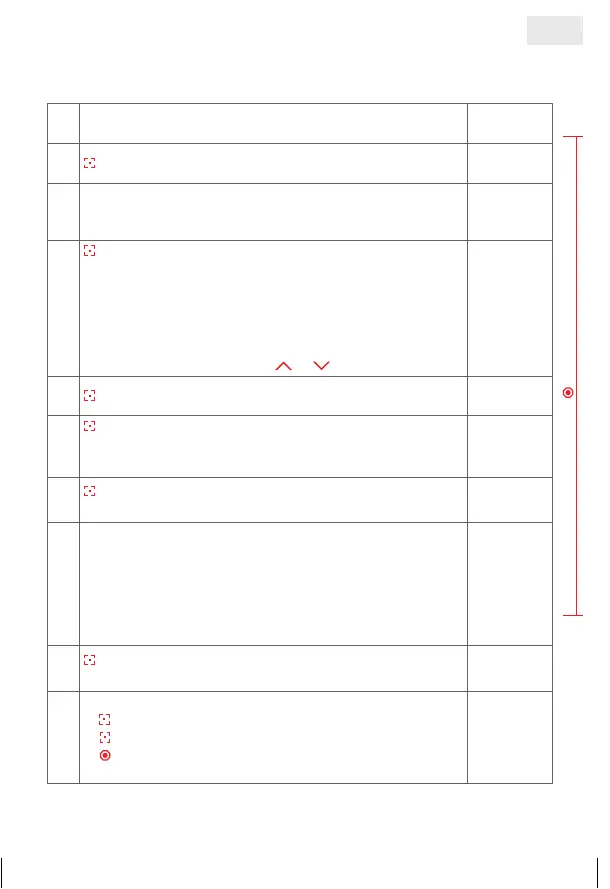
3. Program blind
1. Select the ‘Menu’ function
£©©©
2.
press and hold, scanning for blind is started
ªªªª
3. When blind has been located, the 1
st
LED flashes
©£££
. When no blind has been located, the program
returns to 1. Function Selection menu
£©©©
©£££
4.
press briefly = enables to click through all located blinds
and select the required one
Blinds are sorted according to their signal strength:
©£££
= blind 1
£££©
= blind 4
£©££
= blind 2
©££©
= blind 5
££©£
= blind 3
£©£©
= blind 6 …
Check for activated blind with
or !
©£££
5.
press and hold = confirm selected blind
©£££
6.
press briefly = select channel
©£££
= channel 1
££©£
= channel 3
£©££
= channel 2
£££©
= channel 4
©£££
7.
press and hold – confirm selcted channel.
Training of blind is starting
ªªªª
8. Possible feed back:
©©©©
= Ok
LED flashes
ª£££
/
£££ª
(from 1 to 4) =
No communication/error, repeat process.
LED flashes
ªª££
/
££ªª
(from 1,2 to 3,4) =
Blind storage capacity full
©©©©
9.
press briefly = confirm feed back.
This brings you back to 1. Function Selection menu
£©©©
10.
Further possibilities:
1) press and hold = repeat process.
2)
press briefly = to select an option from the ‘Menu’
3)
press and hold or no operation for 25 sec. =
finish installation mode
Press briefly = return to point 1.
GB
14_107_BHB_West.indd 59 02.06.14 13:00


 To Next Page
 Loading...