3
Please follow steps below to ensure the optimal performance:
Android/Windows/Mac Installation
STEP 1
Turn on host computer/Smartphone. Connect power supply to Power Delivery
Pass-Through port.
STEP 2
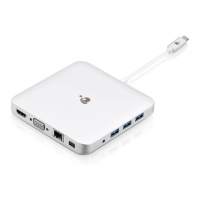
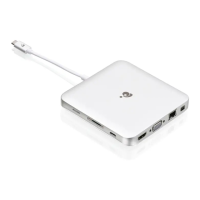
Connect external devices to appropriate ports as needed. (refer to product
overview for ports call out)
STEP 3
Connect external HDMI display to HDMI port.
STEP 4
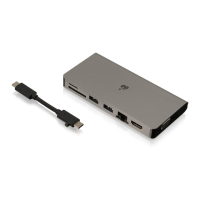
Connect USB-C cable to host USB-C port on GUC3C4HP. Connect other end
of USB-C cable to host device (PC/MAC/Android). The screen may flicker
when recognizing the new devices.
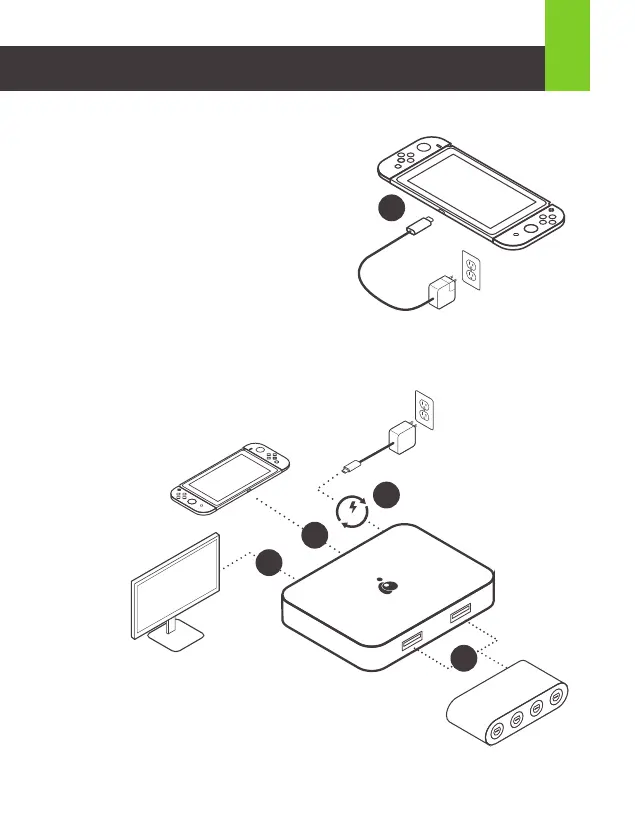
Nintendo Switch
®
Installation
STEP 1
Connect Nitendo Switch USB-C power
adapter directly to the NS(Nintendo
Switch) to initiate charging.*
STEP 2
Connect other USB peripherals to their
respective ports.**
STEP 3
Connect HDMI display to GUC3C4HP.
STEP 4
Disconnect NS power adapter from NS. Connect NS power adapter to Power
Delivery Pass-Through port on GUC3C4HP.
STEP 5
Connect USB-C cable to host port on
GUC3C4HP. Connect other end of
USB-C cable to NS.***
*Original power adapter from NS is needed.
**Keyboards are compatible with applications that have
keyboard support.
***If initially no video is detected, disconnect and reconnect
USB-C cable from NS or press the home button on the console.
1
4
PD
5
3
2


 To Next Page