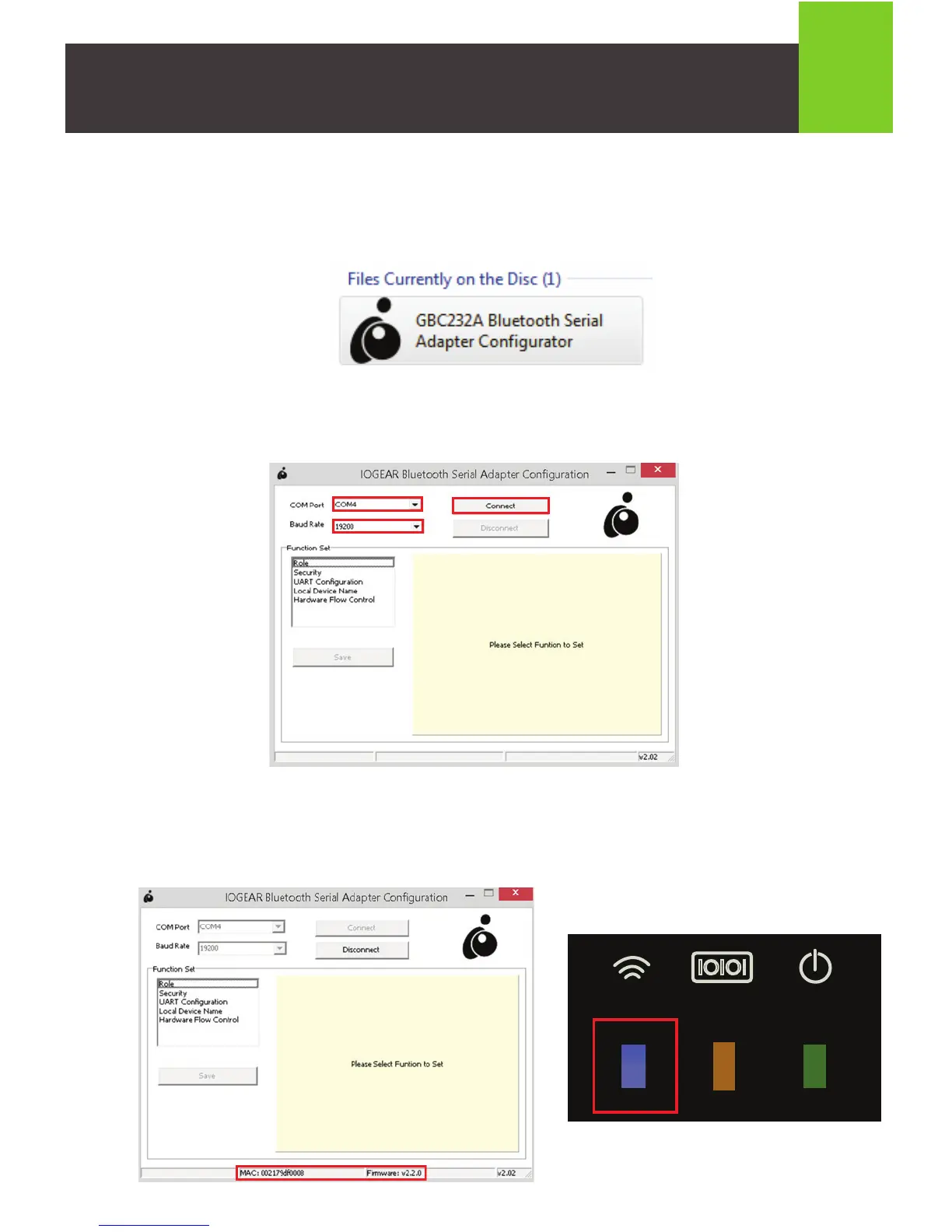
12. Windows Vista: Select the Services tab to identify which COM port is being
used. Press the OK button.
13. Insert Installation CD. When an explorer window pops up, right click on the
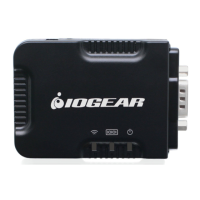
GBC232A Bluetooth Serial Adapter Configurator file and select
“Run as administrator”.
14. Select the COM Port identified in Step 12 from the COM Port dropdown menu
and 19200 from the Baud Rate menu. Next, click on the Connect button.
15. The connection is successful when the MAC address and Firmware version
appear at the bottom of the configuration window and the Bluetooth LED lights
solid blue.
11
IOIOI


 To Next Page