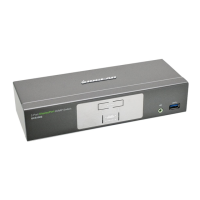
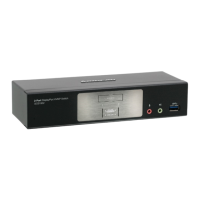
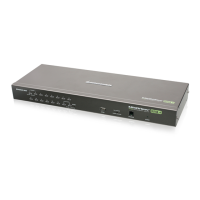
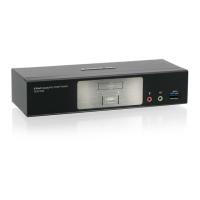
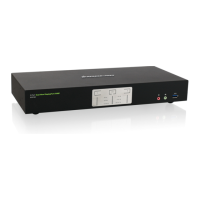
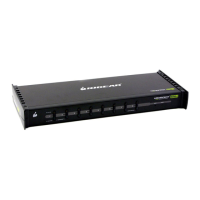
This document is a Quick Start Guide for the IOGEAR 2/4-Port USB Cable KVM Switch, models GCS22U and GCS24U.
Function Description
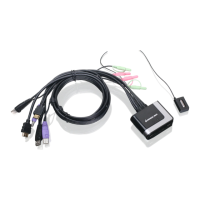
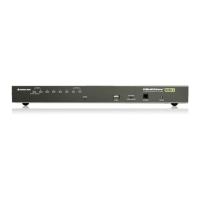
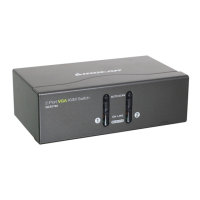
The IOGEAR 2/4-Port USB Cable KVM Switch allows users to control multiple computers (either 2 or 4, depending on the model) from a single console, which consists of one VGA display and one set of USB keyboard and mouse. This device is designed to streamline the management of multiple systems by eliminating the need for separate peripherals for each computer, thus saving space and reducing clutter. The KVM switch facilitates seamless switching between connected computers with a simple press of a remote button.
Important Technical Specifications
Models:
- GCS22U (2-Port USB Cable KVM Switch)
- GCS24U (4-Port USB Cable KVM Switch)
System Requirements:
- Console:
- 1 VGA display
- 1 set of USB keyboard and mouse
- Computers:
- Operating Systems Supported:
- Windows® 7, Windows® 8.1, Windows® 10
- Mac OS® 9 or greater
- Oracle® Solaris
- Linux®, Unix, and other USB supported systems (additional drivers and support may be needed)
Physical Connections (Overview):
The KVM switch unit features several ports for console and computer connections:
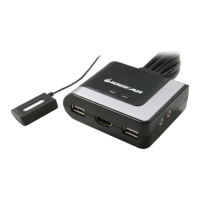
- Console USB Mouse Port (1): For connecting a USB mouse.
- Console VGA Monitor Port (2): For connecting a VGA display.
- LEDs (3): Indicators for port selection.
- Console USB Keyboard Port (4): For connecting a USB keyboard.
- Remote Switch Button (5): An external button for switching between connected computers.
- CPUs KVM Cables (6): Integrated cables that connect to the computers.
- GCS22U: 2 sets of KVM cables.
- GCS24U: 4 sets of KVM cables.
Each KVM cable set includes a VGA cable and USB cables for connecting to the computer's VGA output and USB ports.
LED Indication:
- The LEDs on the KVM switch light up in green to indicate which port (and thus which computer) is currently selected.
Usage Features
Installation Process:
- Preparation: Ensure all computers and the monitor are powered OFF before starting the installation.
- Console Monitor Connection: Connect the VGA cable from your monitor to the Console VGA Monitor Port on the KVM switch.
- Console Peripherals Connection: Connect your USB keyboard to the Console USB Keyboard Port and your USB mouse to the Console USB Mouse Port on the KVM switch.
- Computer Connections: Connect a set of the molded KVM cables (integrated with the switch) to each of your computers. The VGA cable from the KVM set connects to the VGA output of the computer, and the USB cables connect to open USB ports on the computer.
- Power On: After all connections are made, turn on your computers.
Port Switching:
- To switch between the connected computers, simply press the remote port switching button. Each press will cycle to the next available port/computer.
Maintenance Features
Warranty Information:
- The product comes with a 3 Year Limited Warranty. Users can find the full terms and conditions of the warranty by visiting http://www.iogear.com/support/warranty.
- Product registration is available online at http://www.iogear.com/register.
Compliance Information:
- FCC Statement: The equipment has been tested and found to comply with Class B digital device limits under Part 15 of the FCC Rules, designed to provide reasonable protection against harmful interference in a residential setting. It generates, uses, and can radiate radio frequency energy. While it complies with Class B limits, there is no guarantee that interference will not occur in a particular installation.
- CE Compliance: The device complies with the following European Union directives: Electromagnetic Capability (2004/108/EC), Low Voltage (2006/95/EC), and R&TTED (1999/5/EC).
Support and Contact:
- For more product information, visit www.iogear.com.
- For live help and product support, visit www.iogear.com/support.
- Contact information for IOGEAR:
- Website: iogear.custhelp.com, www.iogear.com
- Email: support@iogear.com
- Address: 15365 Barranca Parkway, Irvine 92618

 Need help?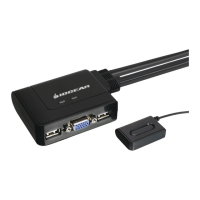

 To Next Page
 General