Windows Key Lockout
The Windows key lockout prevents the Windows menu from popping up and
interfering with your game if accidentally pressed while gaming.
Press Fn + key to lockout the Windows menu function. The Windows Lock
LED will light up to confirm the Windows key is locked out
Press Fn + again to unlock the Windows key.
The HVER user interface software allows creating custom macro functions and
specialized hotkeys, as well as fine-tuning the RGB backlighting. The HVER
PRO user interface software is a free download available on the IOGEAR
website location below: https://www.iogear.com/product/GKB720RGB/
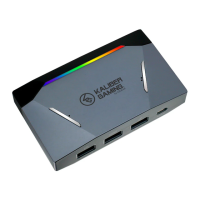
WASD Key Swap
The W, A, S, and D key functions can be swapped with the arrow keys for
better functionality with certain games, especially MMO (Massively Multiplayer
Online) games. Press Fn + W to swap key functions, and press Fn + W again
to swap back to normal operation.
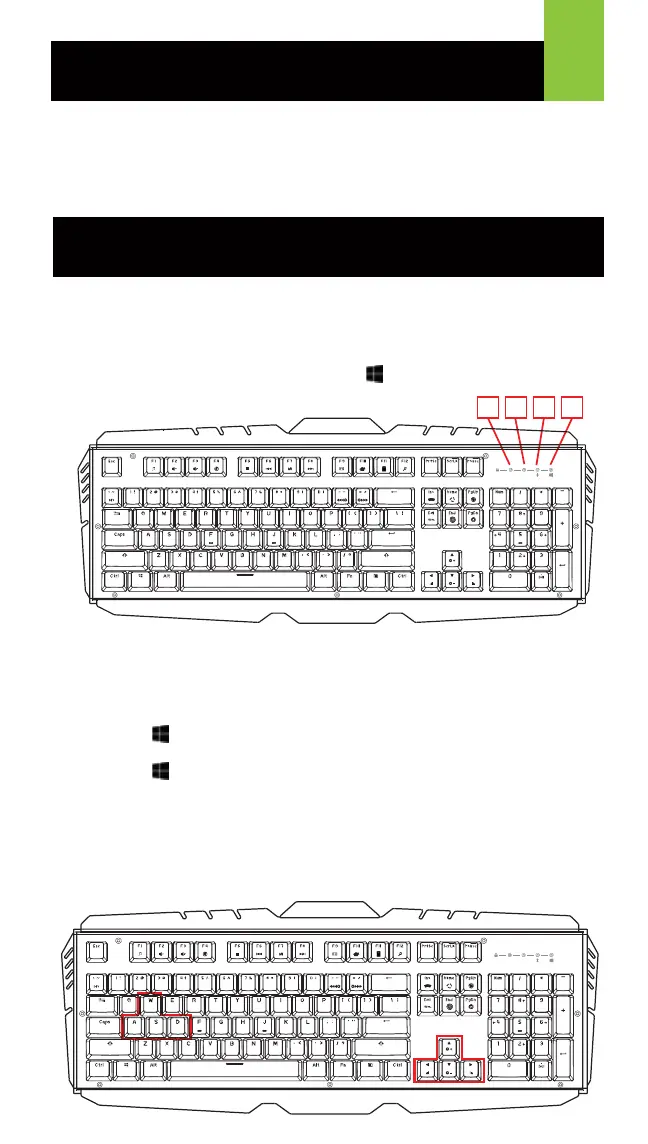
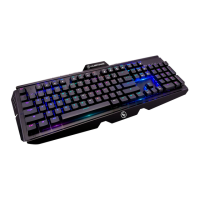
Keyboard - Front View
1. Num Lock LED – turns on when Num Lock key is pressed
2. Caps Lock LED – turns on when Caps Lock key is pressed
3. Scroll Lock LED – turns on when Scroll Lock key is pressed
4. Windows Lock LED - turns on when Fn + is pressed to indicate the
Windows key is disabled
Operation
2
Software Installation
A
1
1 42 3
A
1


 To Next Page