6
15. Clip LED: This LED will flash red if the signal from the inputs or media panel source is
clipping. If this happens, decrease the setting of the Mic Input Volume knob, Aux Input
Volume knob, or Master Volume knob.
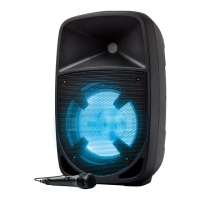
16. Power LED: Indicates whether Pro Glow 10 is powered on or off.
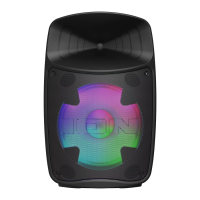
17. Light Mode Button: Press this button to select how the lights on the front panel function:
• Color Cycle: The lights slowly glow and cycle through colors. Press and hold the light
mode button to freeze the lights on one color. This is the default mode when Pro Glow
10 is first powered on.
• Beat Sync: The lights react to the beat of the music.
• Off: The lights turn off.
18. Power Cable Input (IEC): Insert the included power cable here to power the unit.
19. Fuse: The orientation of the fuse holder determines the current voltage setting of Pro Glow
10. If the unit’s fuse is broken, remove the fuse holder and replace the broken fuse with
one with the same rating (printed on the fuse holder). Using a fuse with an incorrect rating
can damage the unit and/or fuse.
20. Power Switch: Turns Pro Glow 10 on or off.
Media Panel
Media Panel Functions:
MODE Mode: Switches modes from USB, SD, FM radio, or Bluetooth.
Note: A USB drive or SD card must contain playable files in order for it to appear
properly in the media panel’s display. You can play MP3s, WAVs, and WMA files.
Play/Pause: Play/pause the USB, SD, or Bluetooth source. Press and hold Play/Pause
for 2 seconds to begin the preset auto-store function. This jumps to the lowest station
(87.5) and then travels through the bandwidth to auto-store the strongest stations as
presets.
Repeat: Repeat all of the tracks (ALL), repeat all of the tracks in the folder (FOLd
,
repeat the current playing USB or SD track (OnE), or shuffle the track order (rAn).
Previous: Plays the previous USB, SD, or Bluetooth track. When listening to the FM
radio), press the button once to skip back through the FM stations and hold the button
down to seek back through the channel presets.
Next: Plays the next USB, SD, or Bluetooth track. When listening to the FM radio,
press the button once to tune the radio down one preset and hold the button down to
seek forward through the channel presets.
Note: In some apps, pressing the Previous ( ) or Next ( ) buttons may go to another
playlist or music genre.




 To Next Page