AF
Single
Customer Service (International)
Email: service@ipevo.com
Tel: +886-2-5550-8686
4. Taking Snapshots
http://www.ipevo.comGO!
Customer Service (USA)
Email: cs@ipevo.com
Tel: +1-408-490-3085
Copyright© 2015 IPEVO Inc. All rights reserved.
Follow these steps to learn how to bring Point 2 View into focus and take a snapshot.
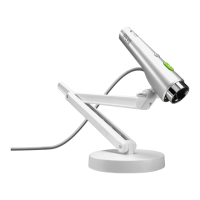
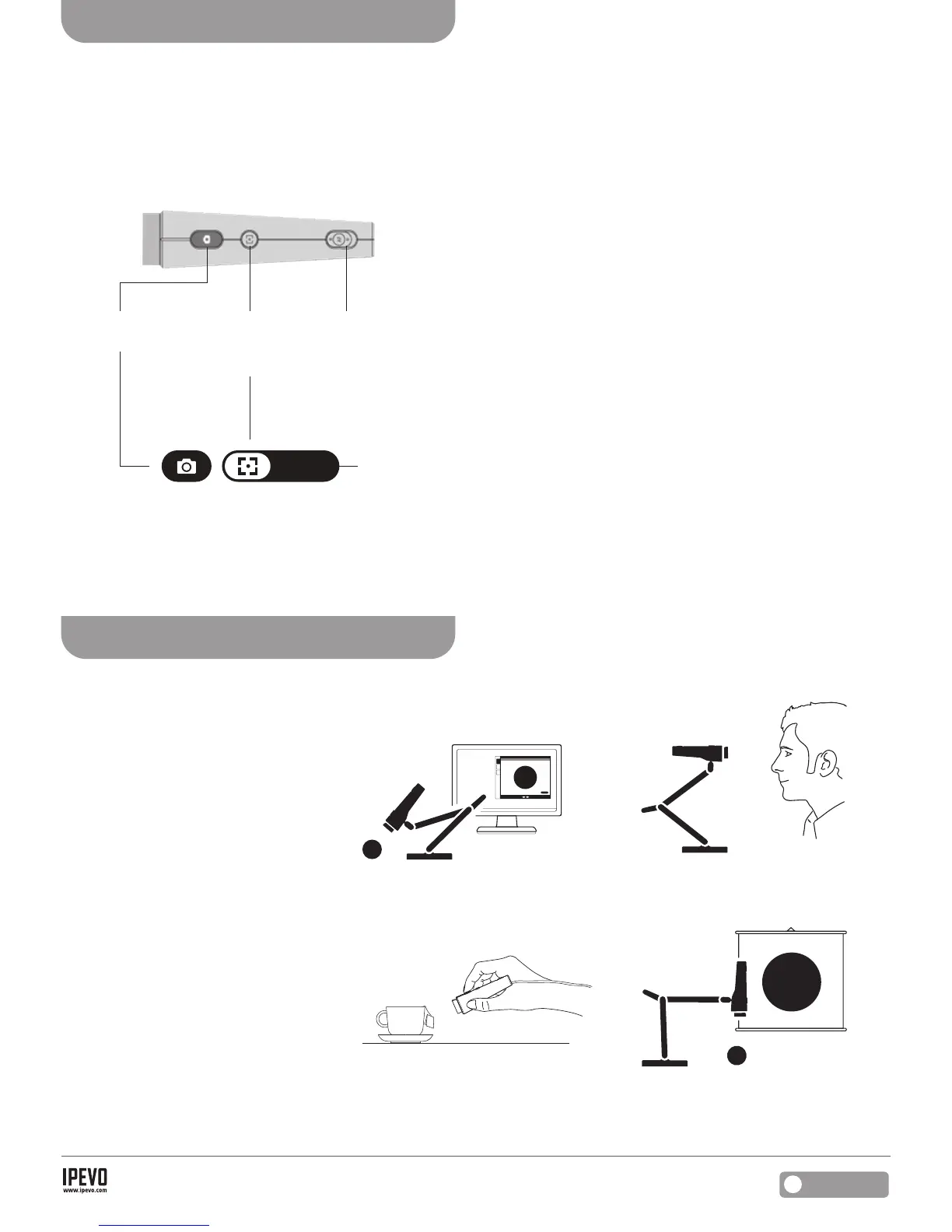
Attach Point 2 View to the stand and
bend, rotate, or extend the stand
to achieve the best position for an
optimum view. You can also use your
hand to point the camera.
5. Positioning Point 2 View
Overview of controls
(Hardware)
Step 1: Bring Point 2 View into focus
Beforetakingasnapshot,makecertainthatyouarein
Camera mode and the image is in focus. Toggle the AF switch
or press the Focus key to bring Point 2 View into focus, if
necessary.
Step 2: Take snapshot
Press the Snapshot key. A shutter sound will be generated
and the screen will freeze for a moment, giving you an instant
preview.
Step 3: Review the photo
Go to Review mode. Your new photo will appear on the
screen. You can also view previous snapshots using the
thumbnails at the bottom.
(Software – Camera mode)
Snapshot key:
Takes snapshot
Focus key:
BringsPoint2
View into focus
AF Switch:
Selects Autofocus mode
Continuous (C) or Single (S)
Shows current
AF status
Share with others
Use one of the side connectors on the
head of the stand to position Point 2
View for documents.
Show yourselfShow what you see
...Or hold Point 2 View in your hand.
You can get as close as 2˝ (5cm) away.
Attach Point 2 View to the stand…


 To Previous Page
 Loading...