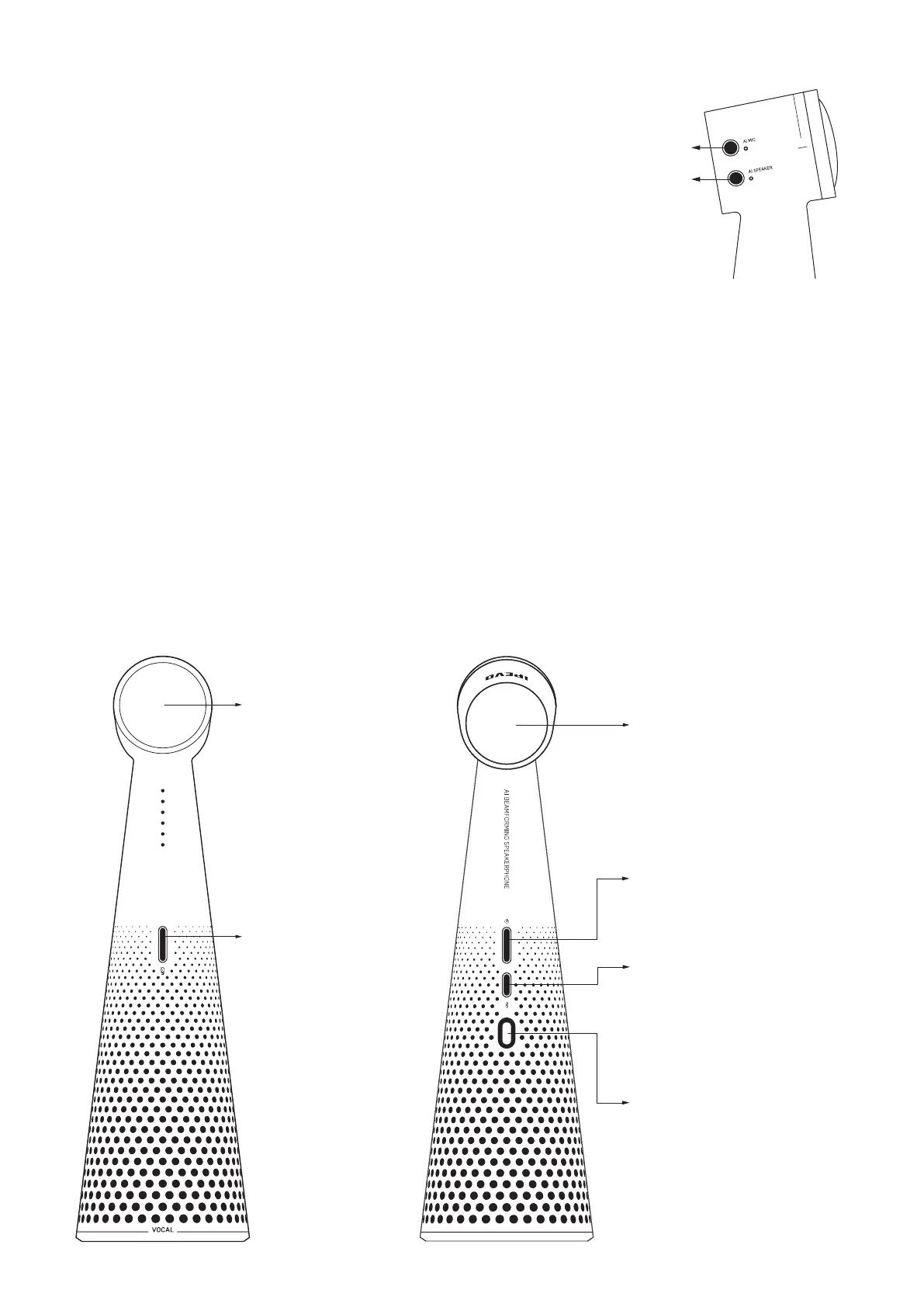
Activating the AI Noise Reduction
There are two AI noise reduction options you can
activate separately or at the same time.
AI Voice for Speaker
AI Mic: The one that relates to the microphone filters out the noise
picked up in the room where IPEVO VOCAL is being used.
AI Speaker: The option related to the speaker filters out the noise picked
up by the microphone of the user on the other end of the line.
AI Voice for Mic
Charging IPEVO VOCAL
When fully charged, VOCAL can be used for 40 hours in wireless mode. View the current battery life by pressing the
power button once. It will be displayed on the front LED bar.
Once the battery drops below 15 percent, the bottom LED starts flashing fast in yellow color.
Connect the IPEVO VOCAL to a power source via a USB-C cable. Either a computer or an adapter can be used to charge
the device. The charging status is indicated by the front LED indicators.
A shining yellow light (bottom LED) indicates that VOCAL is fully charged.
Buttons, Controls, and LED Indicators
Front microphone
Rear microphone
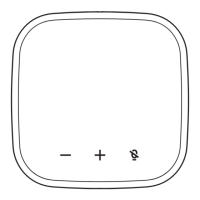
Mic mute/unmute
Press once to mute /
Bluetooth pairing button
unmute the microphone.
Hold for 3 seconds to initiate pairing.
Once VOCAL is in pairing mode, you can:
(1) Select VOCAL from your host device's
Bluetooth settings,or (2) Connect to
your PC/laptop via a USB cable.
Power switch
Hold for 3 seconds to turn VOCAL on/off.
Press once to display the battery life.
USB-C port
Use it to charge VOCAL's battery or for
connecting to a computer.
An Existing Bluetooth connection has
priority over a connection via USB.


 To Next Page