60Hz 50Hz HDMI USB / POWER
Model: CDVH-03IP
Made in Taiwan
Rating: 5V 500mA
RoHS
Compliant
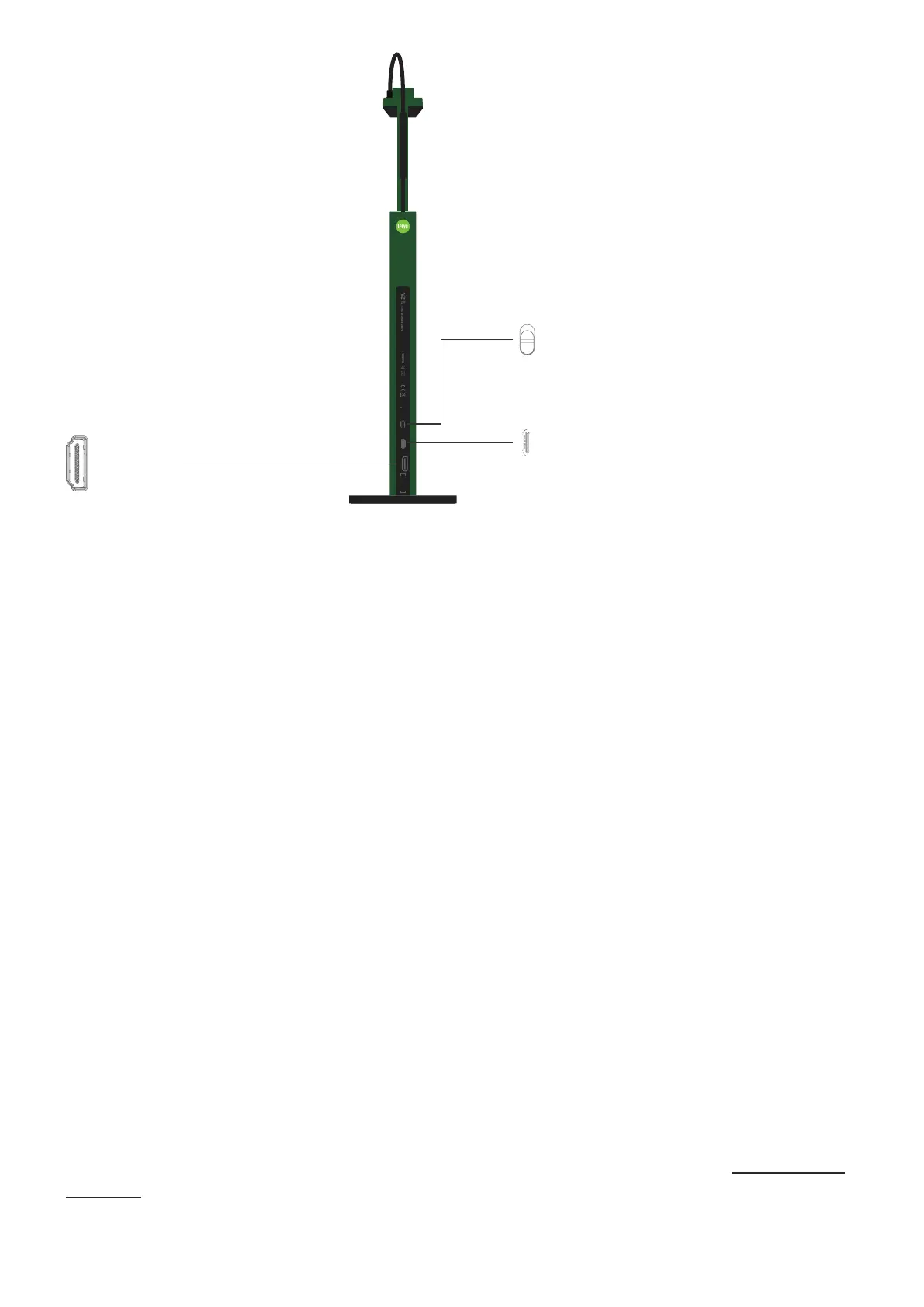
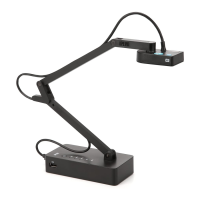
Frequency Switch
Change the frequency to 50 Hz or 60 Hz.
USB Type-C Port
HDMI Port
Plug in the included USB Type-C to USB
Connect your HDMI cable
Type-A cable here to provide power for VZ-R
(not included) here.
(HDMI mode) or to connect it to a computer
(USB mode).
Connecting to Your HDMI Displays
Please follow the steps below to connect your VZ-R directly to a TV, projector or monitor via HDMI:
1. Connect an HDMI cable (not included) to the HDMI port of VZ-R. Then, connect the other end of the
cable to the HDMI port of a TV, projector or monitor.
2.Connect the included USB Type-C to USB Type-A cable to the USB port of VZ-R. Then, connect the
other end of the cable to the USB port of your TV, projector or computer to provide power for VZ-R.
Alternatively, you
can also power VZ-R by connecting the cable to a 5V/1A adapter (not included)
and then to a power outlet.
3.Turn on VZ-R using the Power Switch. A live image from VZ-R should appear on your TV, projector
or monitor. VZ-R is now ready to use.
Using VZ-R in USB Mode
You can use VZ-R in the USB mode by connecting it to a computer via the included cable. You can
then project live images to a large screen through a projector connected to your computer. VZ-R
is compatible with a variety of software when used in USB mode. To fully utilize your VZ-R, we’d
recommend you to use it with our IPEVO Visualizer software. You may download it at support.ipevo.
com/vz-r.


 To Next Page