10
Does my Iridium Mail email account work with the Iridium GO! exec.?
Yes, make sure to select the Iridium GO! exec router under the router options.
SOS
How do I configure my SOS service?
To configure you Iridium GO! exec SOS feature, navigate to the SOS tab within the Iridium GO!
exec app and follow the steps provided to add emergency contacts to be alerted when the SOS
button is pressed. Your Emergency contact can be the IERCC service or any phone number
you choose. If using IERCC then you must register online first and enter the 5-digit authorization
code. See https://my-geos.com/registration
.
How do I initiate SOS?
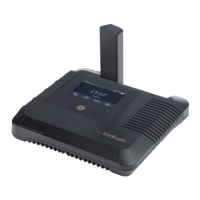
On the device: Lifting the flap marked SOS and pressing the SOS button for >1 second. The
unit will turn on if it is not already on and initiate SOS.
On the device: Press the SOS icon on the device’s LCD home screen, then press and hold the
onscreen SOS button for 3 seconds.
Via the app: Use the Iridium GO! exec application to raise an SOS by pressing the SOS icon on
the application home screen then press and hold the onscreen SOS button until SOS is
activated.
NOTE: When triggering an SOS, be sure the Iridium GO! exec device’s antenna is lifted, and
the unit has a full view of the sky, or ensure an external antenna is plugged in.
Troubleshooting
My Iridium GO! exec won’t turn on. What should I do?
Plug the Iridium GO! exec into a compliant charger to check that the battery is charged. If the
LED lights on, then press the power button or lift the antenna to turn the unit on. If the unit still
does not start, then contact your Authorized Iridium Service Partner.
Will I be locked out of my Iridium GO! exec if I enter my PIN incorrectly?
No. There are no restrictions on how many times you can attempt to enter your PIN.


 To Next Page
 Loading...