Upload notes from the receiver
1. To upload all the notes you have written outside the IRISNotes app, connect the receiver to the app
via Bluetooth as explained above.
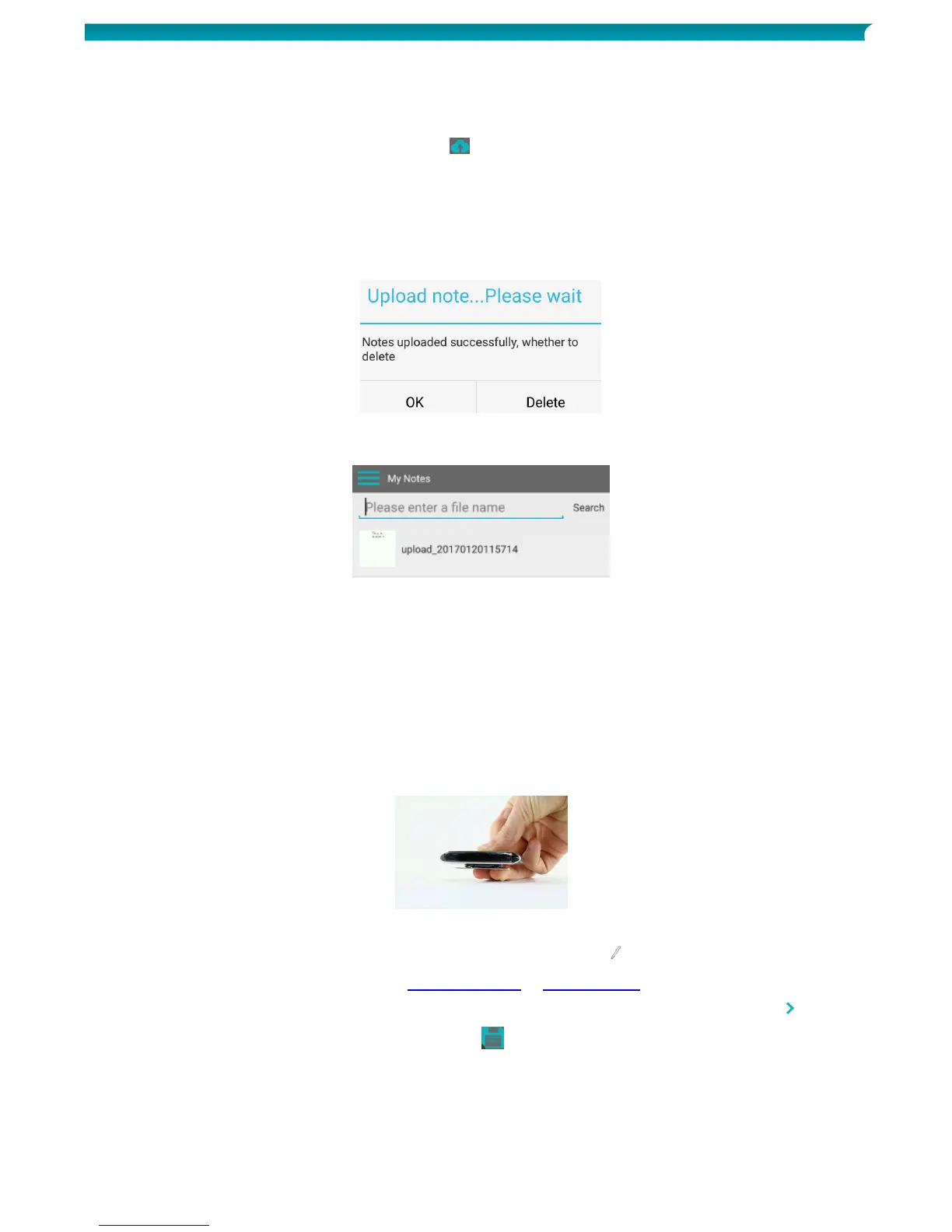
2. In the IRISNotes app tap the upload icon ( ). Uploading notes...please wait now appears at the
bottom of the screen.
3. Wait until the confirmation message is displayed:
Click Delete if you want to delete all notes from the receiver. The counter on the receiver
will be set to zero.
Click OK if you want to keep the notes on the receiver.
4. All your notes will be bundled into a single file in My Notes.
The file name starts with Upload_.
5. Tap the note to open it.
At the bottom of the screen a number indicates how many pages the note contains. E.g. 1/3. Swipe
the screen to view the other pages (if any).
Write notes inside the app
1. Connect the receiver to the app via Bluetooth as explained above.
2. Clip the receiver unit to a sheet of paper.
Tip: always place the unit at the top center of a page.
Important: make sure the receiver is disconnected from your computer.
3. Start writing a note.
While you write you should see the pen icon on the display .
For writing tips, see the section Writing Notes > Writing tips.
4. If the screen is full and you want to continue on the next page, tap the next page icon ( )
5. To save your current notes, tap the save icon ( ) and then enter a file name.
Note that a single note may contain multiple pages.


 To Next Page