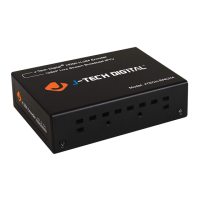
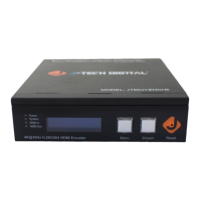
The J-TECH DIGITAL JTD-623 / JTECH-DE5NDI is an IPTV H265/264/NDI Decoder designed to convert various streaming protocols into HDMI, VGA, SID, or CVBS video signals. This versatility makes it suitable for a wide range of applications including education, monitoring, conferences, radio and television broadcasting, and entertainment.
Function Description:
The primary function of the JTECH-DE5NDI decoder is to receive video streams encoded with protocols such as RTSP, RTMP, HTTP, HLS, UDP, RTP, and SRT, and then output them as standard video signals. This allows for the display of network-based video content on traditional displays and monitors. The device supports decoding for H.265 and H.264 video codecs, as well as NDI (Network Device Interface) streams, offering broad compatibility with modern video sources.
Important Technical Specifications:
- Model: JTD-623 / JTECH-DE5NDI
- Input Protocols: RTMP, RTSP, HTTP TS, HTTP FLV, UDP, RTP, SRT
- Output Signals: HDMI, VGA, CVBS (Composite Video Broadcast Signal)
- IP Address (Default): 192.168.1.169
- Power Supply: 12V 2A
- Operating Temperature: -20°C to +60°C
- Humidity: <90%, non-condensed
- Output Format (Example): 1080P50 (configurable)
- CPU Usage: Typically 1%
- Memory Usage: Typically 30MB/253MB
- Network Status: Internet
Hardware Description (Front Panel):
The front panel of the decoder features several important ports and indicators:
- Reset Button: Used for factory resetting the device or rebooting.
- AUDIO Output Port: For audio output.
- CVBS Output Port: For composite video output.
- VGA Output Port: For VGA video output.
- HDMI Output Port: For high-definition multimedia interface video output.
- LAN Output Port: Ethernet port for network connectivity.
- Power Input Port: For connecting the 12V DC power adapter.
- Video Output Indicator: LED to show video output status.
- LAN Output Indicator: LED to show LAN activity.
- Power Input Indicator: LED to show power status.
Usage Features:
Accessing the Web Interface:
The decoder is managed through a web-based interface.
- Connection: Connect the power supply, an Ethernet cable from the decoder's LAN port to a network switch, and an HDMI/VGA/CVBS cable to a display.
- Login: Open a web browser and navigate to
http://192.168.1.169. The default username and password are admin.
- IP Configuration: If the network's IP scheme doesn't match the decoder's default, the decoder's IP can be changed. This involves connecting the decoder directly to a PC, assigning the PC a static IP (e.g., 192.168.1.11 with subnet mask 255.255.255.0), logging into the decoder's web interface, and then modifying the IP address under "System setting > Network setting".
Playing a Video:
- Address Setting: In the web interface, go to "Address setting → decode wndnum → channel1 addr" and input the RTSP/RTMP/HTTP/HLS/UDP/RTP/SRT URL of the video stream.
- Status Check: Verify the stream status by navigating to "Status → Channel1". A "normal" status indicates the video feed should be available.
Finding ONVIF Device RTSP URL:
- Navigation: Go to "Address setting → ONVIF device → ONVIF list" and select the desired item.
- Credentials: Input the ONVIF device's username (e.g.,
admin) and password (e.g., admin), then click "Get RTSP URL".
- URL Usage: Copy the obtained RTSP URL and paste it into the "channel1 addr" field under "Address setting" to play the video.
Finding NDI Device Play URL:
- Navigation: Go to "Address setting → NDI device → NDI list" and select the desired item.
- URL Usage: Copy the NDI URL (e.g.,
ndi:192.168.20.133 (Stream1)) and paste it into the "channel1 addr" field under "Address setting" to play the video.
Adjusting Channel Layout:
For multi-channel display, the layout can be configured:
- Navigation: Go to "Advance setting → Channel Layout".
- Configuration: Set up to 4 screens or other layouts. The "Layout Template" offers options like "Channel 4 Fullscreen" which helps in filling video channel areas. Each channel's display region (Left, Top, Width, Height) can be precisely adjusted.
Adjusting Crop Settings:
To fine-tune the video image:
- Navigation: Go to "Advance setting → Crop setting".
- Configuration: For "Decode Channel 1", set the 'X' and 'Y' fields for video coordinates, and 'W' and 'H' for cropping width and height.
OSD Settings (On-Screen Display):
To display text or pictures on the video output:
- Navigation: Go to "Advance setting → OSD setting".
- Configuration: Set the display text, picture, and scroll text for up to 4 distinct regions. Each region allows setting status (Enable/Disable), type (Text/Picture), diaphaneity, X/Y coordinates, text content, font size, background color, and font color.
Adjusting System Output Settings:
To configure the decoder's output parameters:
- Navigation: Go to "System setting → System output".
- Configuration:
- HD Output: Select resolution (e.g., 1080P50) and HDMI color (e.g., RGB444). An option to match input source is available.
- CVBS Output: Select format (e.g., PAL) and adjust display coordinates (Show X, Show Y, Show W, Show H).
- Video Parameters: Adjust brightness, contrast, hue, saturation, and volume.
- Rotation and Scaling: Configure video rotation (0-360 degrees) and scaling (Enable/Disable).
Maintenance Features:
Rebooting the Decoder:
- Web Interface: Go to "System setting → Reboot device" and click "reboot".
Factory Reset:
There are two methods to perform a factory reset:
- Web Interface: Go to "System setting → Reset device" and click "reset".
- Hardware Button: With the decoder powered on, press and hold the physical reset button (located on the front panel) for more than 8 seconds until all panel LED indicators turn off.
Warranty and Support:
- Standard Warranty: The product comes with a limited warranty of "Parts (1) Year, Labor (90) Days" from the date of original purchase. This covers defects in materials or workmanship.
- Mail-In Service: For warranty service, the unit should be carefully packed, prepaid, and insured, preferably in the original carton. A letter detailing the complaint and contact information must be included.
- Warranty Exclusions: The warranty does not cover normal wear and tear, cosmetic damage, damages from shipment, failures caused by non-warrantor supplied products, accidents, misuse, abuse, neglect, mishandling, misapplication, alteration, faulty installation, mis-adjustments, improper maintenance, power surges, lightning damage, modifications, service by unauthorized personnel, or acts of God.
- Extended Warranty: J-Tech Digital offers a 6-month extended warranty upon registration of supported products. This extends the total warranty period to 18 months from the purchase date. To claim, registration must occur within 30 days of purchase at www.jtechdigital.com.
Common Issues:
If there is no signal output, users should check:
- The channel status in the decoder's "Status" tab to ensure it is "normal".
- The decoding address to ensure it is correct.
- That the decoder's network can access the specified address.
The JTECH-DE5NDI decoder is a robust and flexible solution for integrating network video streams into various display environments, offering comprehensive control and configuration options through its web interface.

 Need help?
 General

 To Next Page