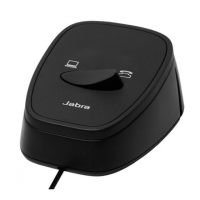
Compatibility selector
Jabra GN9350e
10
Electronic Hook Switch (EHS) Solutions for Siemens
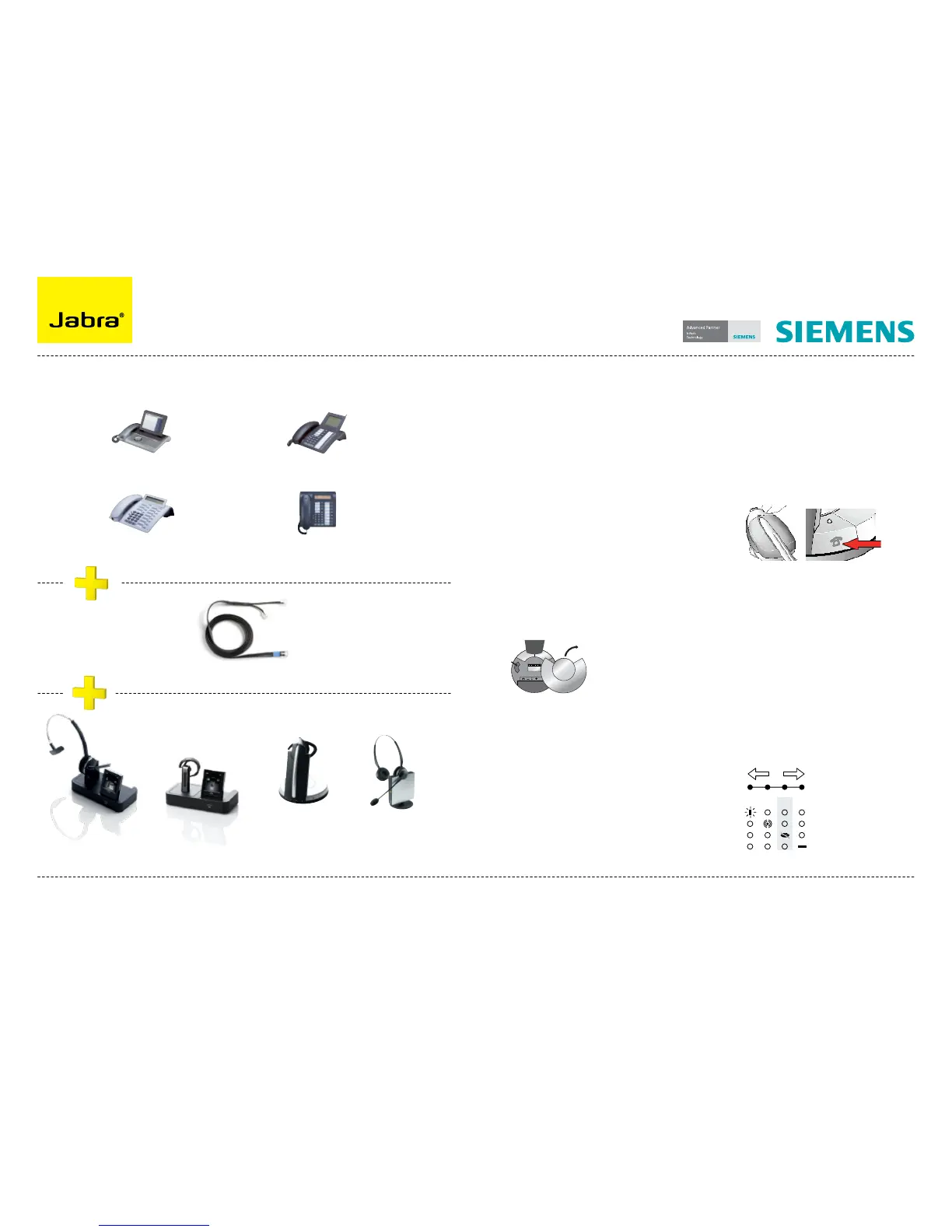
SUPPORTED SIEMENS IP PHONES SET UP INFORMATION
To connect your Siemens phone and Jabra headset with the DHSG cable, just follow these
simple steps:
Setting up the Siemens IP phone
Plug the single end of the Y cable in the headset socket on the phone’s acoustic adaptor1.
Connect the lawr RJ9 in the normal phone socket on the headset base2.
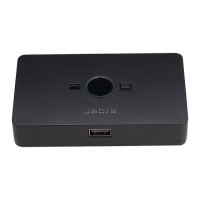
Jabra LINK™ 14201-10 DHSG Adapter
Regional sales contacts:
Americas: Bill Orlansky, borlansky@gn.com
EMEA: Norbert Lohwieser, nlohwieser@gn.com
APAC: Mike Powrie, mpowrie@gn.com
For more information visit www.jabra.com/siemens
SEE THE LAST PAGE FOR ORDER INFO
Setting up Jabra PRO 9400 and Jabra GO
6400 - follow the guide on page 11.
Setting up Jabra GN9350e series
Open up the cover on the base unit. 1.
On the LCD display, navigate to the 2.
handset picture.
Navigate to the DHSG mode and select 3.
it by pressing the OK button.
Set Compatibility selector in position “A”4.
.
Setting up Jabra GN9330e EHS
Place headset on base station.1.
Push simultaneously 5 sec on the 2 2.
buttons (base station and headset
– see illustrations next column)
LED on headset starts to blink rapidly 3.
Choose EHS mode with volume control 4.
on headset. LEDs on base indicates
selected mode: LED 2: DHSG mode
After setting wait a few seconds. 5.
When LED on headset stops blinking,
start using headset.
Setting up Jabra GN9120/GN9125 EHS
Set compatibility selector (1.
Telephone
Termination Switch Wheel
)
in position “A”
Set the base unit to the DHSG mode 2.
by keeping the headset in the base
and hold the volume +/- buttons on
the headset for 6 seconds until the red
light on the base flashes rapidly.
Scroll through the four different 3.
settings using +/- and set to the lips
icon. Leave for 15 seconds until the
unit has displayed the confirmation
flash sequence and it is ready to go!



 To Next Page