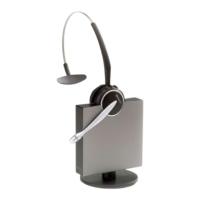
The Jabra GN9120 Duo Flex NC Microphone is a professional headset solution designed for seamless integration with specific Aastra IP phones, enabling enhanced communication and remote call control capabilities. This device is primarily intended for users of Aastra 6753i, 6755i, and 6757i series phones, including their CT variants, running firmware version 2.5.1.2000 or higher.
Function Description:
The Jabra GN9120 Duo Flex NC Microphone, when paired with the Jabra Link 14201-10 and the Aastra DHSG cable kit, provides Electronic Hook Switch (EHS) functionality. EHS allows users to answer and end calls directly from the headset, even when away from their desk, offering greater mobility and productivity. The "Duo Flex" aspect suggests a flexible design, likely referring to the microphone boom or wearing style, while "NC" indicates Noise Cancelling, a crucial feature for clear communication in busy office environments. The system facilitates a hands-free communication experience, integrating the headset's controls with the phone's call management system.
Important Technical Specifications:
The core components for this setup include:
- Jabra GN9120 EHS or GN9125 EHS: The primary headset unit, featuring noise-cancelling microphone technology.
- Jabra Link 14201-10: An adapter cable essential for establishing the EHS connection between the headset base and the Aastra phone.
- Aastra DHSG cable kit: A proprietary cable kit from Aastra, specifically designed for DHSG (Digital Headset Group) compatibility with their phones. This kit includes a split cable with RJ10 and RJ45 plugs for phone connection, and a 1-sided end for the RJ45 adapter.
- Compatible Aastra Phones: Aastra 53i, 55i, 57i, 57iCT, 6753i, 6755i, 6757i, 6757i CT.
- Minimum Phone Firmware: Version 2.5.1.2000 or higher is required for proper functionality.
Connection Process:
The connection involves several steps to ensure proper EHS functionality:
- Aastra DHSG Cable Connection to Phone:
- The split end of the Aastra DHSG cable is connected to the Aastra phone.
- The RJ10 plug (marked green) is inserted into the "headset" socket of the phone.
- The RJ45 plug (marked yellow) is inserted into the socket designated for the expansion module.
- Jabra Link 14201-10 Connection:
- The 1-sided end of the Jabra Link 14201-10 cable (marked blue) is inserted into the free socket of an Aastra RJ45-RJ45 adapter.
- Jabra Base Connection:
- The RJ10 plug from the Jabra Link 14201-10 setup is inserted into the socket on the GN9350 base marked with the "phone" symbol.
- The RJ45 plug from the Jabra Link 14201-10 setup is inserted into the "AUX" socket on the GN9350 base.
Usage Features:
The Jabra GN9120 system offers several usage features, primarily centered around EHS setup and audio customization:
EHS Setup:
The headset must be configured for DHSG EHS. This is verified and set up as follows:
- Placement: Place the headset on its base.
- Activation: Simultaneously press the PLUS and MINUS buttons on the headset for 6 seconds. The online display on the headset will begin to flash, indicating entry into EHS setup mode.
- EHS Display: The base will then display the currently installed EHS type using its indicator lights:
- "MSH" is indicated by the online light.
- "RHL" is indicated by the pulsating light.
- "DHSG" is indicated by the MUTE light.
- "AEI" is indicated by the battery display.
- Selection: Use the PLUS or MINUS buttons to cycle through different EHS types.
- Confirmation: After approximately 10 seconds, the phone automatically switches back to charge mode, confirming the successful installation of the selected EHS type.
Base Setup:
The phone set-up switch on the Jabra base must be set to "A" for proper operation.
Microphone Level Setup:
To optimize audio output for the listener:
- Initiate Call: Make a call using the headset.
- Enter Adjustment Mode: Simultaneously press the PLUS and MINUS buttons on the headset. A signal tone will sound, indicating entry into microphone volume adjustment mode.
- Adjust Volume: Use the PLUS button to increase the microphone volume or the MINUS button to decrease it.
- Save Settings: After approximately 10 seconds, a low signal tone will sound in the headset, confirming that the settings have been saved.
Phone Setup (Aastra Specific):
- DHSG Activation (Firmware 2.5.1.2000): For phones running firmware version 2.5.1.2000, the DHSG mode is deactivated by default. It must be activated via the
Aastra.cfg or mac.cfg file using the command dhsg: 1.
- DHSG Activation (Firmware 2.5.2 and higher): For phones with firmware version 2.5.2 or higher, DHSG can be activated through the phone's menu:
Options > Default settings > Audio settings > DHSG > On.
- Audio Mode Setting: The phone's audio mode must be set to "headset/speaker" for optimal performance. This is typically found under:
Options > Default settings > Audio settings > Audio mode > Heads./Loudsp..
Limitations:
It is important to note that Remote Call Control, when combined with an expansion button field on the Aastra phone, is not supported with this setup.
Maintenance Features:
While the manual does not explicitly detail maintenance features, the design implies standard care for electronic devices:
- Charging: The headset charges when placed on its base, indicated by the base's display.
- Firmware Updates: Although not directly mentioned for the headset, the requirement for specific phone firmware versions suggests that keeping both the phone and potentially the headset base firmware updated is crucial for continued compatibility and performance.
- Cable Management: Proper connection and care of the various cables (Aastra DHSG cable kit, Jabra Link 14201-10) are essential to prevent damage and ensure reliable operation.
- Cleaning: As with most headsets, regular cleaning of ear cushions and microphone components would contribute to hygiene and longevity, though specific instructions are not provided in this document.
In summary, the Jabra GN9120 Duo Flex NC Microphone system provides a robust and integrated hands-free communication solution for compatible Aastra IP phones, leveraging EHS technology for enhanced user mobility and call management. Its setup involves careful cabling and configuration, but once established, it offers clear audio with noise cancellation and convenient remote call control.

 Need help?
 General

 To Next Page